Security Settings
Manage your account security, including password changes, email change, sign-out of all sessions, and account deletion.
Security Screen
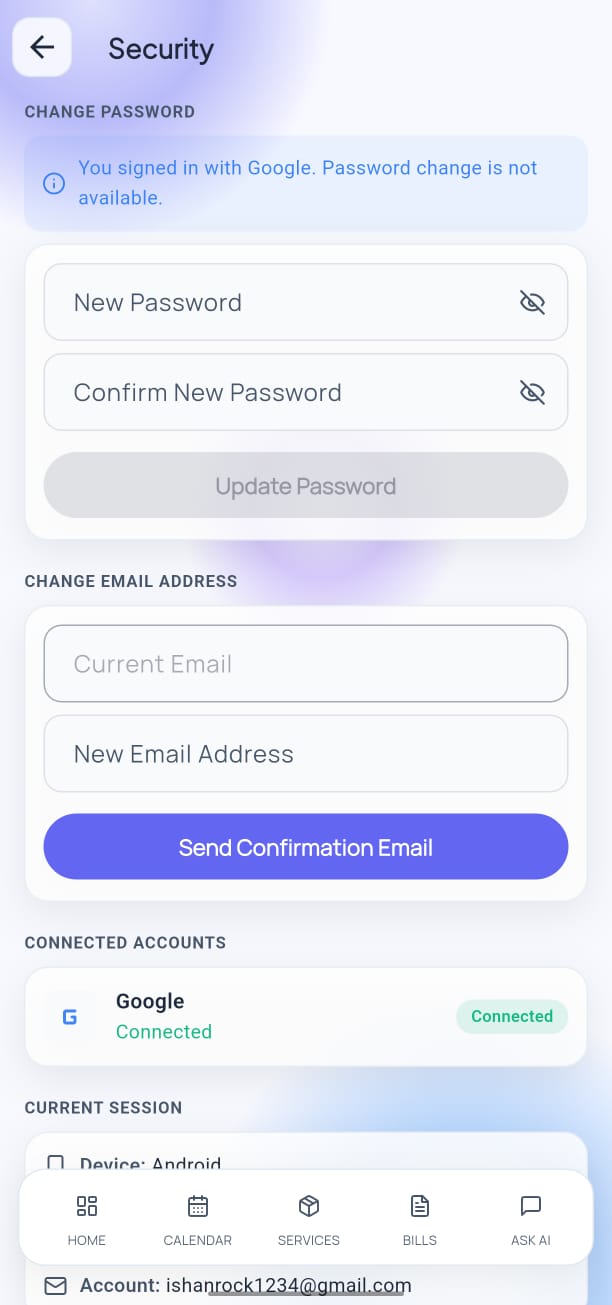
Open Settings → Security to access all security options.
Changing Your Password
- Tap Change Password.
- Enter your current password.
- Enter and confirm your new password (minimum 8 characters).
- Tap Update Password.
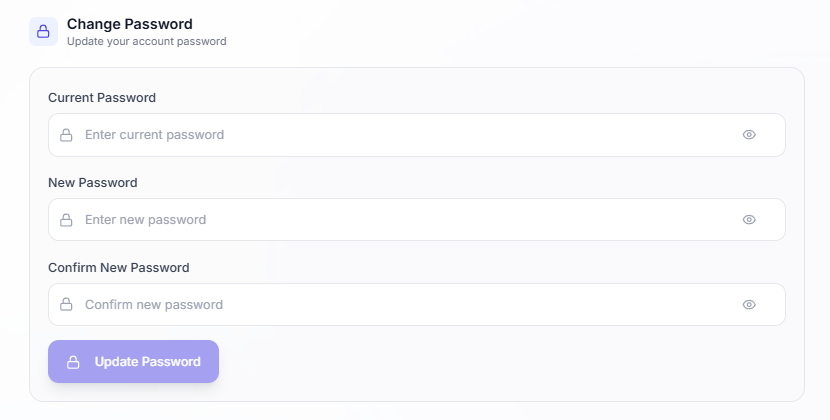
Password Changed Email
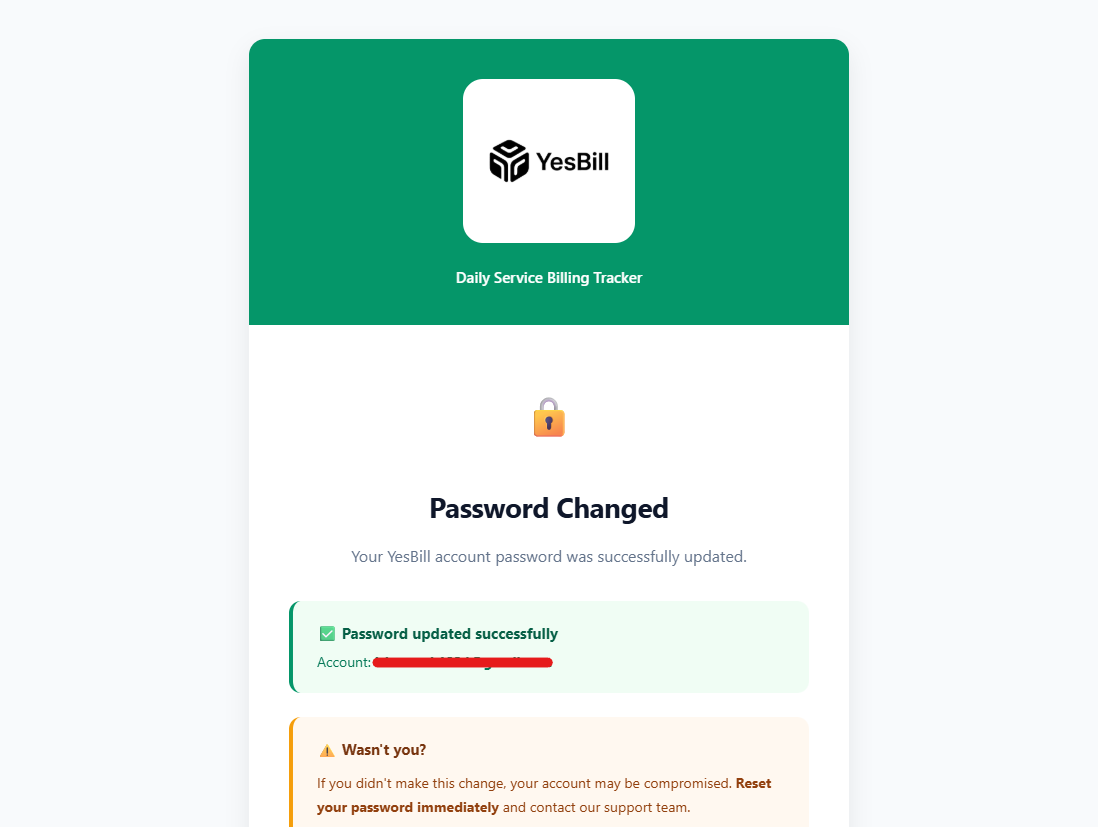
After a successful password change, YesBill sends a confirmation email to your registered address. If you didn't request this change, contact support immediately.
Current Session
The Security screen shows your current active session details:
- Last sign-in time and date
- Device type and OS
- IP address (approximate location)
This helps you verify that no unauthorised access has occurred.
Delete Account
Account deletion is permanent and cannot be undone. All your data — services, bills, calendar records, and AI conversations — will be erased immediately.
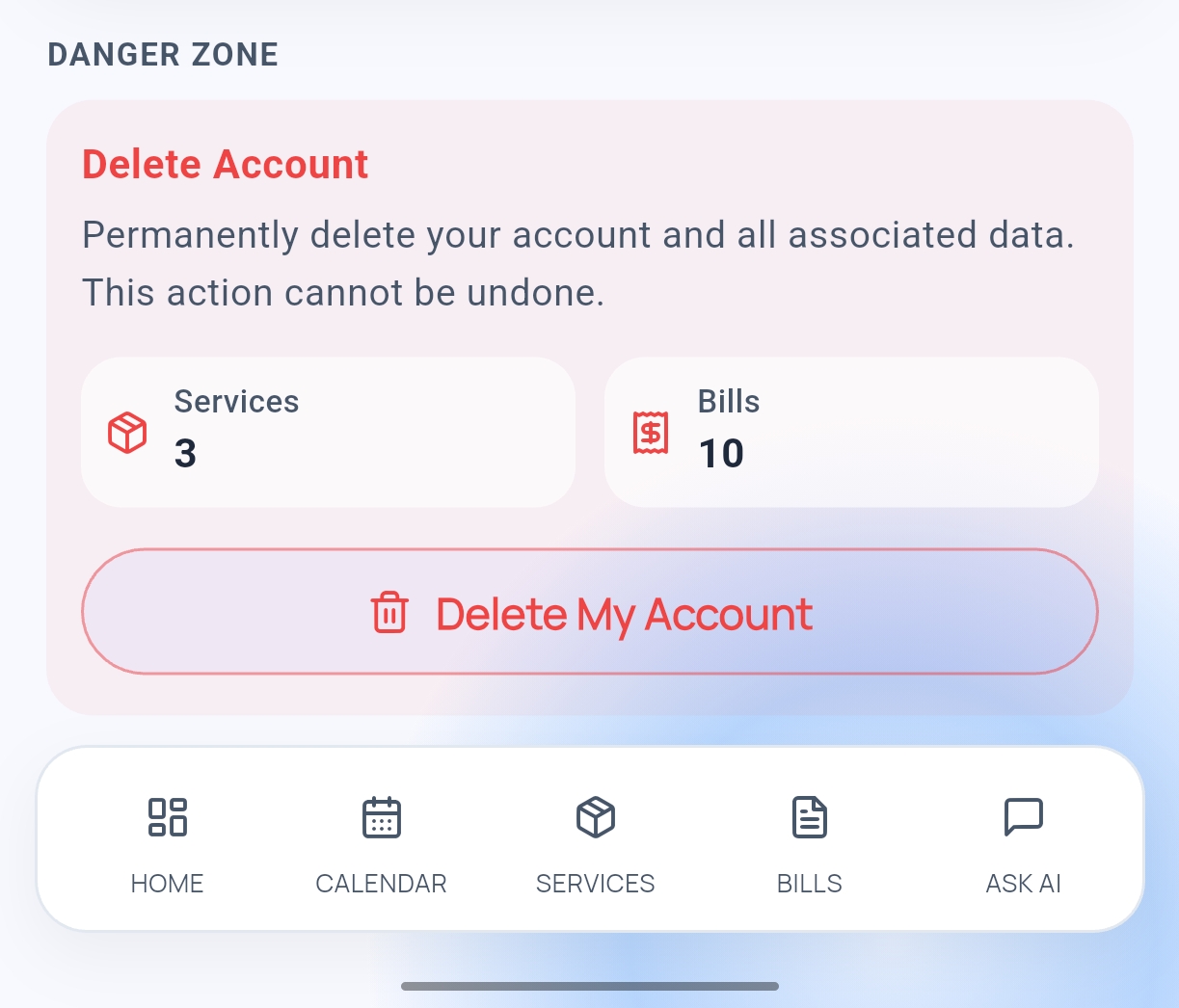
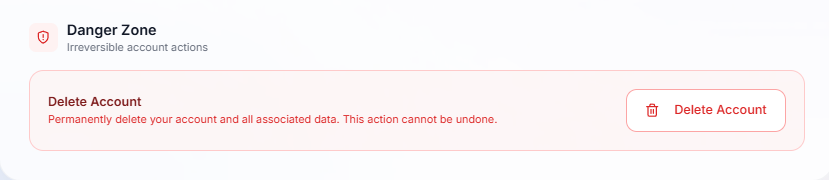
- Tap Delete Account at the bottom of the Security screen.
- Read the full warning about what will be permanently deleted.
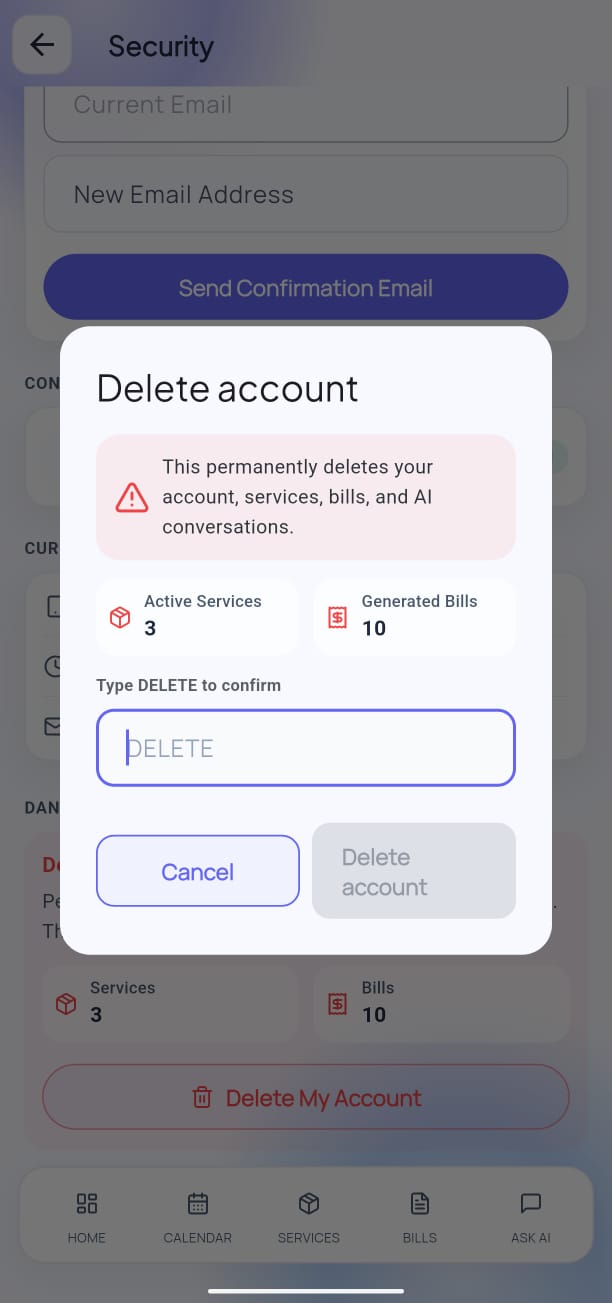
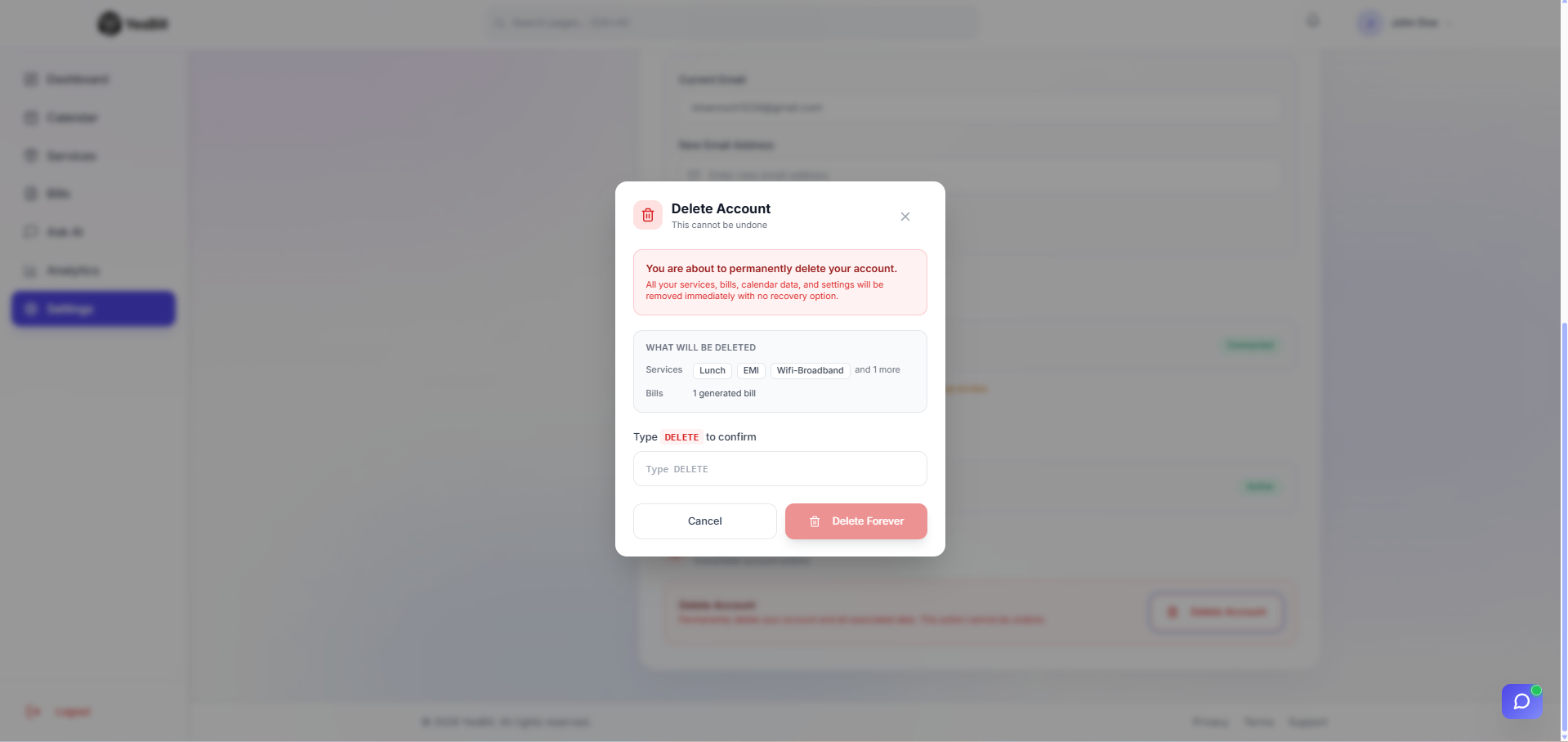
- Type your email address in the confirmation field to prove intent.
- Tap Permanently Delete Account.
Your account is deleted immediately and you are signed out.
Account Deletion Email
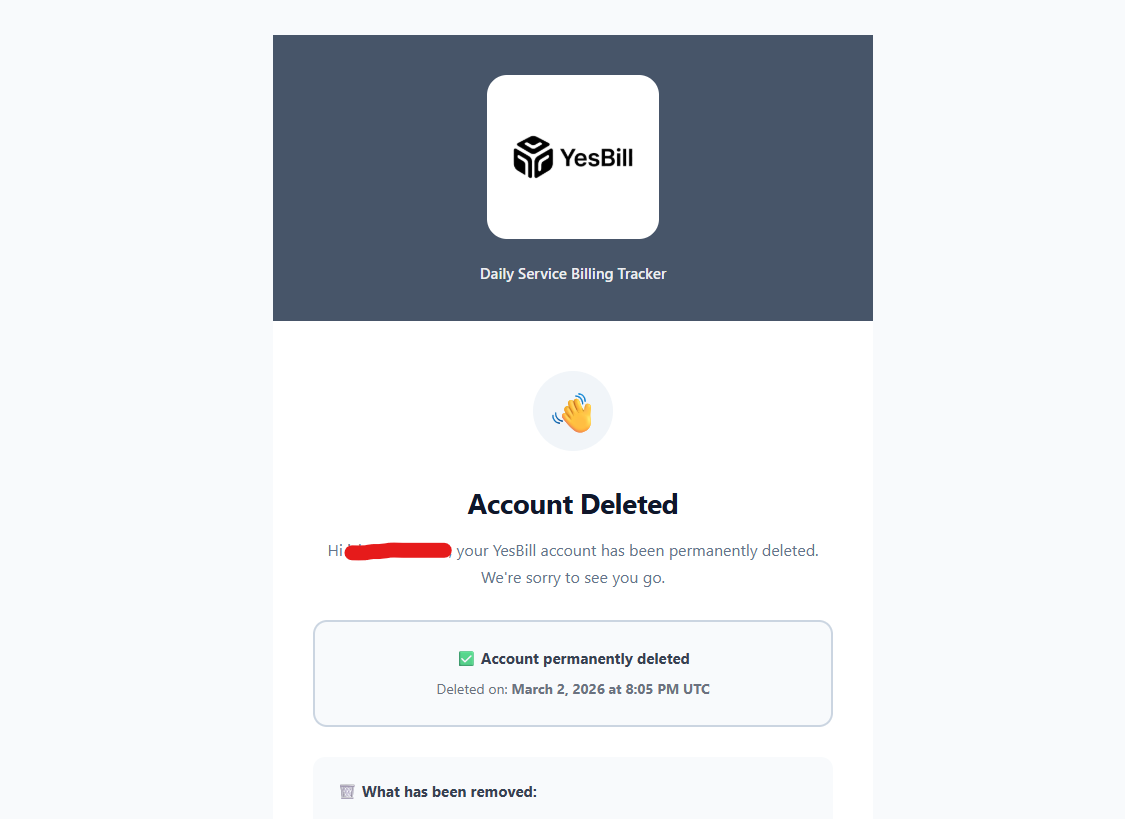
A final confirmation email is sent to your address once deletion is complete.
Account Security Tips
- Use a strong, unique password (at least 12 characters with symbols)
- Sign out on devices you don't own — see Settings → Sign Out
- Review your active session periodically from Security settings
- Never share your API keys or password with anyone