Creating an Account
YesBill uses secure, encrypted authentication. You can sign up with your email and password, or use Google Sign-In for a faster setup.
Sign Up
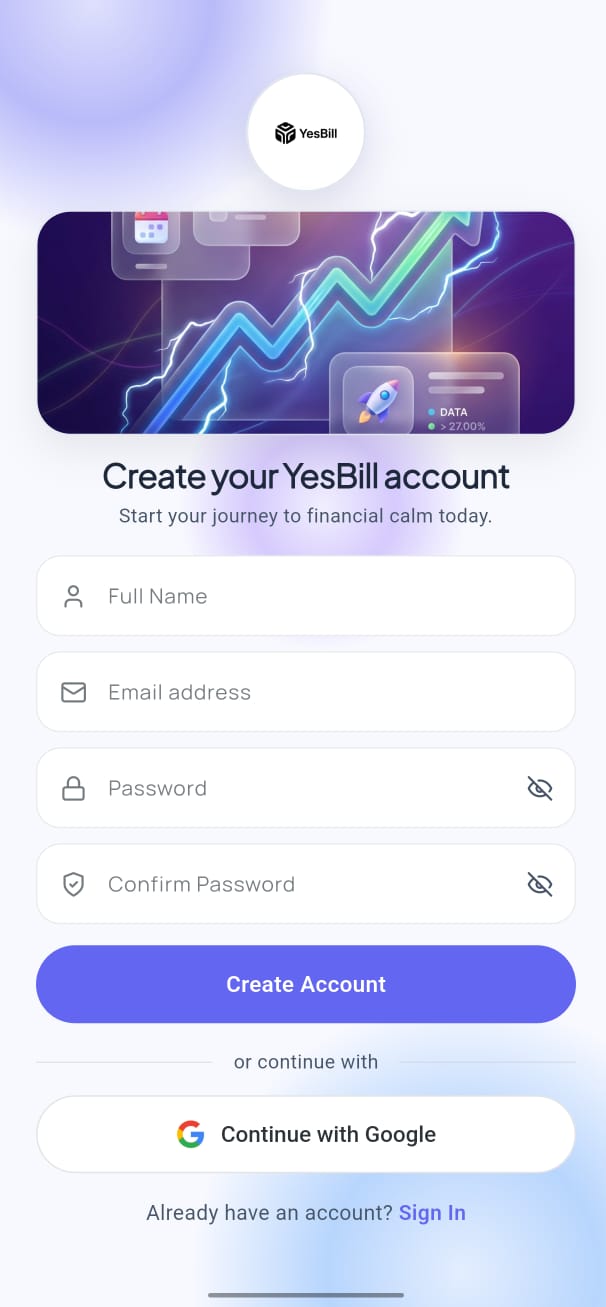
- Open the YesBill app and tap Create Account on the login screen.
- Enter your full name, email address, and a strong password.
- Password must be at least 8 characters with uppercase, lowercase, and a number.
- Tap Sign Up.
- Check your inbox for a confirmation email from YesBill.
Confirmation Email
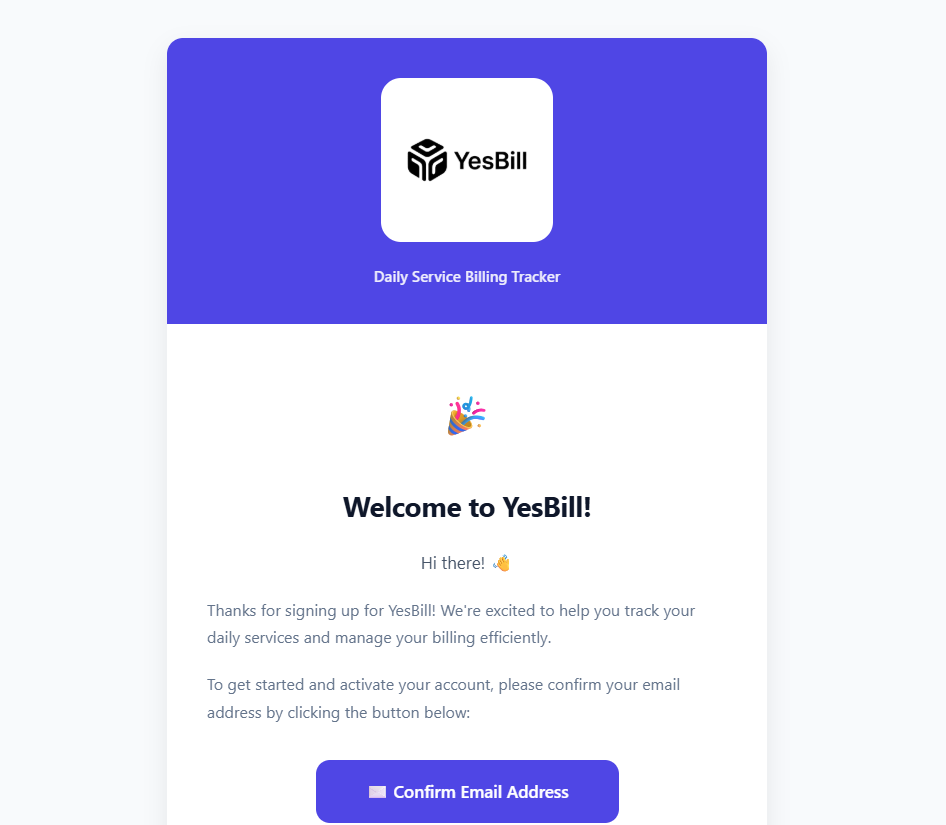
After signing up, YesBill sends a confirmation email like the one above. Tap Confirm your email to activate your account. Check your spam folder if it doesn't arrive within a few minutes.
You must verify your email before you can sign in.
Sign In
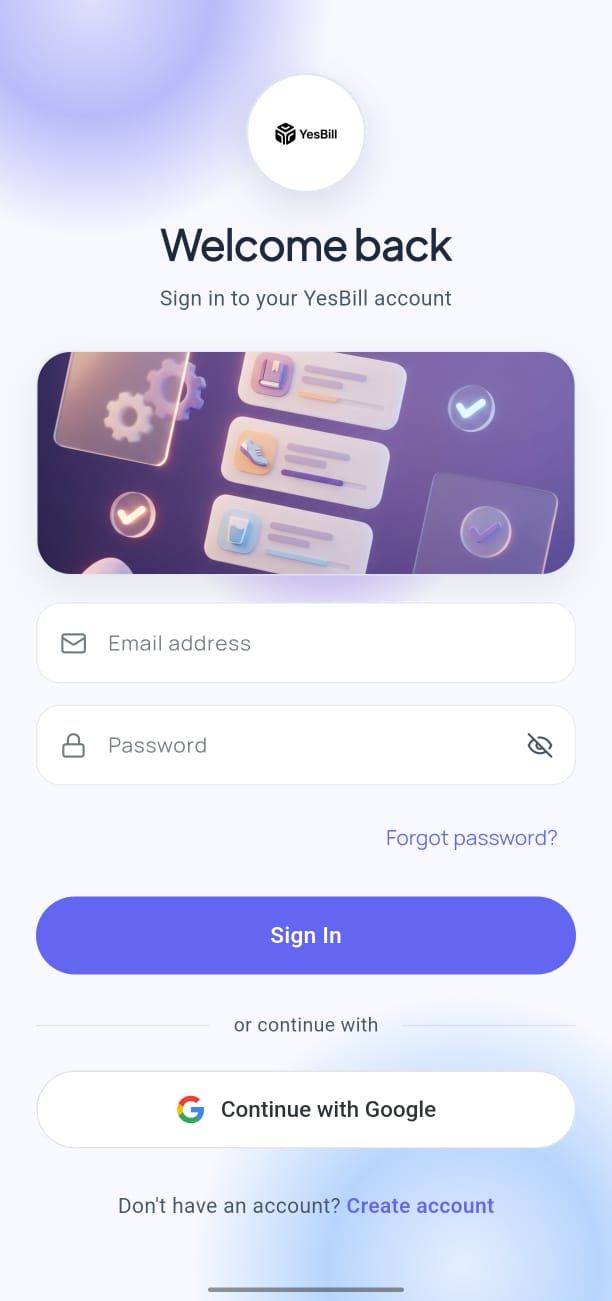
- Open YesBill and enter your registered email and password.
- Tap Sign In.
- Alternatively, tap Continue with Google for one-tap sign-in.
Forgot Password
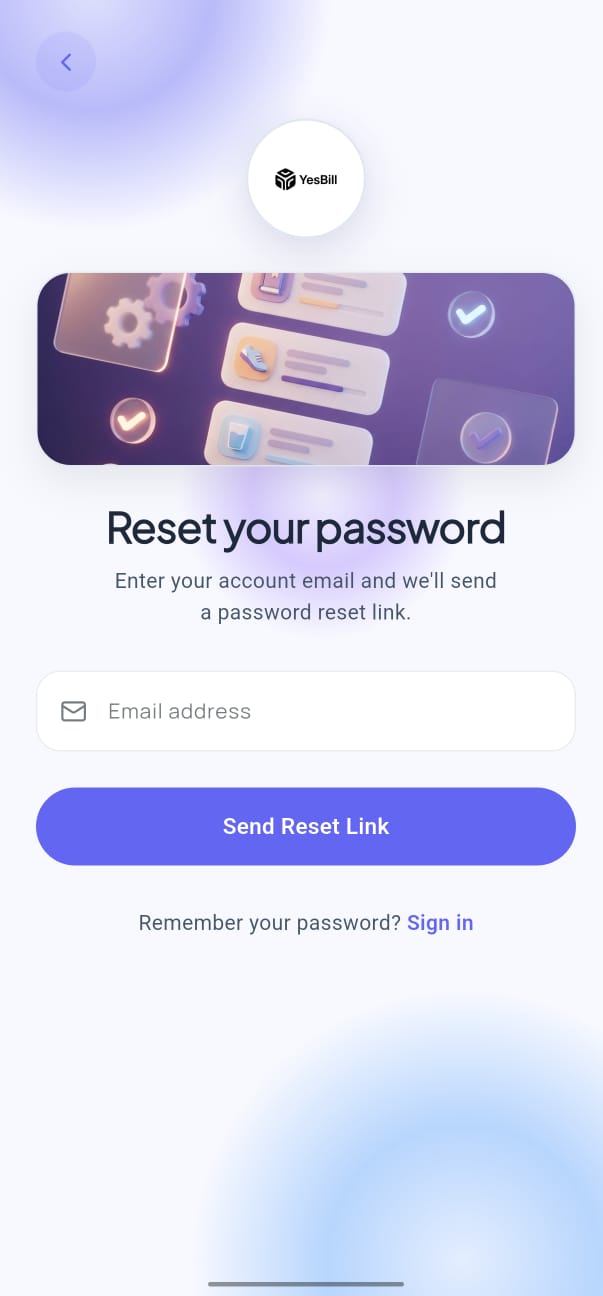
Step 1 — Enter Your Email
On the login screen, tap Forgot Password? Enter your registered email address and tap Send Reset Link.
Step 2 — Check Your Inbox
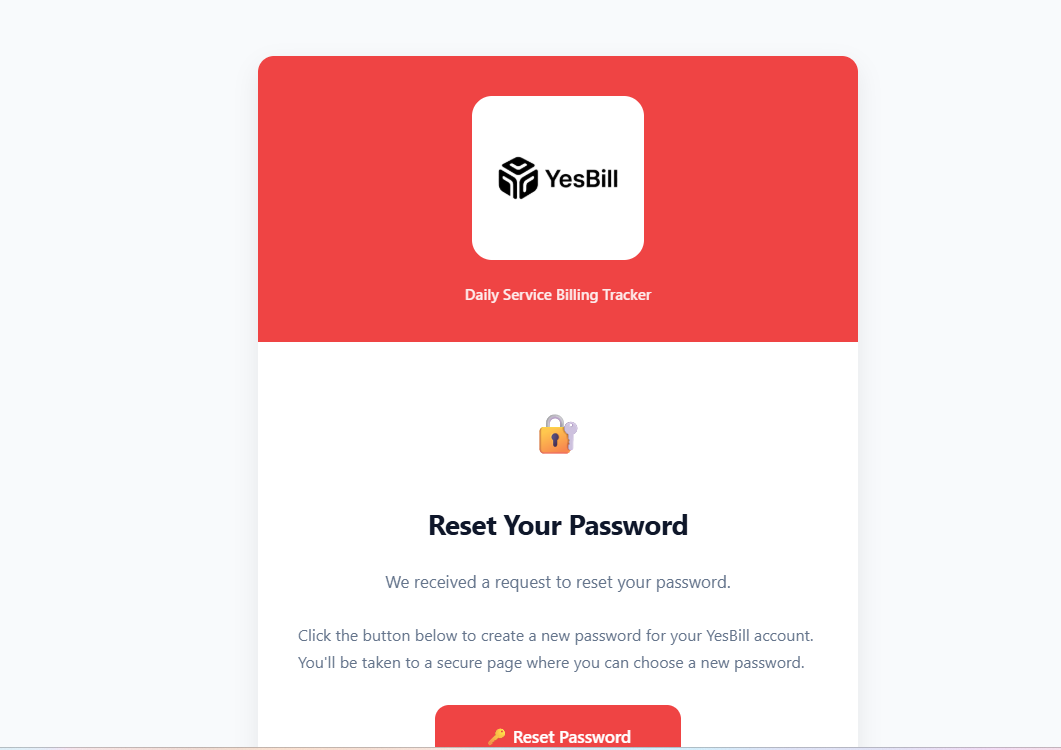
Open the password reset email and tap Reset Password. The link is valid for 1 hour — check your spam folder if it doesn't arrive within a few minutes.
Step 3 — Set a New Password
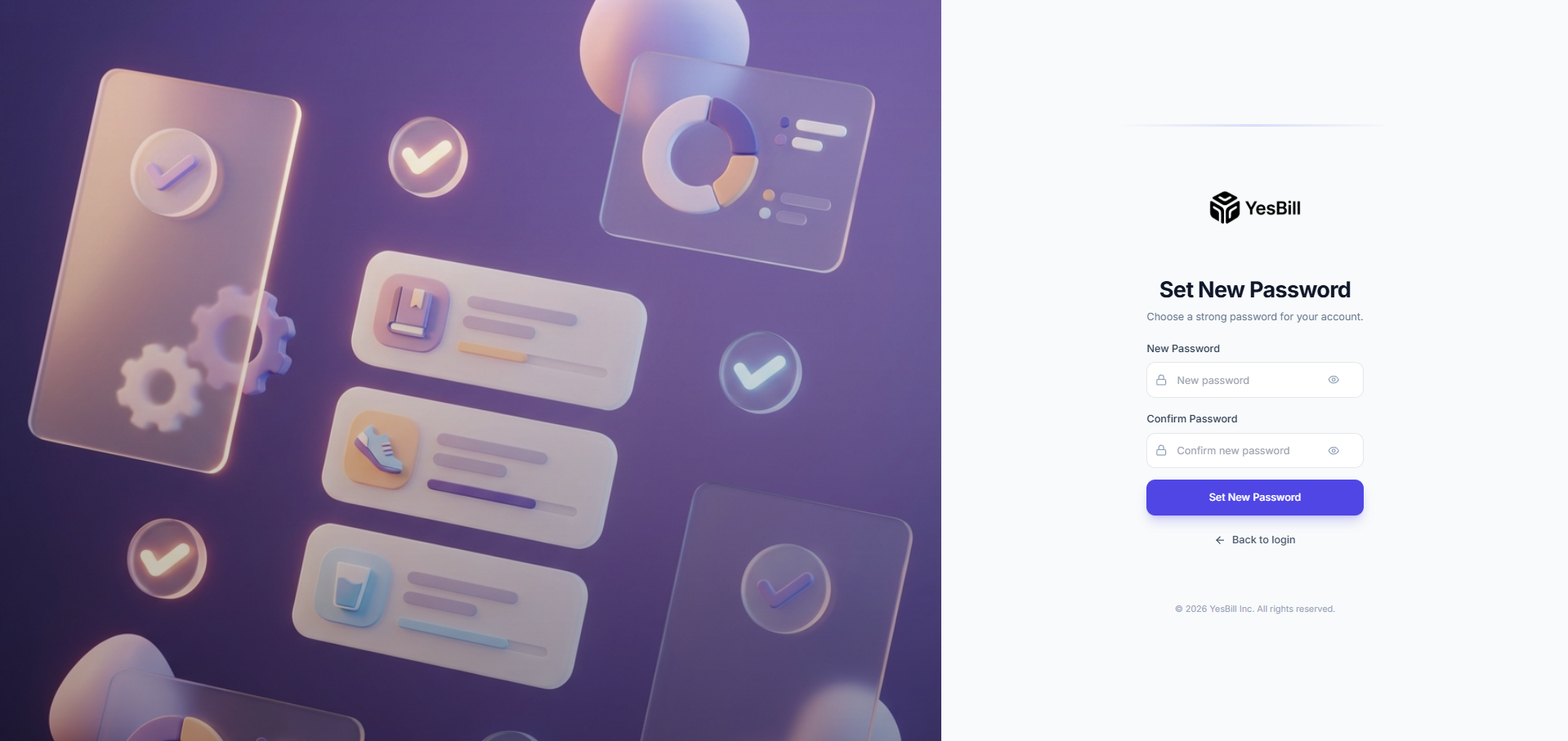
Enter your new password (minimum 8 characters) and confirm it, then tap Update Password. Return to the app and sign in with your new credentials.
Security Notes
- YesBill never stores your password in plain text — passwords are hashed with bcrypt.
- All data is encrypted in transit using HTTPS.
- Your session stays active until you explicitly sign out from Settings.
- API keys are stored securely on-device using Flutter Secure Storage and are never sent to YesBill's servers.