Managing Services
Services are the core of YesBill. Each service represents a recurring household expense you want to track.
Services List
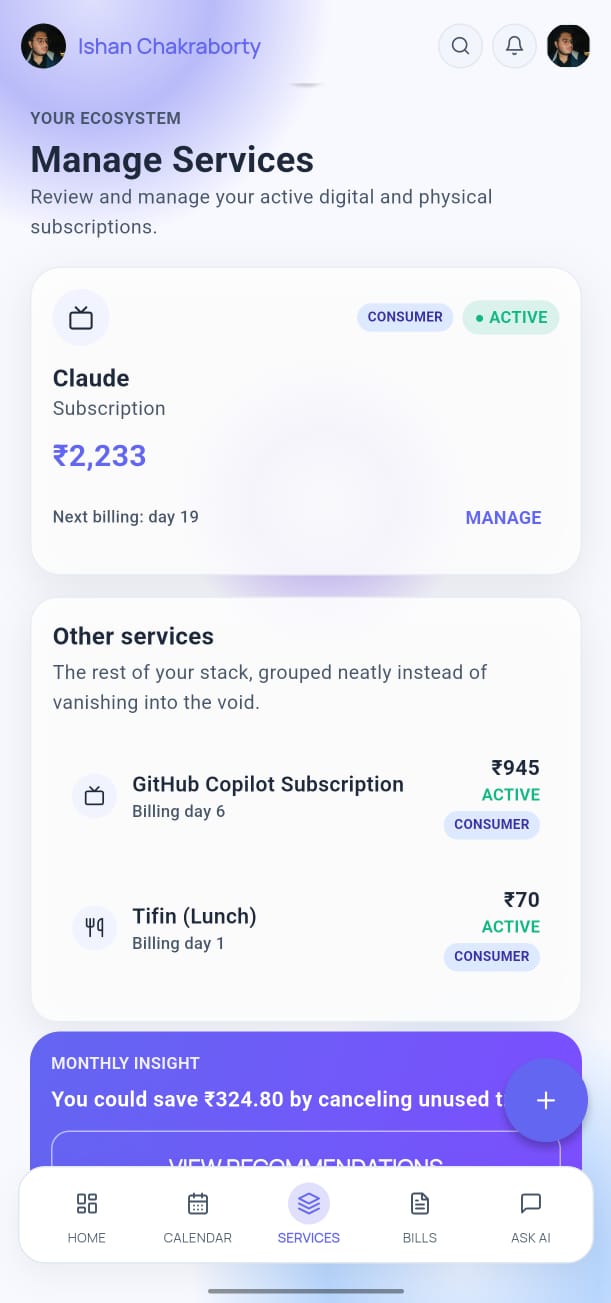
The Services tab shows all your active services. Each card displays:
- Service name and type
- Current monthly rate
- Quick-action buttons (edit, view details)
Adding a Service
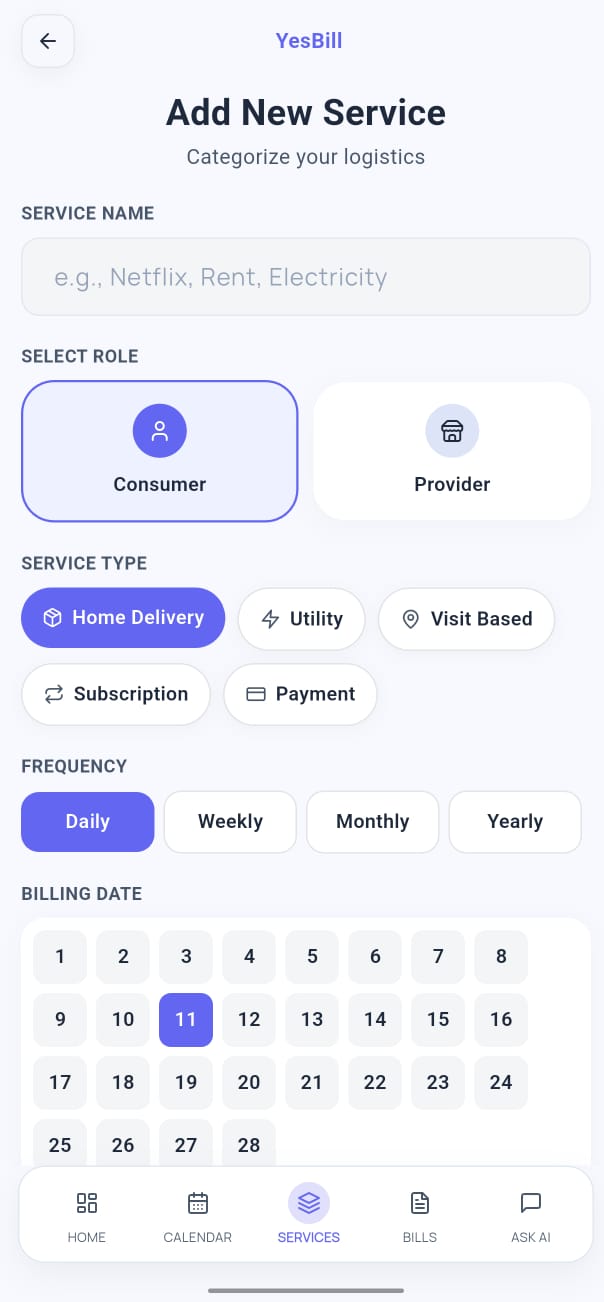
- Tap Services in the bottom navigation bar.
- Tap the + button (bottom-right).
- Fill in the service details:
- Name — e.g. "Morning Milk"
- Type — Home Delivery, Visit-based, Utility, Subscription, or Payment
- Rate — cost per unit (litre, visit, month, etc.)
- Start Date — when billing begins
- Tap Save.
Service Types
| Type | How It's Billed |
|---|---|
| Home Delivery | Per delivery marked in the calendar |
| Visit-based | Per visit marked in the calendar |
| Utility | Fixed monthly amount (e.g. internet, DTH) |
| Subscription | Fixed recurring charge (e.g. streaming) |
| Payment | Fixed recurring amount (e.g. loan EMI, credit card due) |
Editing a Service
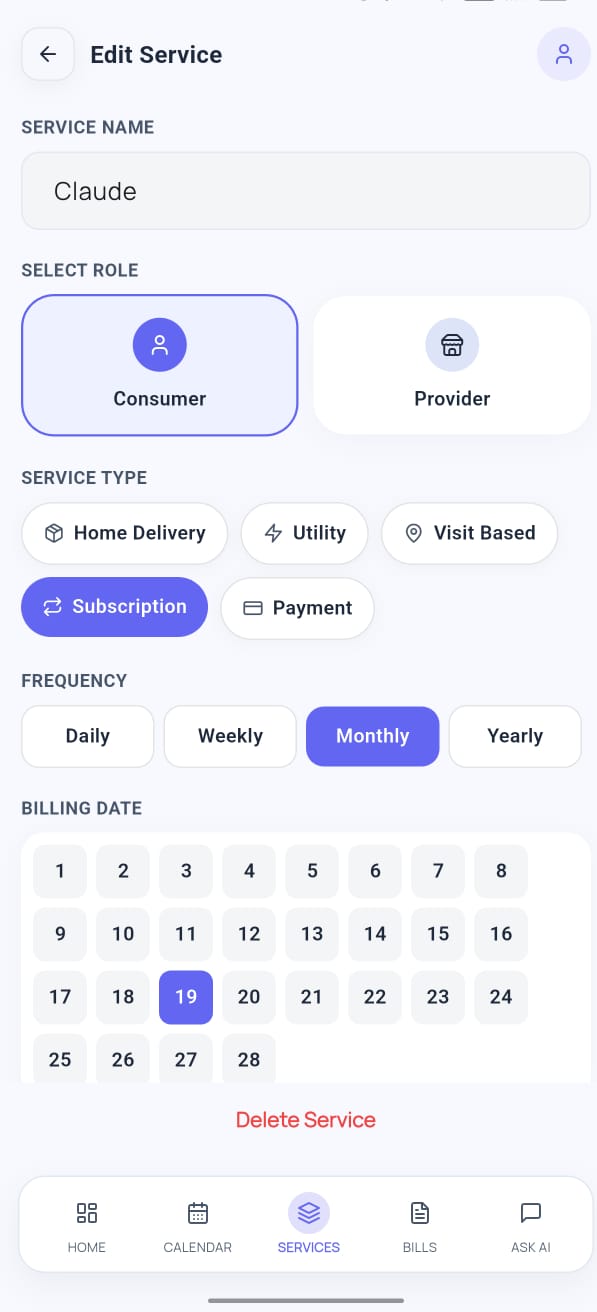
- Tap the edit icon on any service card, or tap the service to open its details then tap Edit.
- Update the fields you want to change.
- Tap Save.
caution
Changing a service's rate takes effect from the current billing cycle. Previous bills are not recalculated.
Service Details
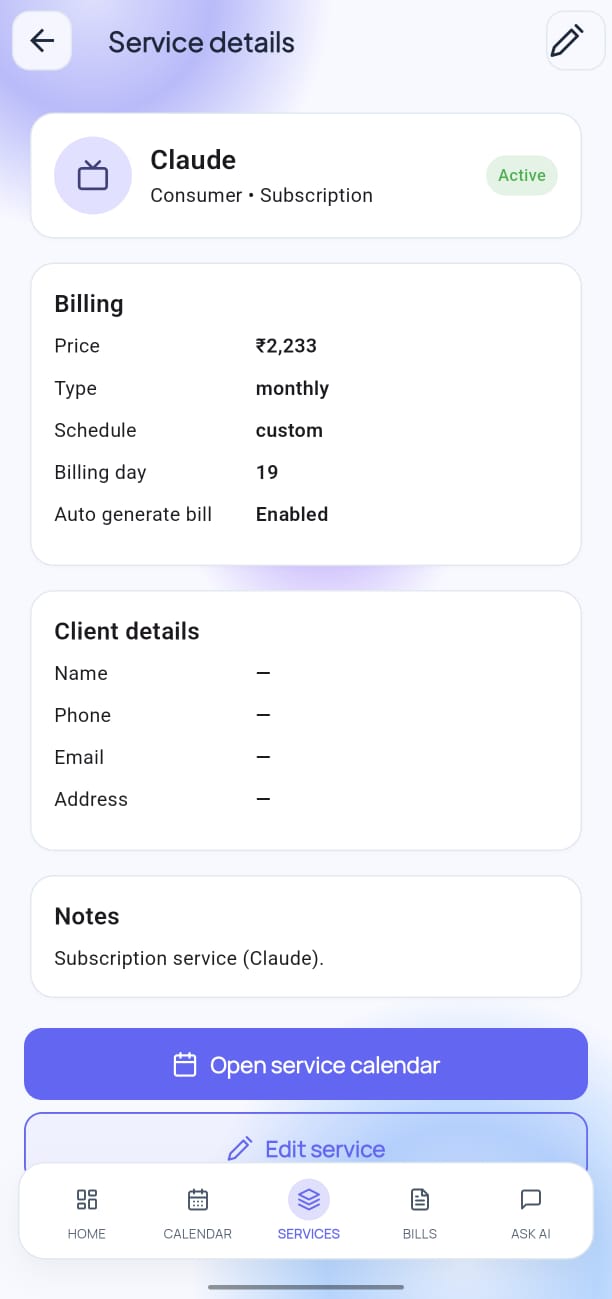
Tap any service to see its full details:
- Delivery/visit history
- Monthly billing history
- Amount outstanding
Deleting a Service
- Open the service details by tapping the service card.
- Scroll down and tap Delete Service.
- Confirm the deletion in the popup.
warning
Deleting a service removes all its calendar entries and bill history.