Profile Settings
Manage your name, email address, phone number, timezone, and profile photo.
Editing Your Profile
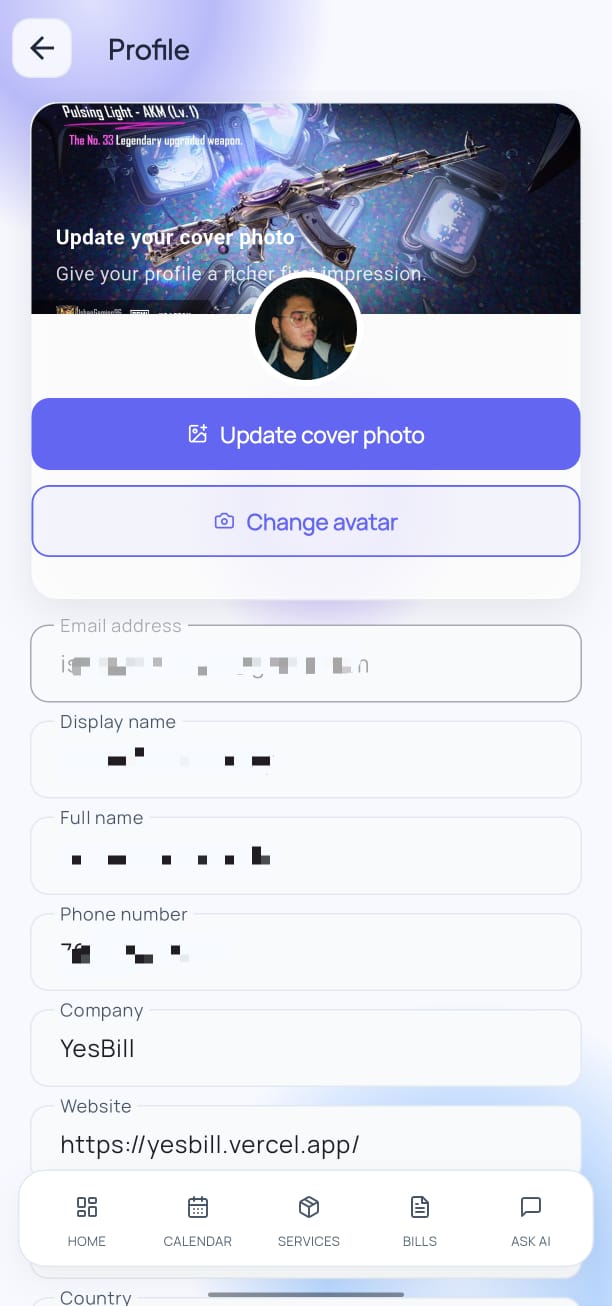
- Open Settings and tap Profile.
- Tap Edit Profile.
- Update any of the following:
- Display Name — how your name appears in the app
- Full Name — used in emails and bill headers
- Phone Number — optional, for WhatsApp notifications
- Country & Timezone — affects billing dates and calendar display
- Profile Photo — tap the avatar to upload a new photo from your gallery
- Tap Save Changes.
info
Your country and timezone settings affect how billing months and due dates are displayed. Set this correctly to avoid off-by-one-day issues.
Changing Your Email
If you update your email address:
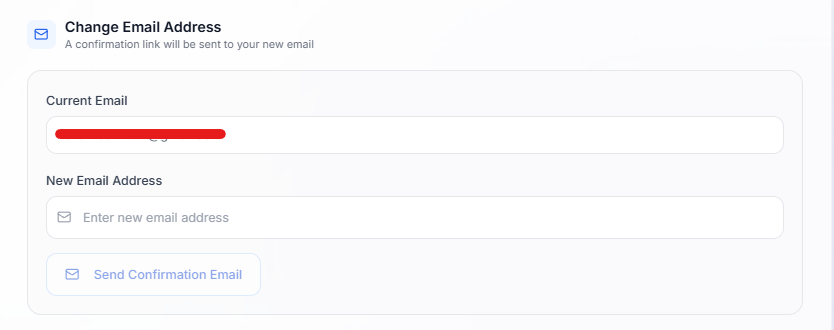
- Tap Edit Profile → change the Email Address field.
- Tap Save Changes.
- A verification email is sent to the new address.
Email Verification
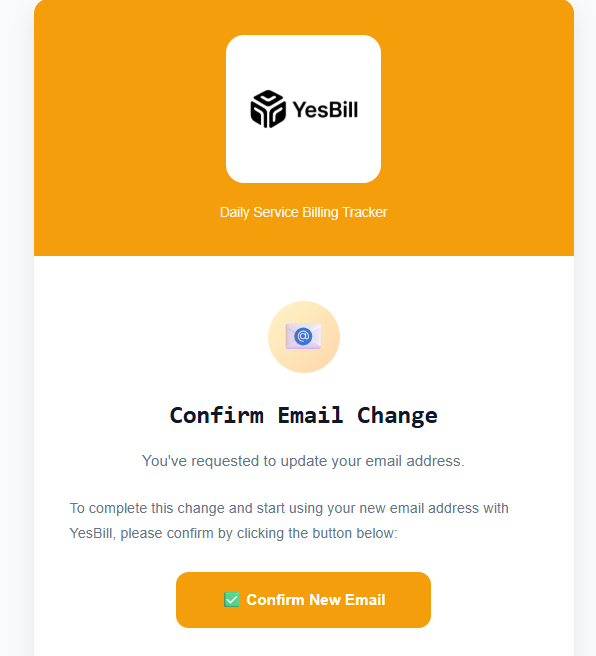
Tap the verification link in the email to confirm your new address.
Email Change Notification
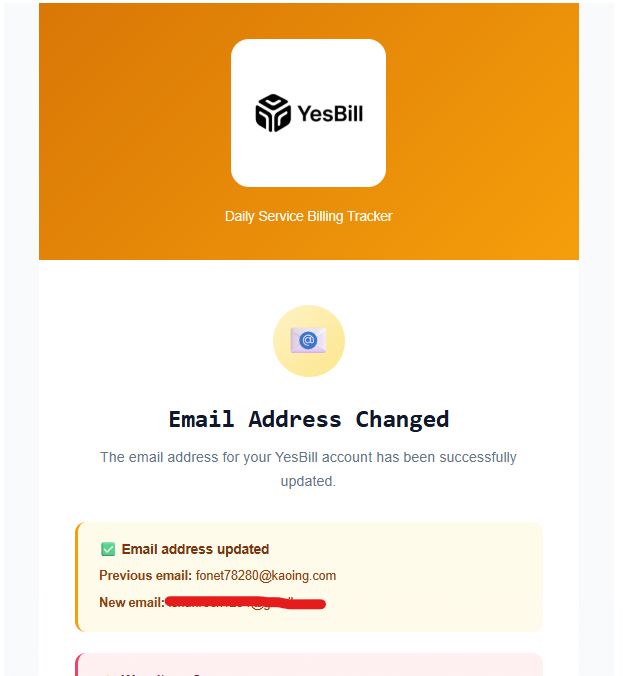
Once verified, a notification is also sent to your old email address confirming the change. If you didn't request this, contact support immediately.
info
Your old email continues to work for sign-in until you verify the new one.
Changing Your Password
- Go to Settings → Security.
- Tap Change Password.
- Enter your current password, then enter and confirm your new password.
- Tap Update Password.
A confirmation email will be sent to your registered address after a successful password change.