Understanding Bills
The Bills tab shows your auto-generated monthly bills for every service you track.
Bills List
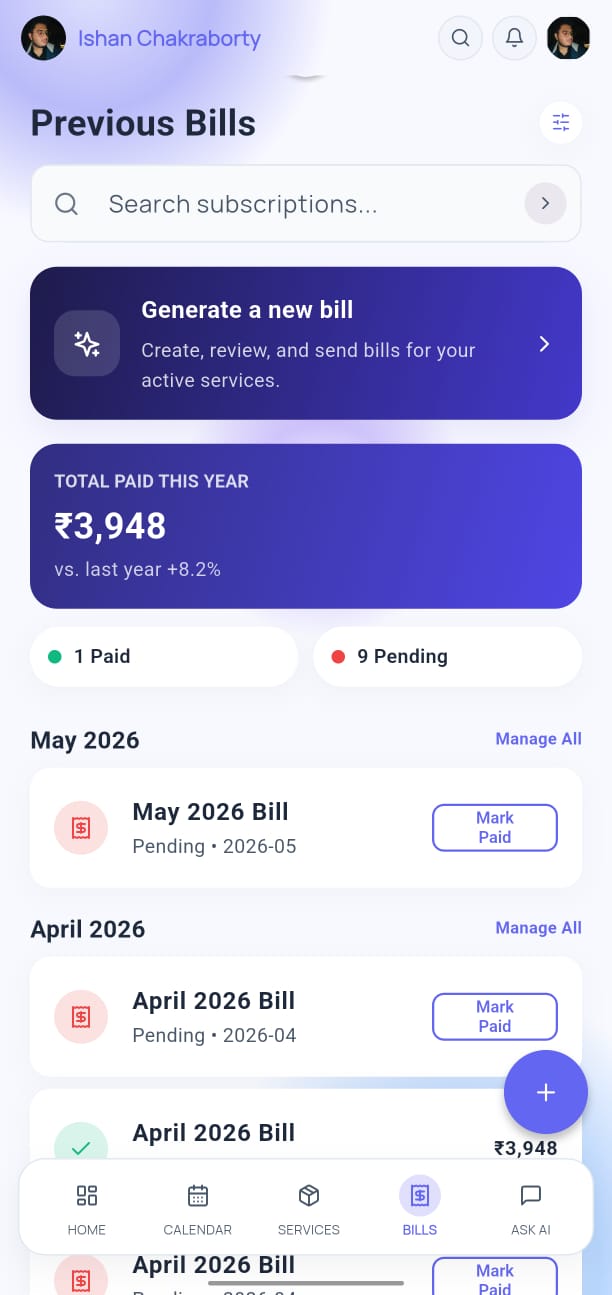
Each bill card shows:
- Service name and billing period (month/year)
- Total amount due
- Status: Pending, Paid, or Overdue
How Bills Are Calculated
YesBill calculates bills based on your service type:
- Home Delivery / Visit-based — counts the number of marked days in the calendar × rate per day
- Utility / Subscription — fixed monthly amount regardless of calendar marks
- Payment — the amount you entered when recording the payment
Viewing a Bill
- Tap Bills in the bottom navigation bar.
- Tap any bill card to see the full breakdown:
- Day-by-day list of deliveries/visits
- Subtotals per week
- Grand total
Marking a Bill as Paid
- Open the bill by tapping its card.
- Tap Mark as Paid.
-01-04b90cd983b9cca6b9384d718dde858f.png)
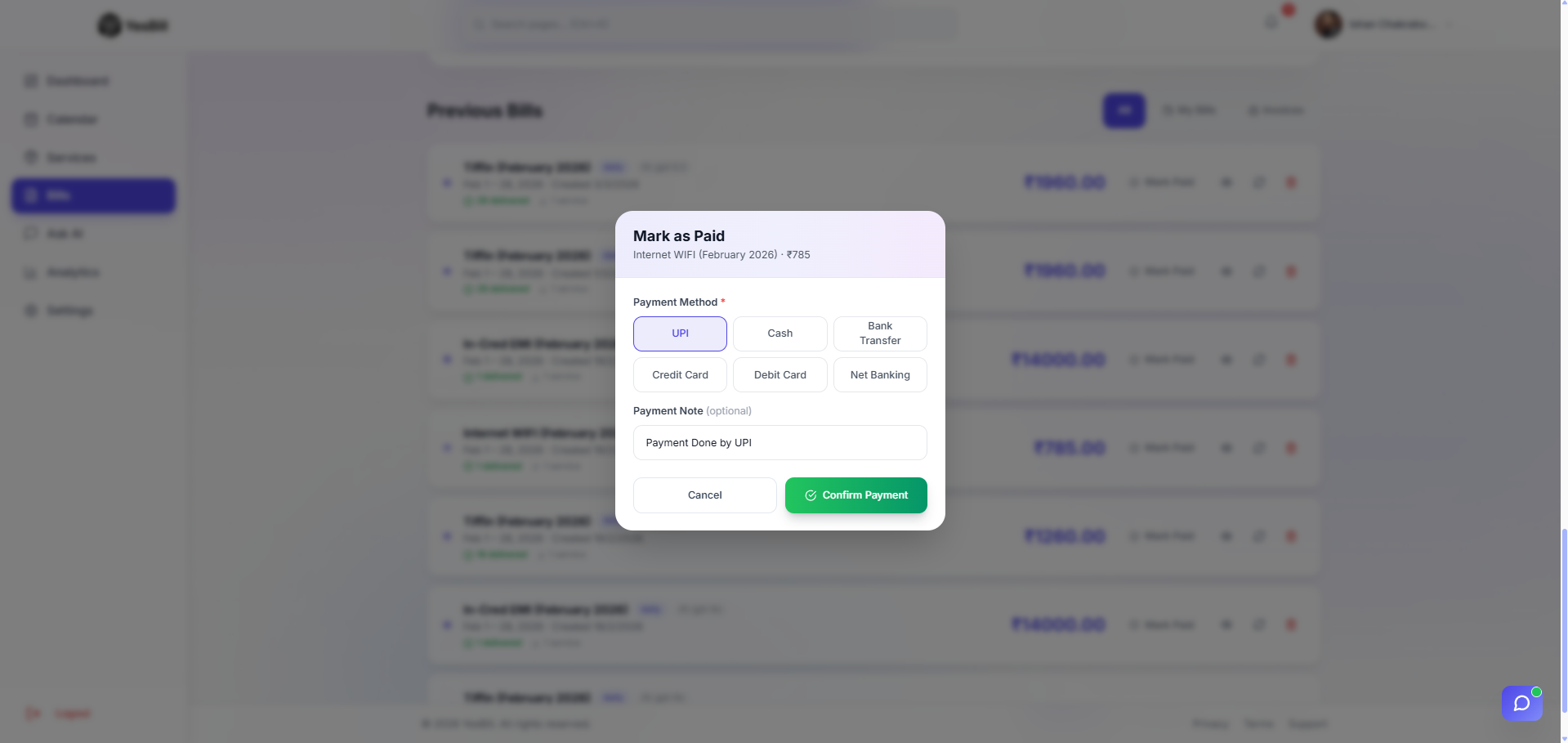
- The bill status changes to Paid and is moved to your payment history.
Exporting Bills
You can export bills as PDF or CSV:
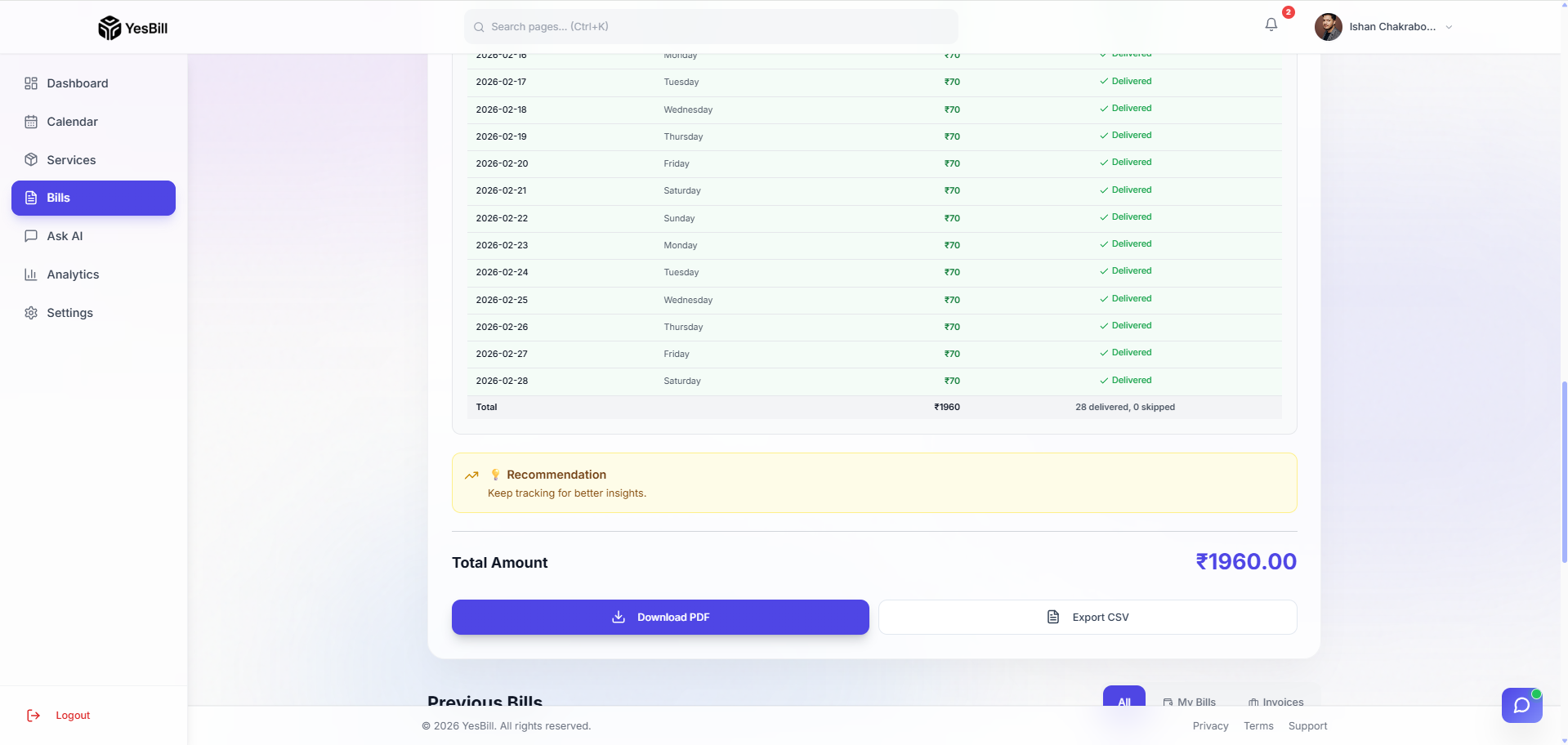
- Download as PDF — a formatted bill ready to share with your service provider
- Export as CSV — raw data for use in spreadsheets
Bill History
All paid bills are kept in your history. Scroll down in the Bills screen or use the filter to view older bills.

tip
Bills are generated automatically at the end of each month. You can also generate them manually at any time — see Auto Generation.
AI Bill Summary
If you have an AI provider configured, YesBill can generate a plain-English explanation of any bill.
- Open a bill by tapping its card.
- Tap the AI Summary button (sparkle icon).
- The AI reads your delivery data and produces a concise summary:
- How many deliveries occurred across the month
- Any unusual gaps or clusters in delivery patterns
- Comparison with previous months (when available)
- Total cost breakdown
This feature uses your configured AI provider and counts against your API usage.
See AI Configuration if you haven't set up a provider yet.