AI Configuration
Configure your AI provider, API key, and preferred model for Ask AI, the AI Agent, and bill summaries.
AI Settings Screen
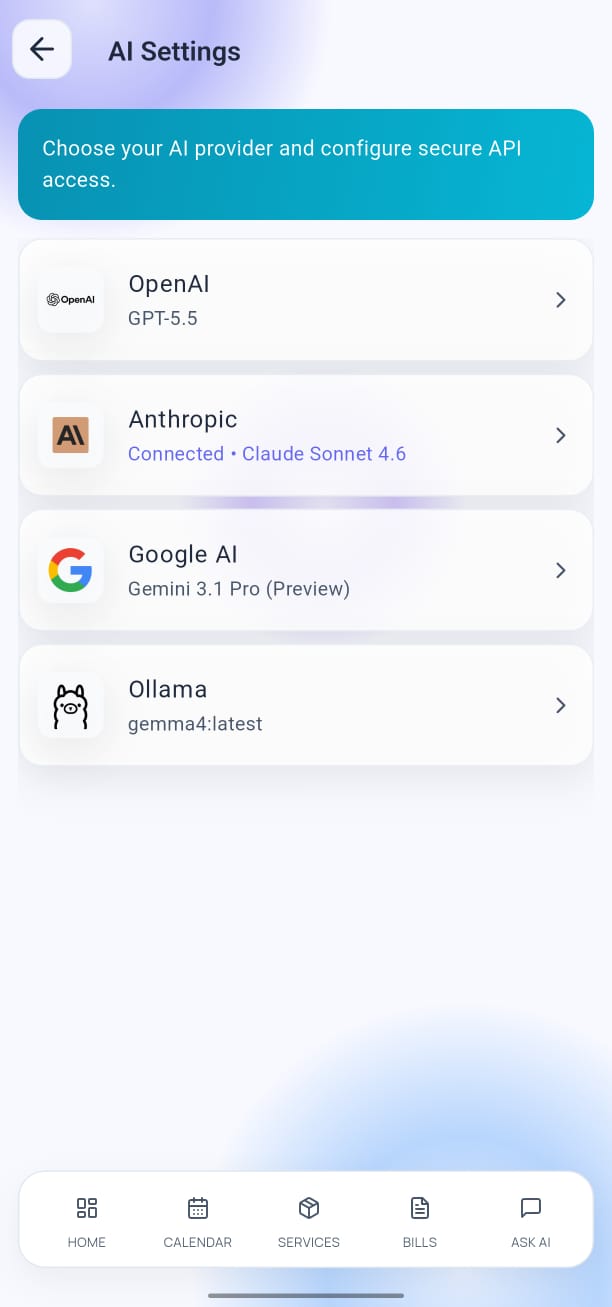
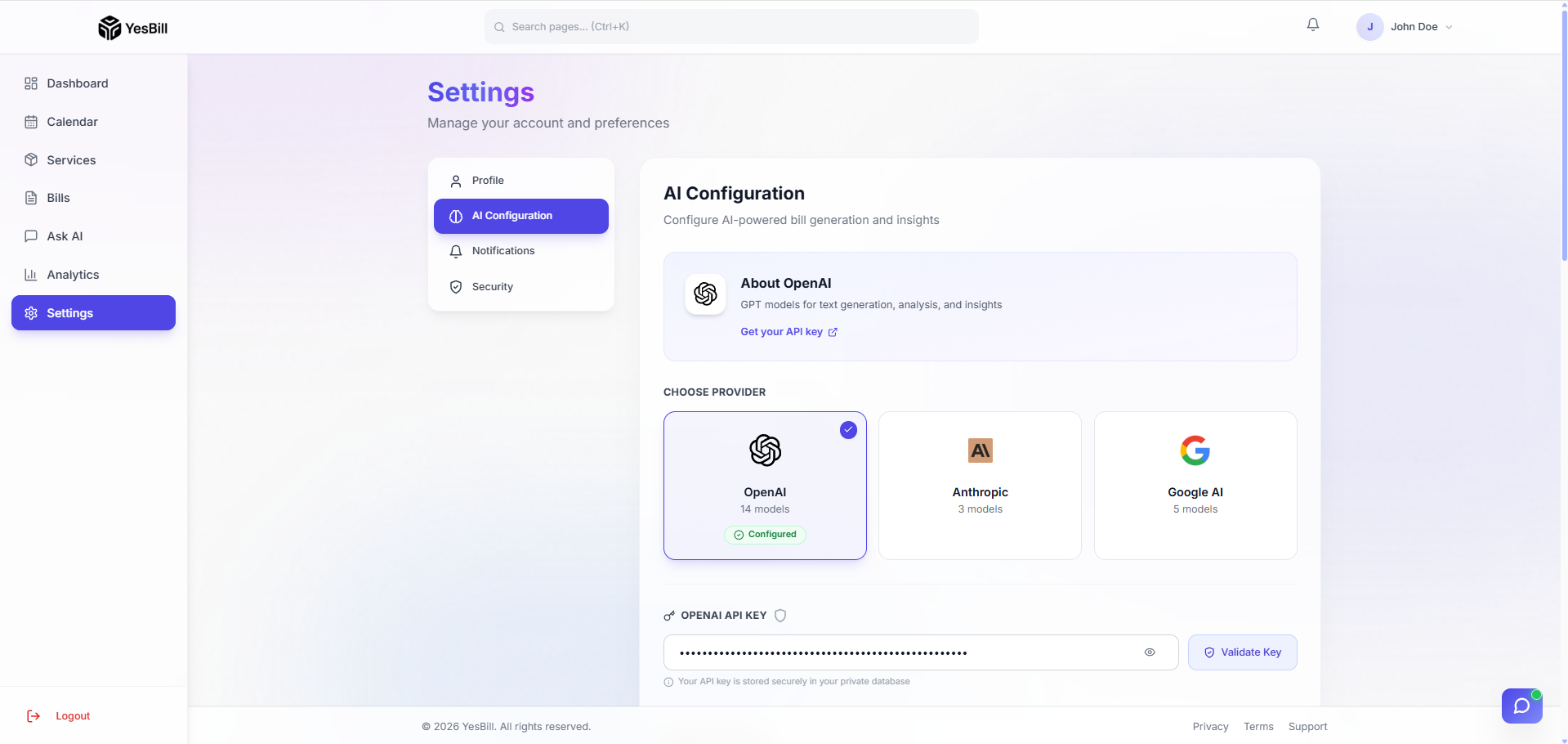
Open Settings → AI Configuration to set up your AI provider.
Supported Providers
YesBill supports four AI providers. You bring your own API key (except for Ollama).
| Provider | Where to Get a Key |
|---|---|
| OpenAI | platform.openai.com/api-keys |
| Anthropic | console.anthropic.com/settings/keys |
| Google AI | aistudio.google.com/apikey |
| Ollama | No key needed — runs models locally on your device |
Provider Settings
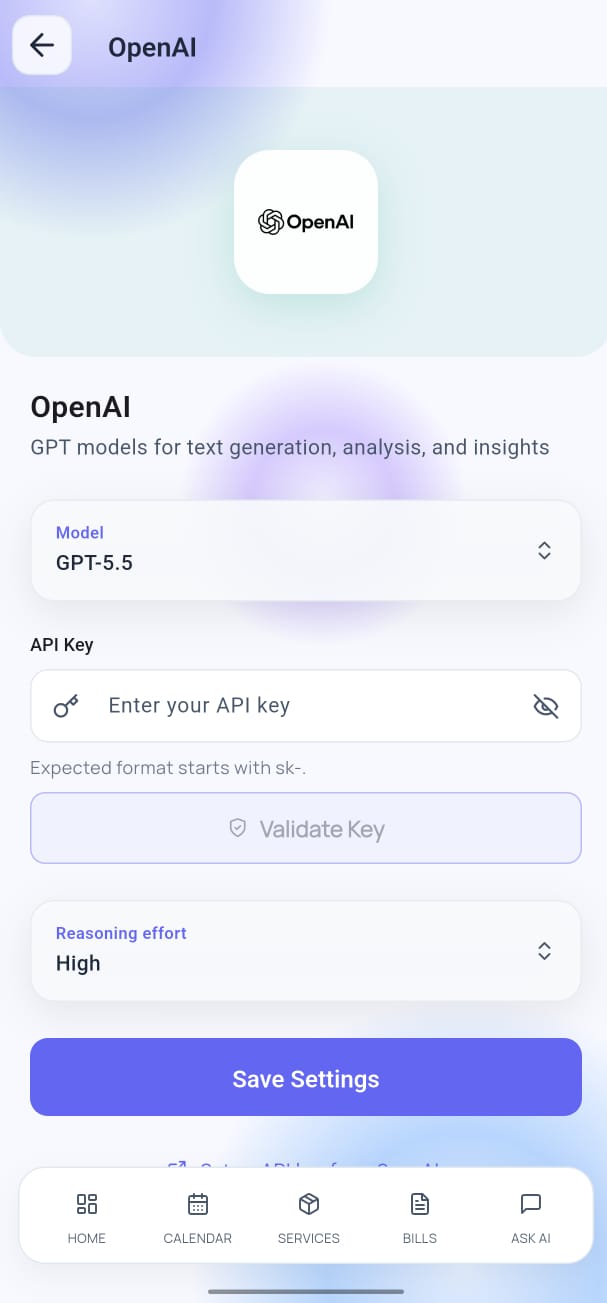
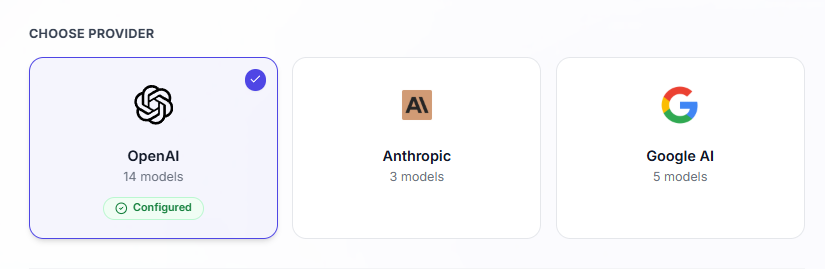
- Select your AI Provider from the list.
- Enter your API Key (skip this step for Ollama).
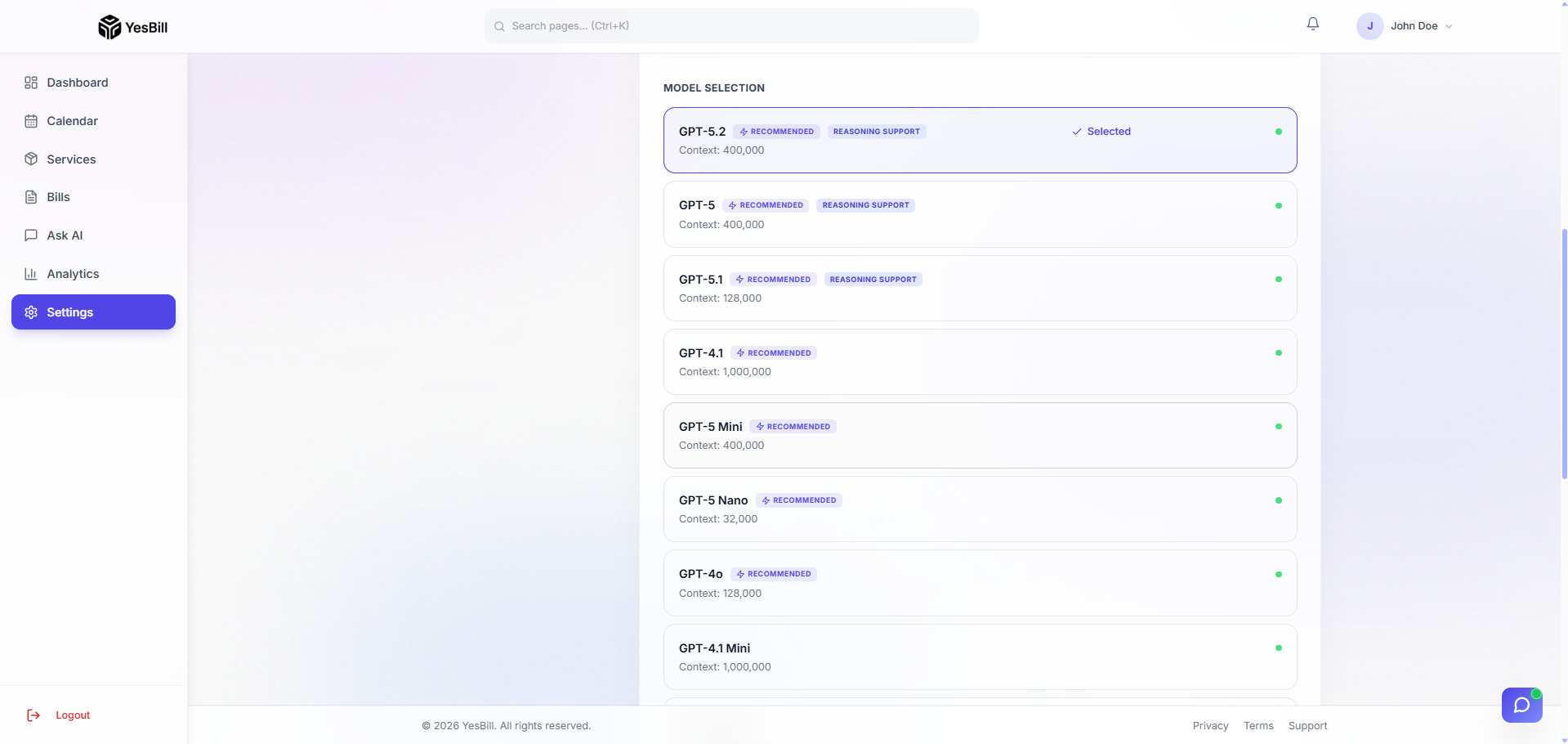
- Select a Model from the dropdown (models vary by provider).
- Tap Save.
A green checkmark appears once your key is validated and saved.
OpenAI Models
| Model | Notes |
|---|---|
| GPT-5.5 ⭐ | Flagship model (April 2026) — recommended |
| GPT-5.4 | Advanced reasoning (March 2026) |
| GPT-5.2 / 5.1 / 5 | 400,000-token context window |
| GPT-5.4 Mini | 128,000-token context, budget-friendly |
| GPT-5.4 Nano | 64,000-token context, fastest |
| GPT-5 Mini / Nano | Compact versions of GPT-5 |
| o1 | Advanced reasoning — best for complex analysis |
Anthropic Models
| Model | Notes |
|---|---|
| Claude Sonnet 4 ⭐ | Best balance of speed and intelligence — recommended |
| Claude 3.5 Haiku | Fastest and most compact |
Google AI Models
| Model | Notes |
|---|---|
| Gemini 2.0 Flash ⭐ | Fast multimodal model — recommended |
| Gemini 1.5 Pro | Best for complex tasks |
Ollama (Local Models)
Ollama lets you run AI models entirely on your own machine — no API key, no usage costs, complete privacy.
To use Ollama:
- Install Ollama on your computer and pull a model (e.g.
ollama pull llama3.2) - Expose Ollama via a Cloudflare Tunnel so YesBill's backend can reach it
- In the app, select Ollama as the provider
- Paste your tunnel URL in the Ollama Base URL field
- Tap Fetch Models — your installed models will appear
- Select a model and tap Save
- Best quality: GPT-5.5 or Claude Sonnet 4
- Best value: GPT-5.4 Nano or Gemini 2.0 Flash
- No cost at all: Ollama with Llama 3.2 or Mistral
Your API key is stored securely on-device using Flutter Secure Storage and is sent directly to the AI provider — never to YesBill's servers.
Reasoning / Extended Thinking
Some models support Extended Thinking (also called reasoning). When enabled, the AI thinks through problems step by step before responding, which significantly improves accuracy for complex queries like multi-service bill analysis.
In Settings → AI Configuration, look for the Default Reasoning Effort selector:

- None — Standard response (faster, cheaper)
- Low — Light reasoning pass
- High — Full extended thinking (slower, more tokens)
AI Insights Toggle
You can enable or disable the AI Insights panel that appears on your Dashboard:

- Open Settings → AI Configuration
- Toggle Enable AI Insights on or off
When enabled, the dashboard shows an AI-generated summary of your spending trends, updated each time you generate bills.
See Appearance Settings to change the app theme.