Creating Your Account
YesBill uses secure, encrypted authentication. You can register with your email and password or sign in with Google.
The Login Screen
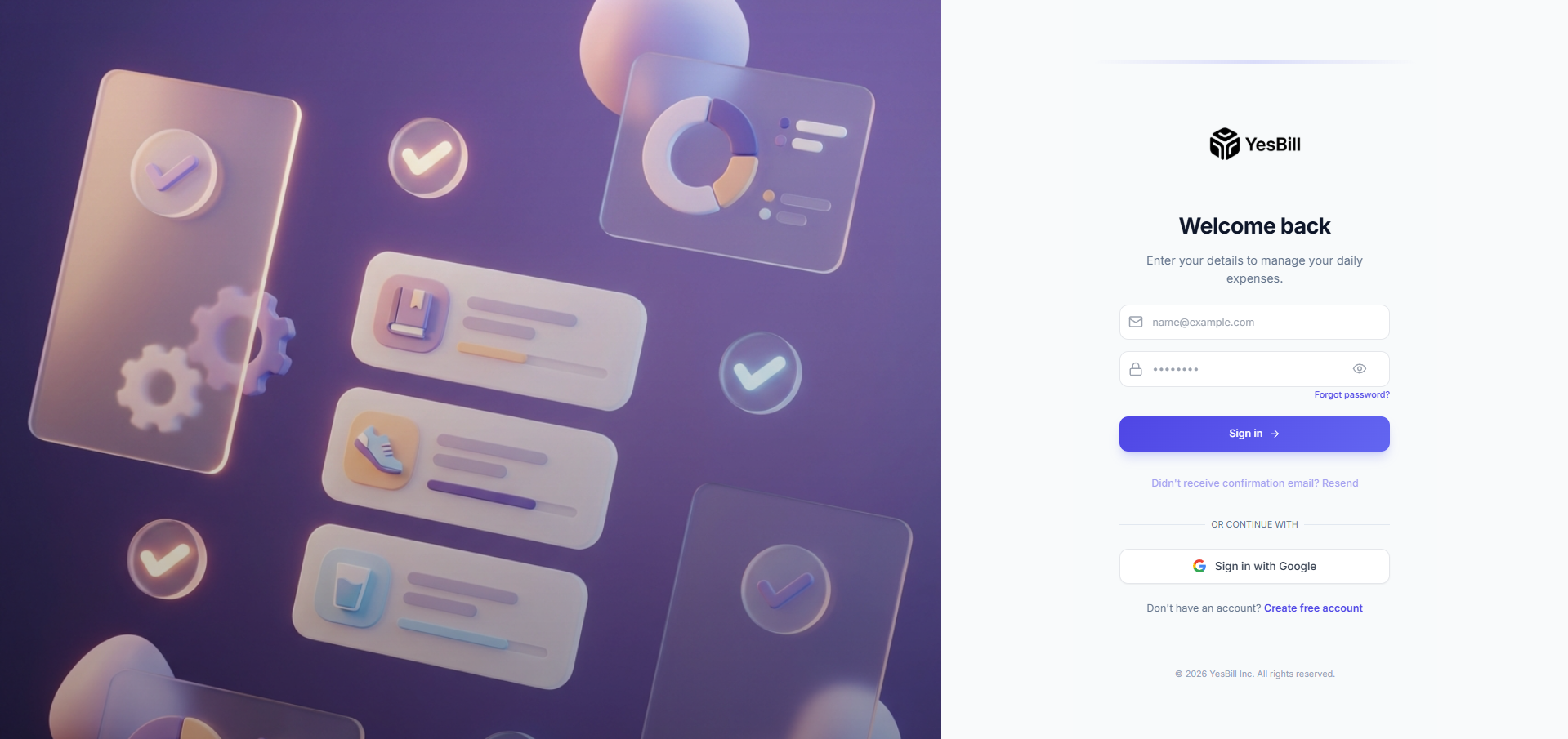
When you first visit the YesBill app, you'll land on the login screen. From here you can sign in with an existing account or navigate to sign up.
Sign Up with Email
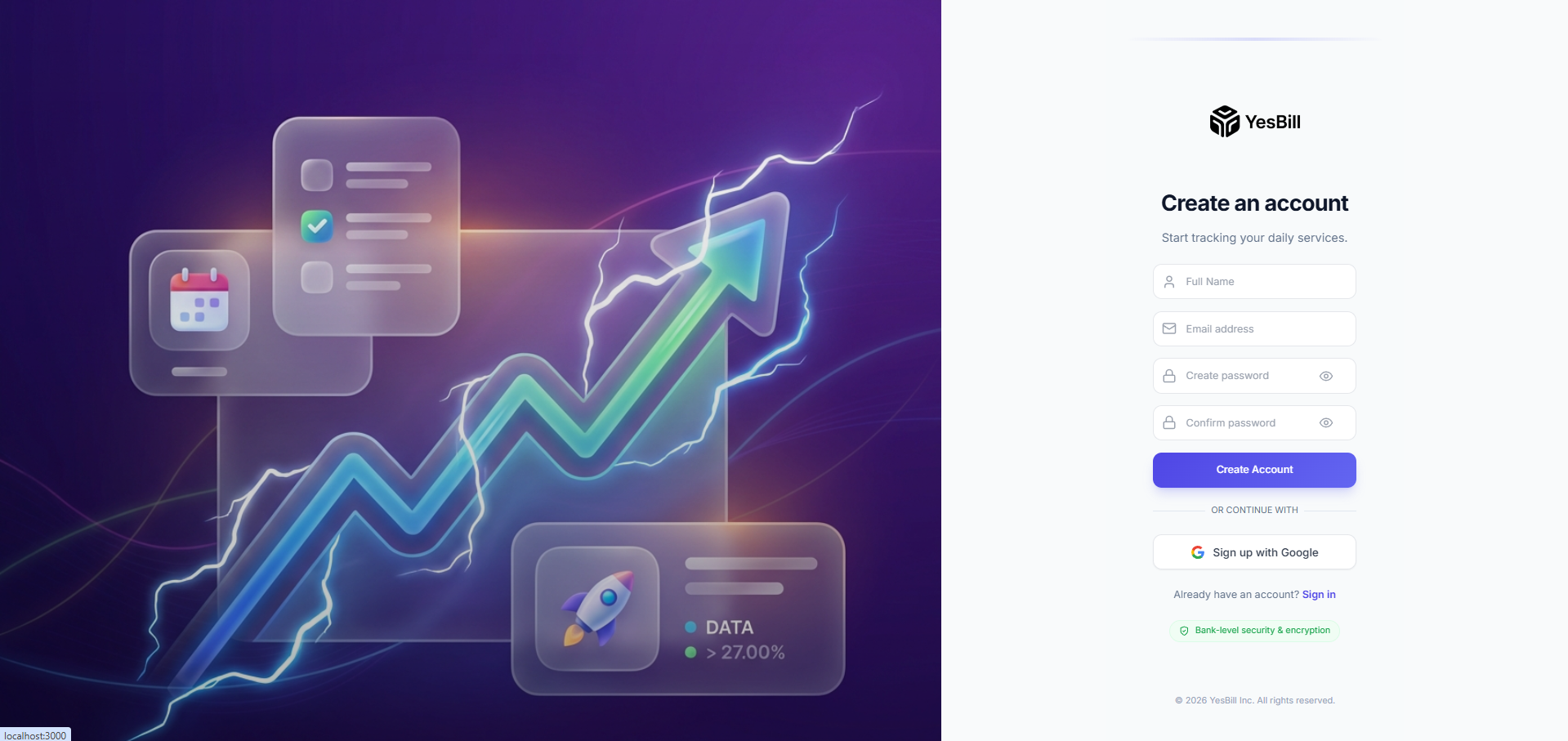
- Visit the YesBill app at ishan96dev.github.io/YesBill
- Click Sign Up on the login page
- Enter your email address and choose a strong password
- Password must contain at least one uppercase letter, lowercase letter, number, and symbol
- Click Create Account
- Check your inbox for a confirmation email from YesBill
- Click the confirmation link to verify your email address
Confirmation Email
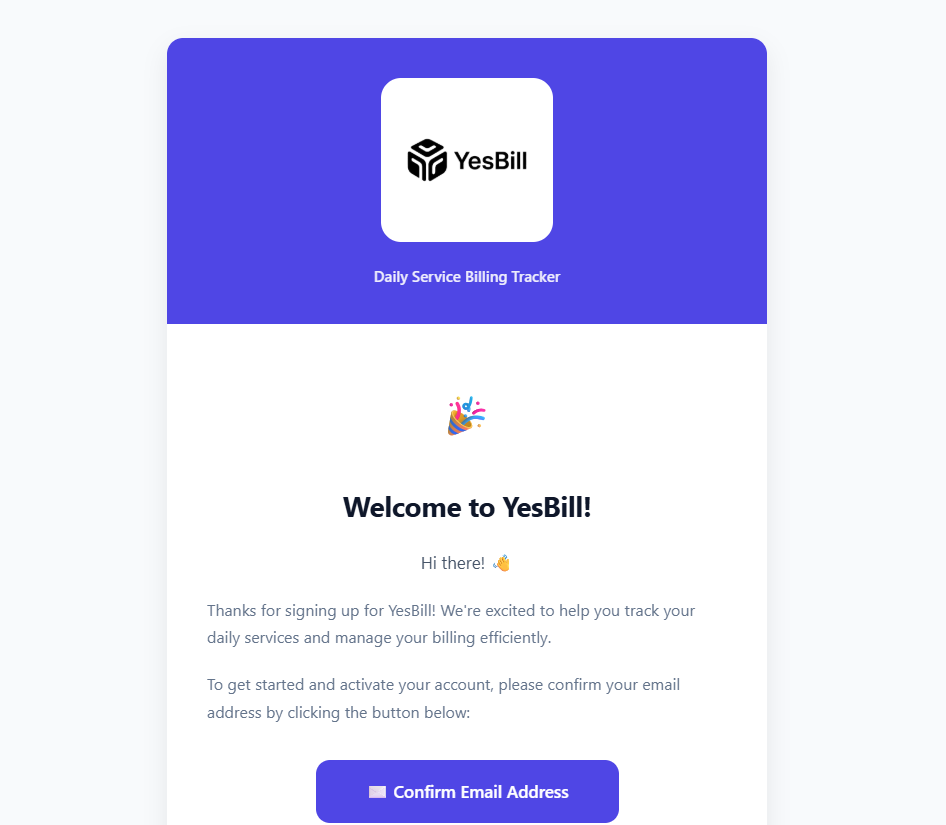
After registering, you'll receive an email like the one above. Click the Confirm your email button to activate your account. Check your spam folder if it doesn't arrive within a few minutes.
Sign In with Google (SSO)
YesBill supports Single Sign-On (SSO) via Google. No password is needed — Google authenticates you directly.
Step 1 — Click Continue with Google

On the login page, click Continue with Google. A Google account picker opens. Select the Google account you want to use.
Step 2 — Authorise YesBill
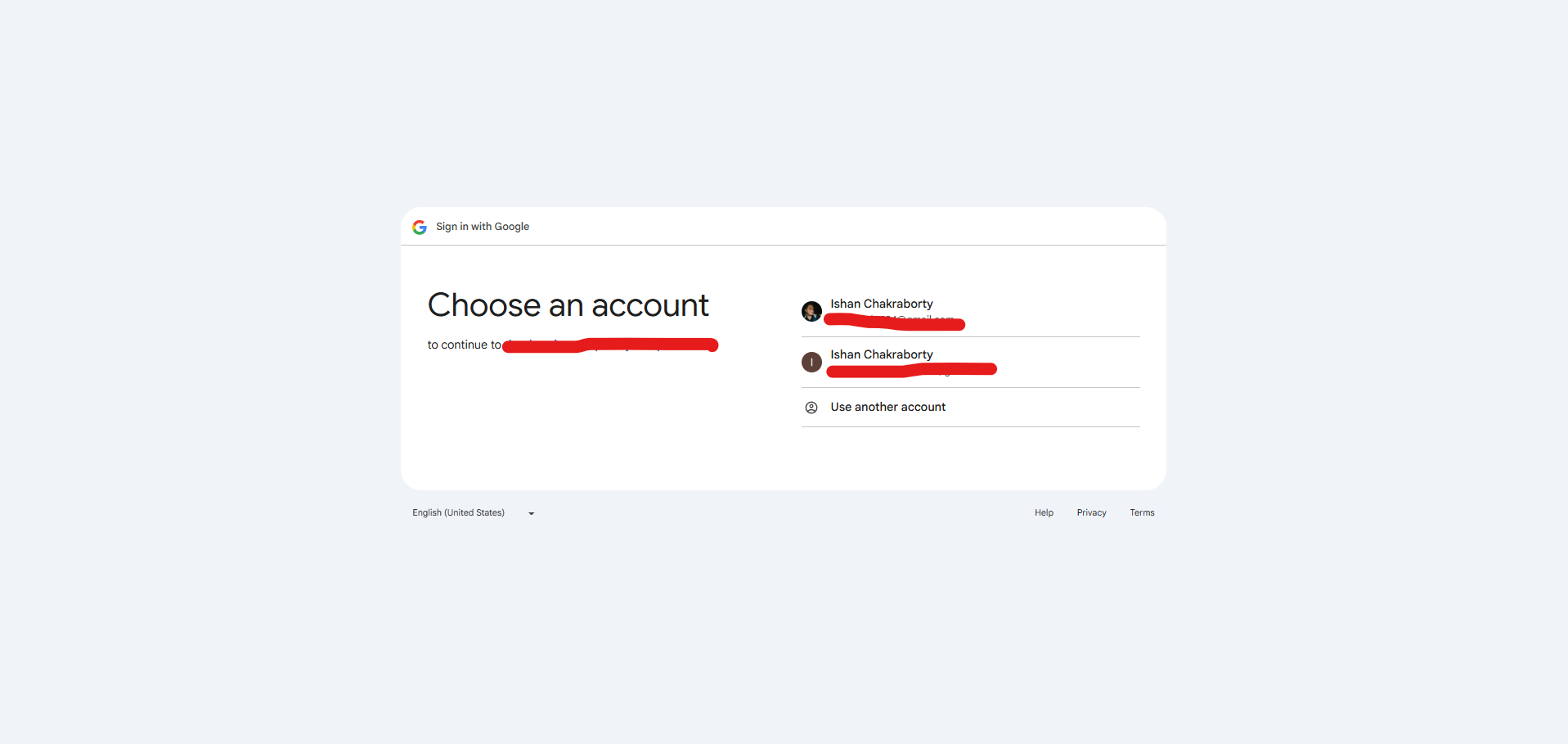
You may see a permissions screen asking you to authorise YesBill to access your email address. Click Allow. You'll be redirected back to YesBill and logged in automatically.
SSO accounts don't have a YesBill password. To change your login password, do it from your Google Account settings.
First Login
After signing in for the first time, you'll be taken through the Onboarding flow to set up your profile and optionally configure an AI provider.
Use a strong, unique password for your YesBill account. You can change it later from Settings → Security.
Forgot Your Password?
If you can't remember your login password, YesBill provides a secure self-service reset flow.
Step 1 — Click "Forgot Password"

On the login screen, click the Forgot password? link. You'll be taken to the password reset page where you enter your registered email address.
Step 2 — Submit Your Email
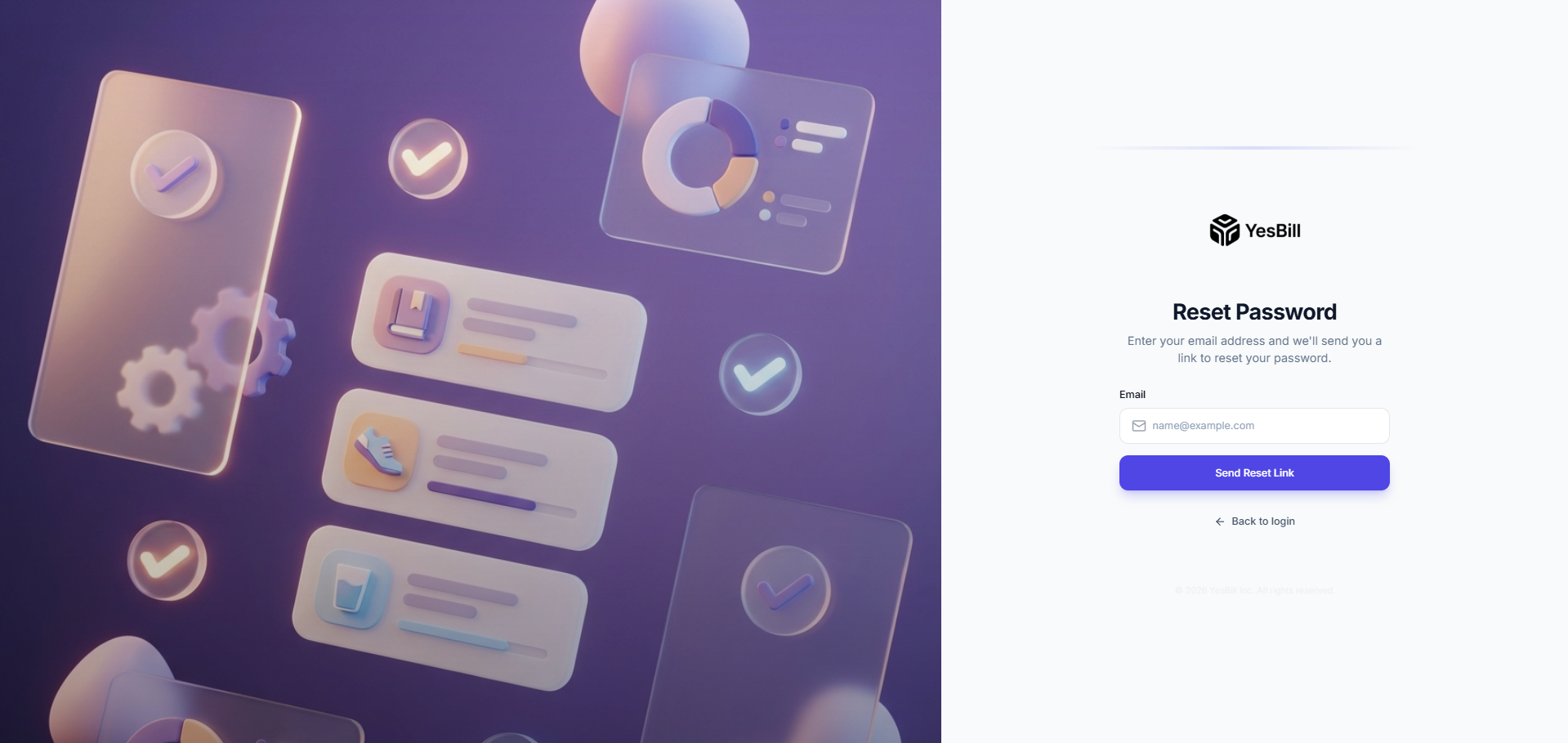
Enter your email and click Send Reset Link. You'll see a confirmation message that a reset email has been sent.
Step 3 — Check Your Inbox
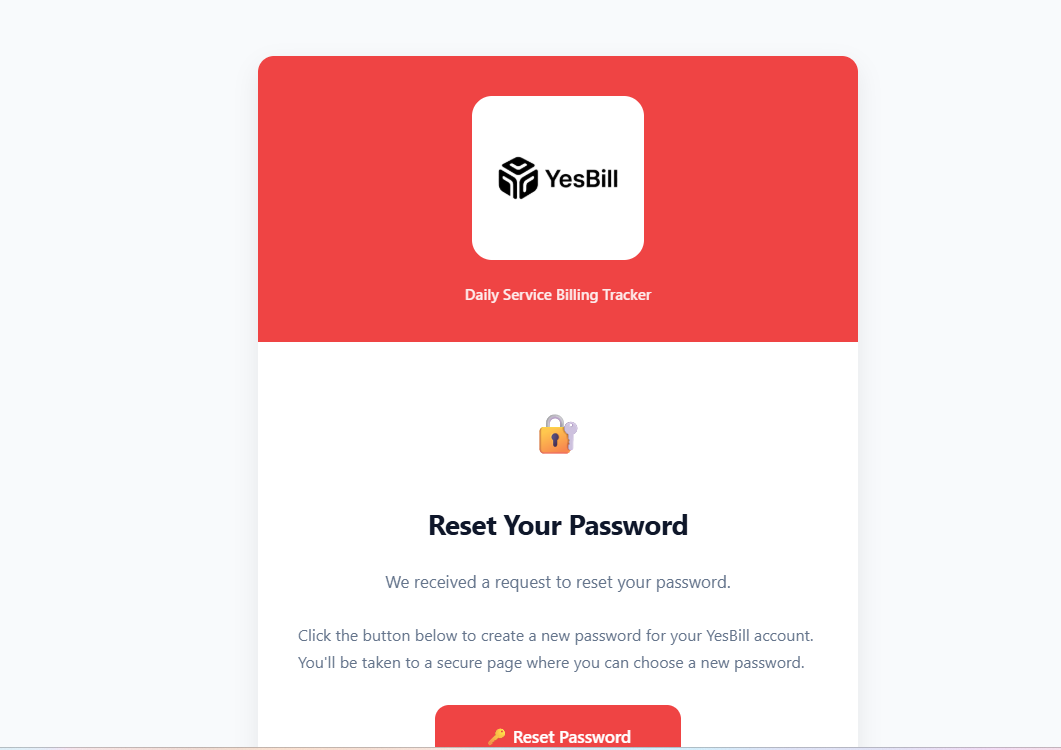
Open the email and click the Reset Password button. The link is valid for 24 hours — check your spam folder if it doesn't arrive within a few minutes.
Step 4 — Set a New Password
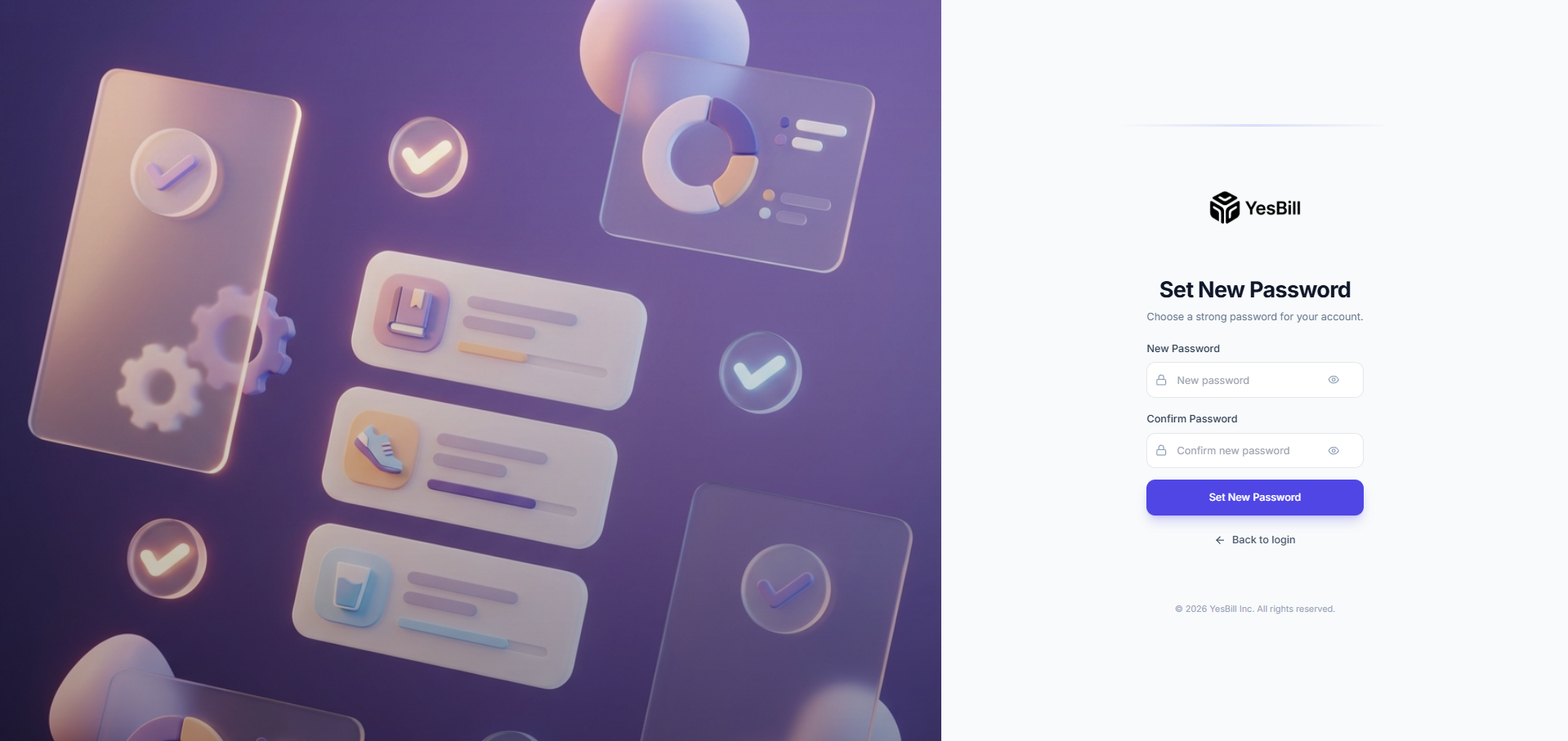
Enter your new password (and confirm it), then click Update Password. You'll be redirected to the login page to sign in with your new credentials.
Other Login Issues
- Email not verified? Check your spam folder for the original confirmation email
- Account locked? Contact support at support@yesbill.com