Notification Settings
Control which notifications YesBill sends you and how they appear.
Notification Settings Screen
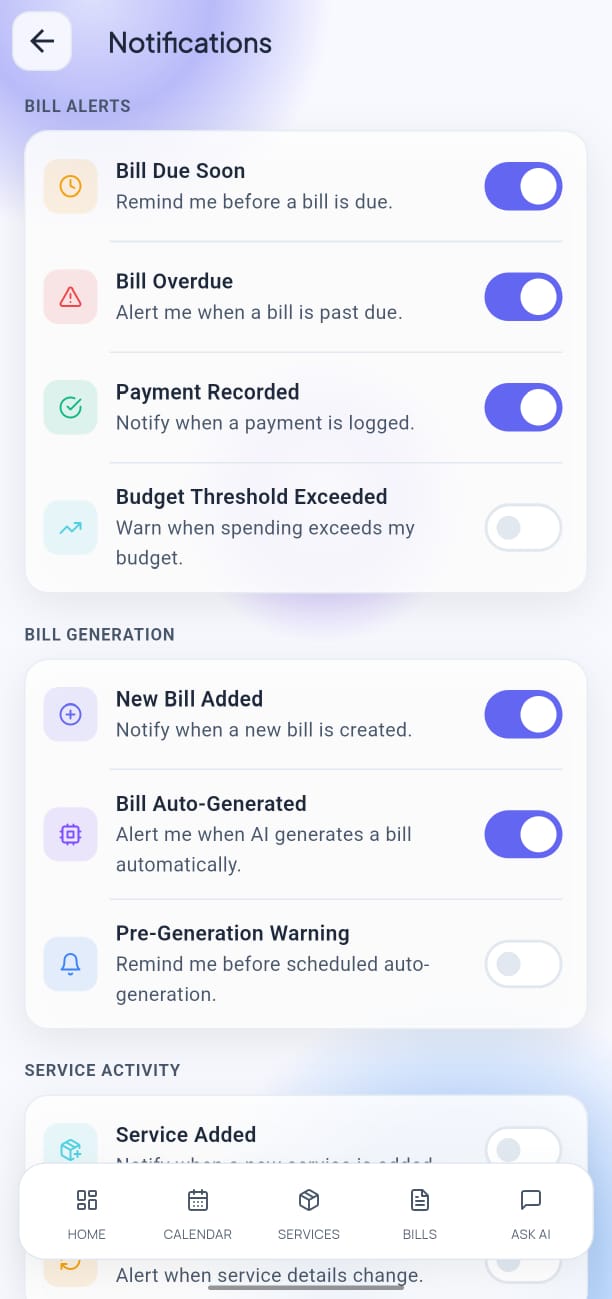
Open Settings → Notifications to manage your preferences.
Available Notifications
| Notification | Default | Description |
|---|---|---|
| Bill Generated | ✅ On | Alerts when a monthly bill is created |
| Payment Due | ✅ On | Reminder when a bill is approaching its due date |
| Overdue Bill | ✅ On | Alert when a bill has passed its due date |
| AI Query Limit | ✅ On | Warning when you're near your monthly AI usage limit |
| Delivery Reminder | ❌ Off | Daily reminder to mark today's deliveries |
Notification Center
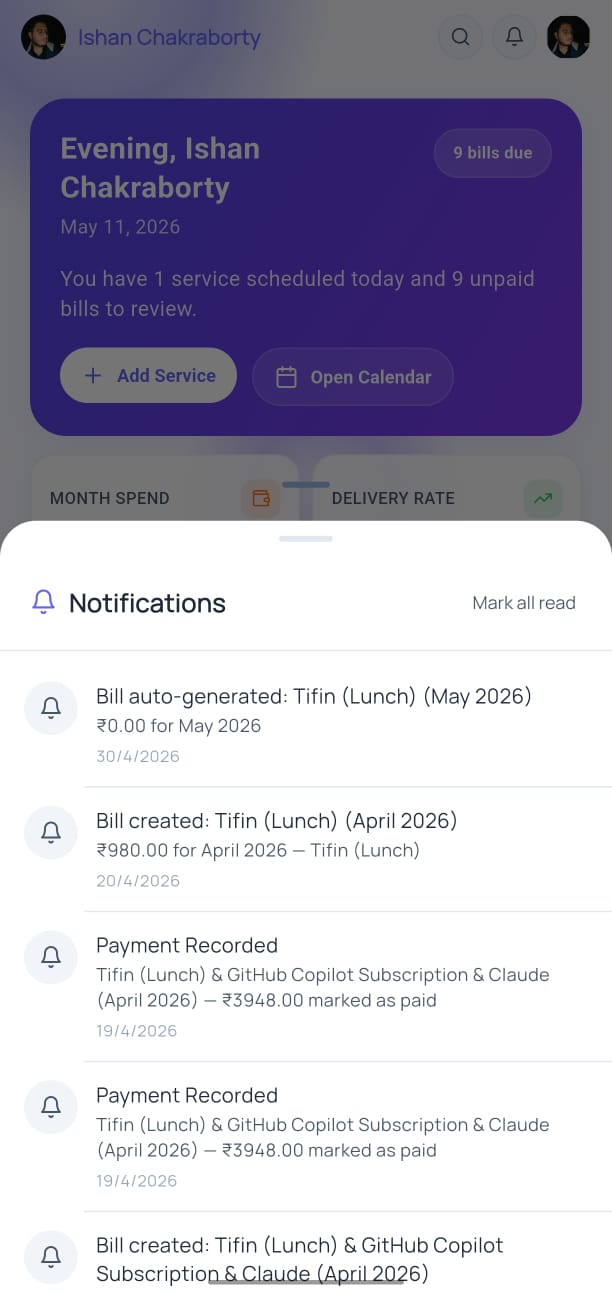
Tap the bell icon on the Home screen to open your notification center. You can:
- Read notifications
- Mark all as read
- Tap a notification to jump directly to the related bill or service
Enabling Push Notifications
If YesBill asks for notification permissions, tap Allow to receive push notifications. If you previously denied permission:
- Open your device Settings.
- Go to Apps → YesBill → Notifications.
- Enable Allow Notifications.
tip
Enable Bill Generated and Overdue Bill notifications at minimum — these are the most useful for staying on top of payments.