Ask AI
The Ask AI tab gives you a conversational interface to query your billing data in plain language. No spreadsheets, no filters — just ask.
Opening Ask AI
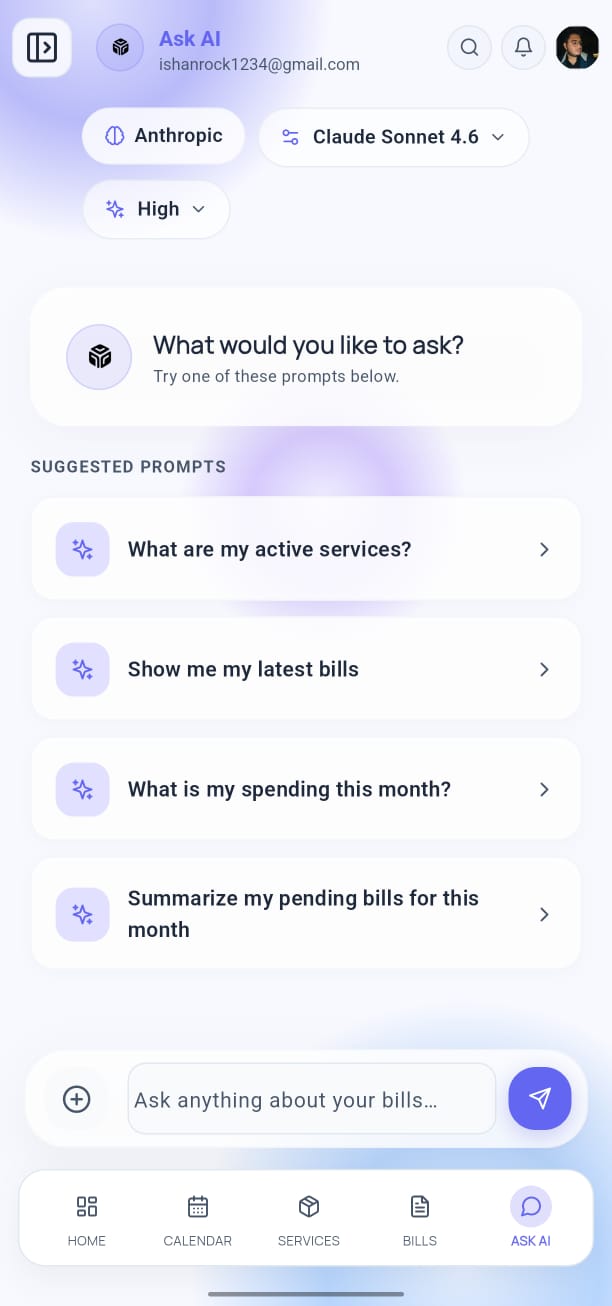
Tap Ask AI (the robot icon) in the bottom navigation bar. The screen shows your recent conversation history and a text input at the bottom.
Asking a Question
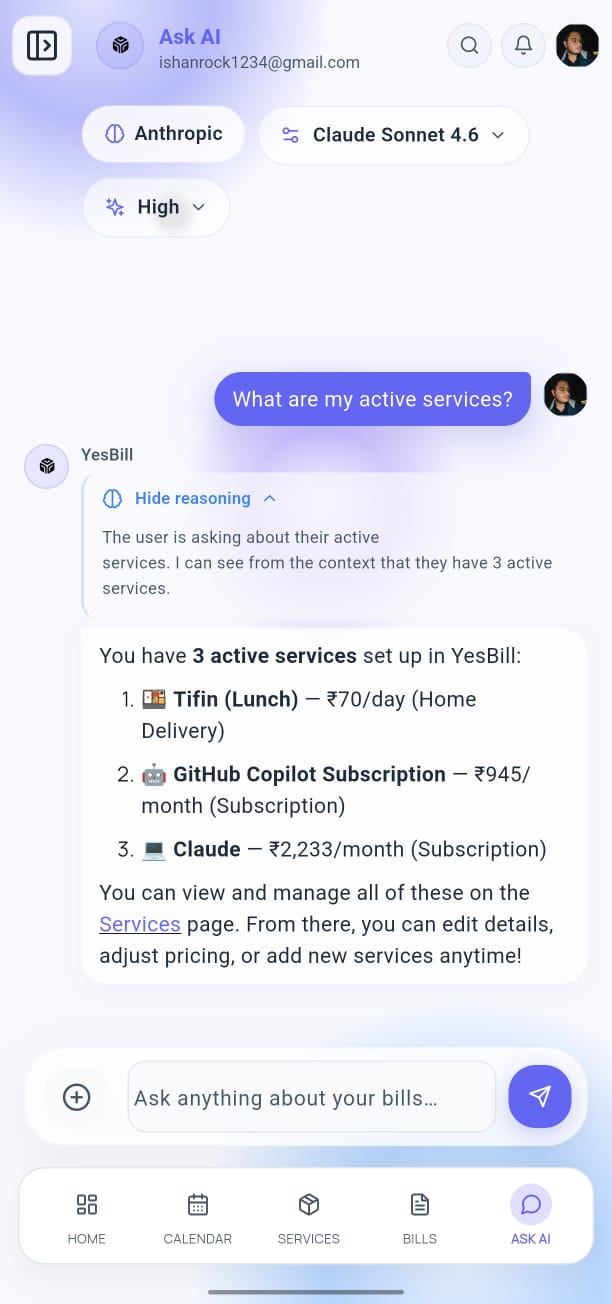
Type your question in the text field at the bottom and tap Send. Examples:
- "How much did I spend on milk this month?"
- "Which services cost me the most last quarter?"
- "Did I miss any tiffin deliveries this week?"
- "What's my total outstanding bill amount?"
The AI reads your actual billing data and responds with accurate, personalized answers.
Conversation History
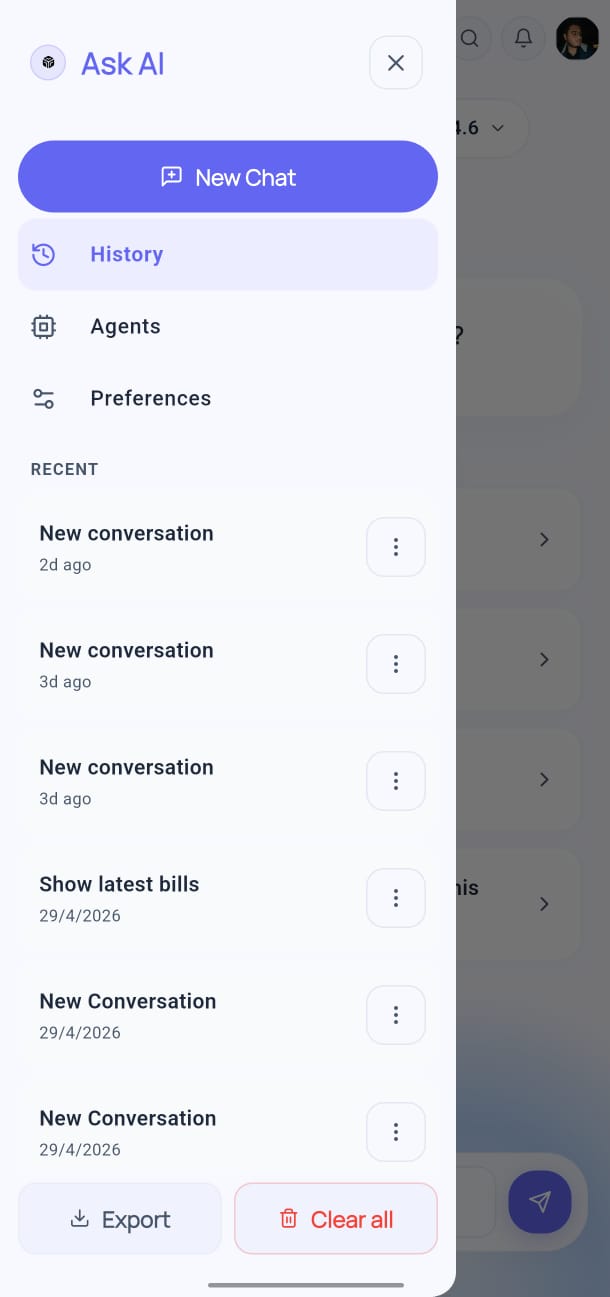
Tap the history icon (top-right) to open the conversation drawer. Here you can:
- Browse past conversations
- Continue a previous conversation
- Delete conversations you no longer need
Ask AI vs. AI Agent
| Feature | Ask AI | AI Agent |
|---|---|---|
| Answers questions | ✅ | ✅ |
| Reads your data | ✅ | ✅ |
| Creates/edits data | ❌ | ✅ |
| Requires confirmation | N/A | ✅ |
Use Ask AI when you want quick answers. Use the AI Agent when you want to make changes like generating bills or adding services.
AI Provider
Ask AI uses whichever AI provider you configured in Settings → AI Configuration. See AI Configuration to set up or change your provider and API key.