Profile Settings
Manage your personal information, avatar, and cover image from the Profile tab in Settings.
Accessing Profile Settings
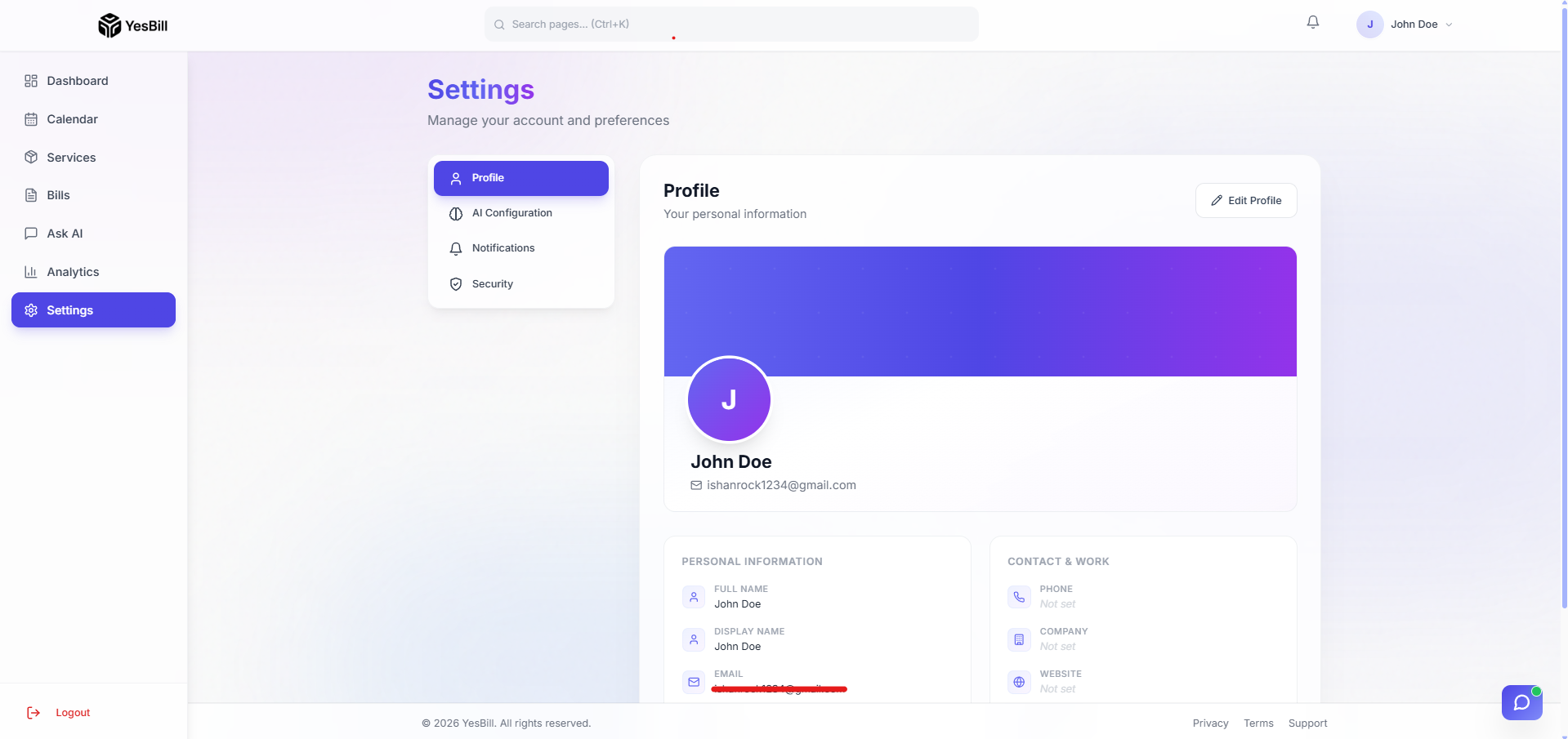
- Click your name/avatar in the top right
- Select Settings from the dropdown
- You're on the Profile tab by default
Editing Your Profile
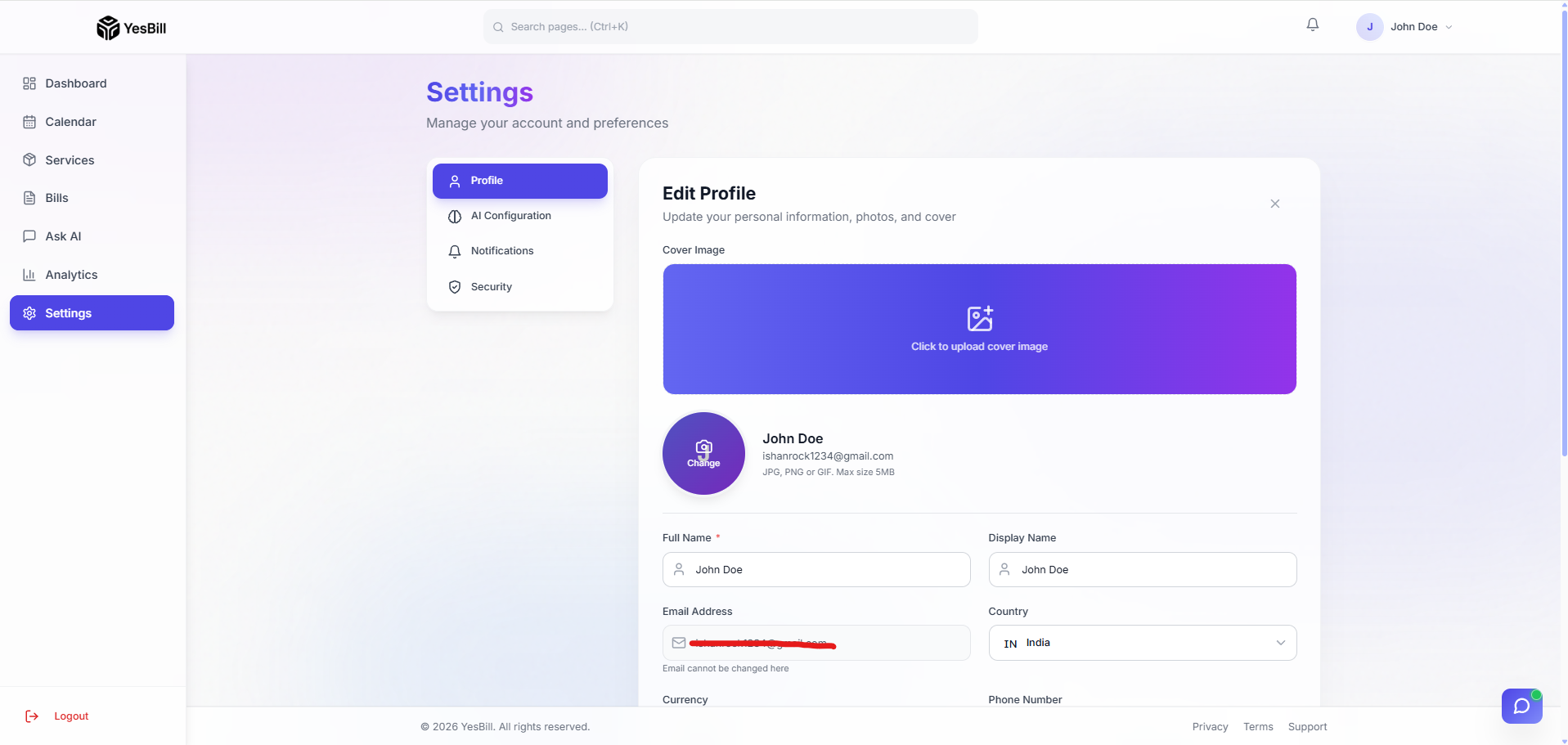
Click Edit Profile to enter edit mode where you can update all fields. Changes are saved when you click Save Changes.
What You Can Edit
Basic Information
- Full Name — Your legal or preferred full name
- Display Name — Short name used in greetings and the app header
- Phone Number — Optional, used for WhatsApp notifications
- Bio — A short description (up to 500 characters)
- Country & Timezone — Used for correct date display
Profile Photo (Avatar)
- Click on your avatar circle
- Select Upload Photo
- Choose an image from your device
- The photo is uploaded and saved automatically
Cover Image
A banner image that appears at the top of your profile card.
- Click Upload Cover Image (or the camera icon on the cover area)
- Choose a wide image (recommended: 1200×300 px or wider)
- Save
Saving Changes
Click Save Changes after editing. A success toast appears confirming the save.
tip
Add a recognisable profile photo and display name — it makes the app feel more personal.