Configuring Your AI Provider
YesBill supports three AI providers. You need an API key from at least one provider to use AI features.
Supported Providers
| Provider | Models Available | Best For |
|---|---|---|
| OpenAI | GPT-4o, GPT-4o Mini, GPT-4.1 | Speed and reliability |
| Anthropic | Claude 3.5 Sonnet, Claude 3 Haiku | Detailed analysis |
| Gemini 2.0 Flash, Gemini 1.5 Pro | Budget-friendly | |
| Ollama | Gemma 4, Llama 3.2, Qwen3 Coder, and any locally installed model | Free, fully local — no API key |
Getting an API Key
OpenAI
- Visit platform.openai.com
- Sign up or log in
- Go to API Keys → Create new secret key
- Copy the key (starts with
sk-...)
Anthropic
- Visit console.anthropic.com
- Sign up or log in
- Go to API Keys → Create Key
- Copy the key
Google Gemini
- Visit aistudio.google.com
- Click Get API Key
- Copy the key
Adding Your Key to YesBill
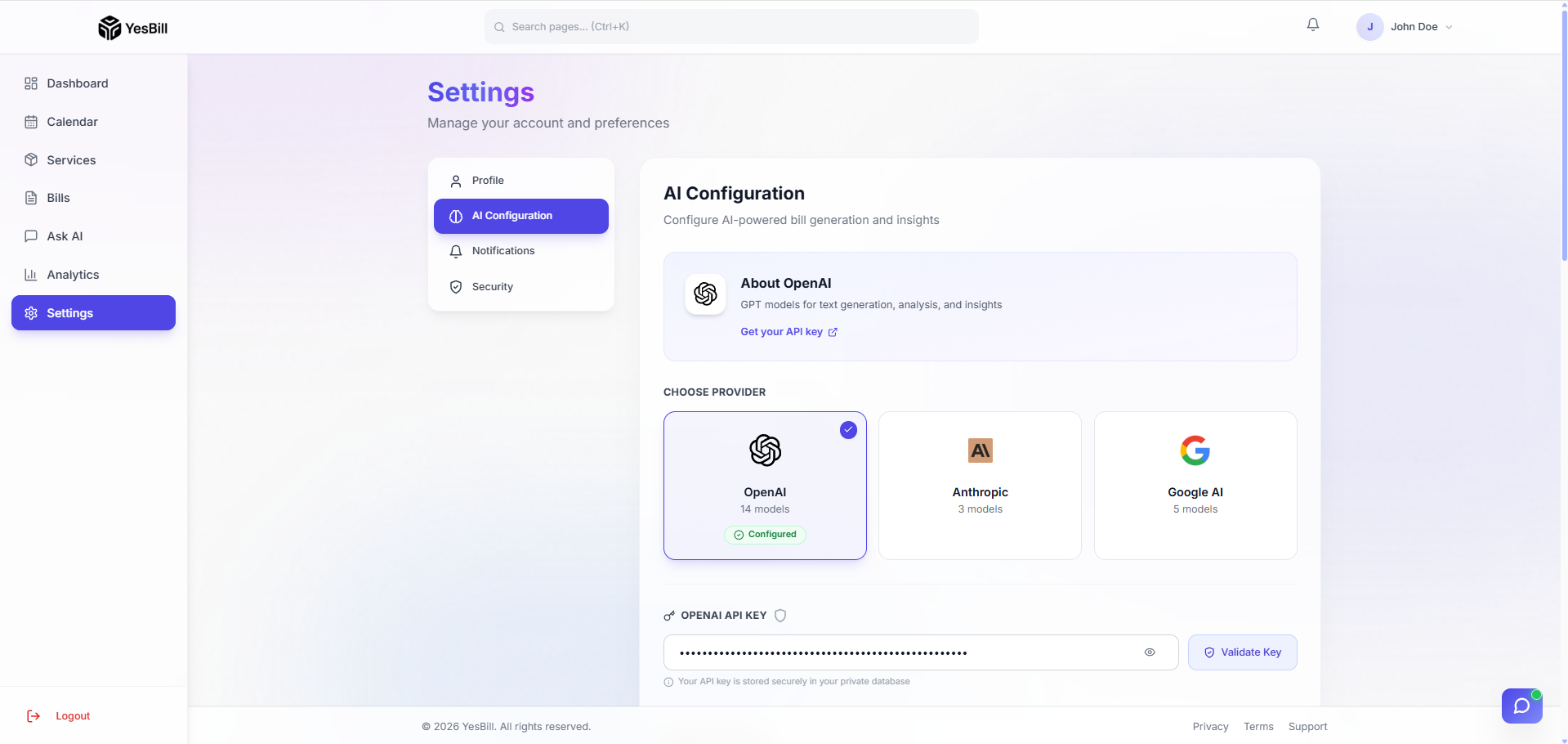
Go to Settings → AI Configuration to see the full configuration panel. From here you can manage providers, models, reasoning settings, and AI insights.
Step 1 — Choose a Provider
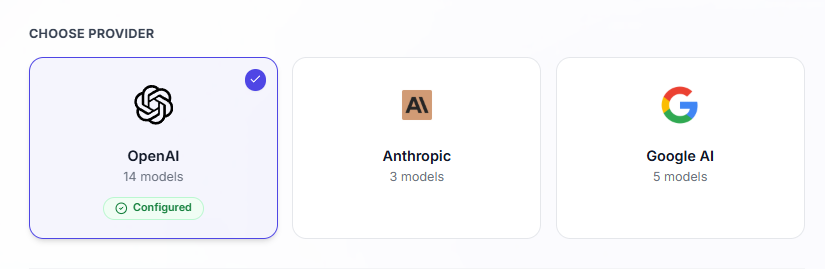
Select your preferred AI provider by clicking its tab (OpenAI, Anthropic, or Google). Then paste your API key into the field provided and click Validate to verify it works.
- Go to Settings → AI Configuration
- Select your provider tab
- Paste your API key
- Click Validate to test the key
- Click Save
Step 2 — Select a Default Model
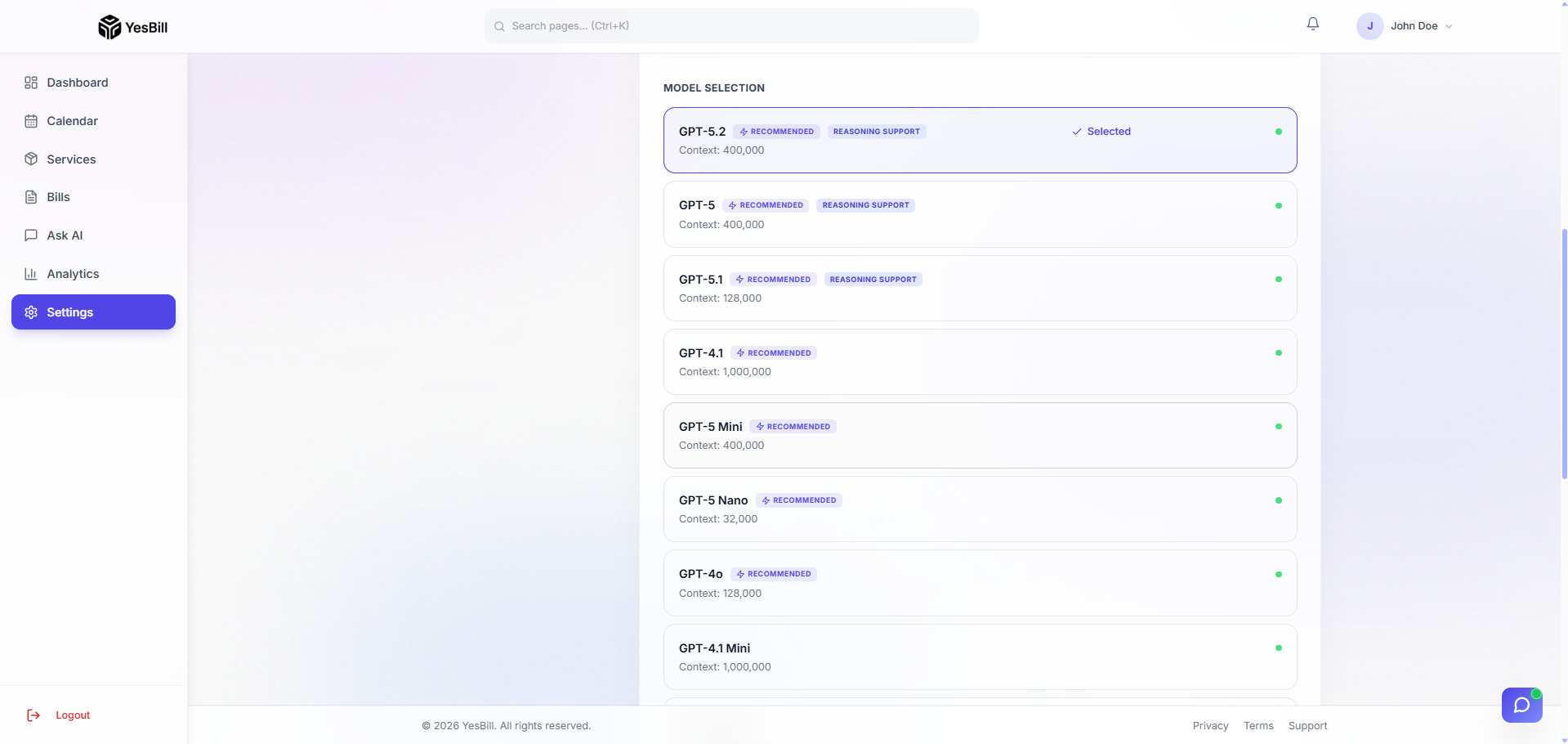
After adding your API key, choose the default model you want YesBill to use for all AI features. The available models update automatically based on your validated provider.
Start with OpenAI GPT-4o Mini or Google Gemini 2.0 Flash for low-cost usage while you're getting started.
Step 3 — Set Default Reasoning Effort

For models that support extended thinking (like Claude 3.7 Sonnet or o3-mini), you can set the default reasoning effort:
| Level | Behaviour | Best For |
|---|---|---|
| Low | Fast, minimal reasoning | Quick bill lookups |
| Medium | Balanced speed and depth | General Ask AI use |
| High | Deep reasoning, slower | Complex spending analysis |
Choose Medium as a sensible default for most households.
Step 4 — Enable or Disable AI Insights

The AI Insights toggle controls whether YesBill automatically surfaces AI-generated insights on your Dashboard and Bills pages (e.g. "Your milk spend increased 12% this month"). Toggle it off if you prefer a cleaner interface or want to reduce AI API usage.
Multiple Providers
You can add keys for all three providers and switch between them in Ask AI using the model selector. Each provider's key is stored separately and securely.
Security
Your API keys are stored only in your browser session and sent directly to the AI provider. YesBill never stores, logs, or shares your API keys. Your keys remain private and under your control at all times.
Removing a Key
- Go to Settings → AI Configuration
- Click Remove next to the provider
- Confirm the removal
After removing all keys, AI features will be disabled until you add a new key.
Ollama (Local Models)
Ollama lets you run AI models entirely on your own machine — completely free, no API key, no usage costs.
Why use Ollama?
- Free — no per-token charges ever
- Private — your data never leaves your machine
- Offline capable — works without internet once set up
- Any model — pull any model from the Ollama library
How it works
YesBill connects to your local Ollama instance through a Cloudflare Tunnel, which creates a secure public URL that the cloud backend can reach.
Setting up Ollama
- Go to Settings → AI Configuration
- Click the Ollama provider tile
- Paste your Cloudflare Tunnel URL in the Ollama Base URL field
- Click Fetch Models to load your installed models
- Select a model and click Save Changes
Ollama requires a one-time local setup. See the full guide: Ollama Setup →
Recommended models for YesBill
| Model | Size | Best For |
|---|---|---|
gemma4:latest | ~5 GB | General use (recommended) |
llama3.2 | ~2 GB | Fast responses |
qwen3-coder:latest | ~4 GB | Code and bill analysis |
gemma3:latest | ~3 GB | Balanced |
Ollama vs cloud providers
| Ollama | OpenAI / Anthropic / Google | |
|---|---|---|
| Cost | Free | Pay per token |
| Privacy | Fully local | Sent to provider servers |
| Speed | Depends on your GPU | Fast cloud inference |
| Setup | Requires local install | API key only |
| Offline | Yes (after setup) | No |