Adding Your First Service
After completing onboarding, add your first household service to start tracking.
How to Add a Service
Step 1 — Open the Add Service Form
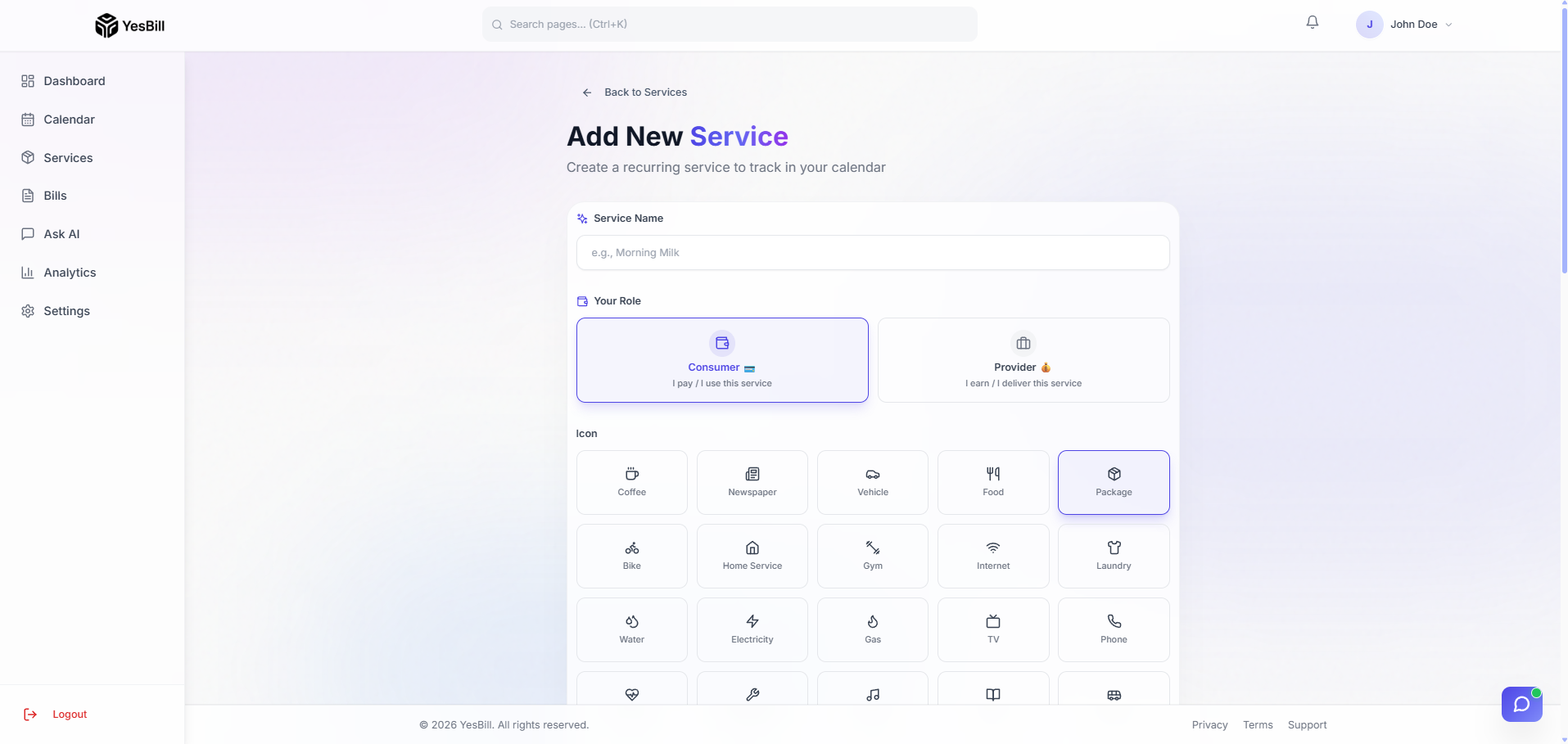
Go to Services in the sidebar and click + Add Service (top right) to open the service creation form.
Step 2 — Enter Service Details
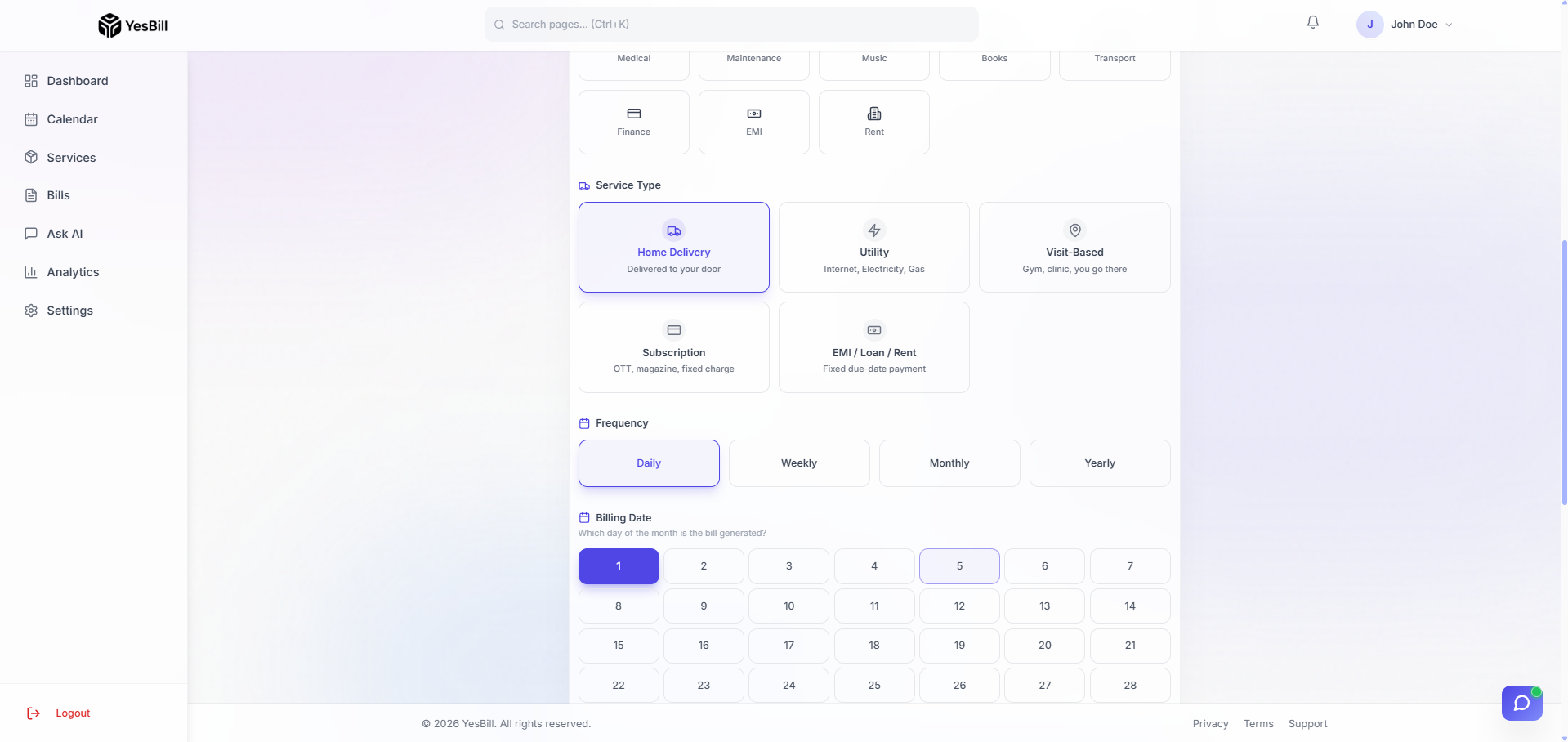
Fill in the service details:
- Service Name — e.g. "Morning Milk", "Tiffin Service", "Maid"
- Service Type — Choose the billing model that matches your service (see the table below)
- Daily Rate / Monthly Price — The cost per day or per month
- Billing Day — Day of the month bills are due (for subscription/payment types)
Step 3 — Configure Billing Options
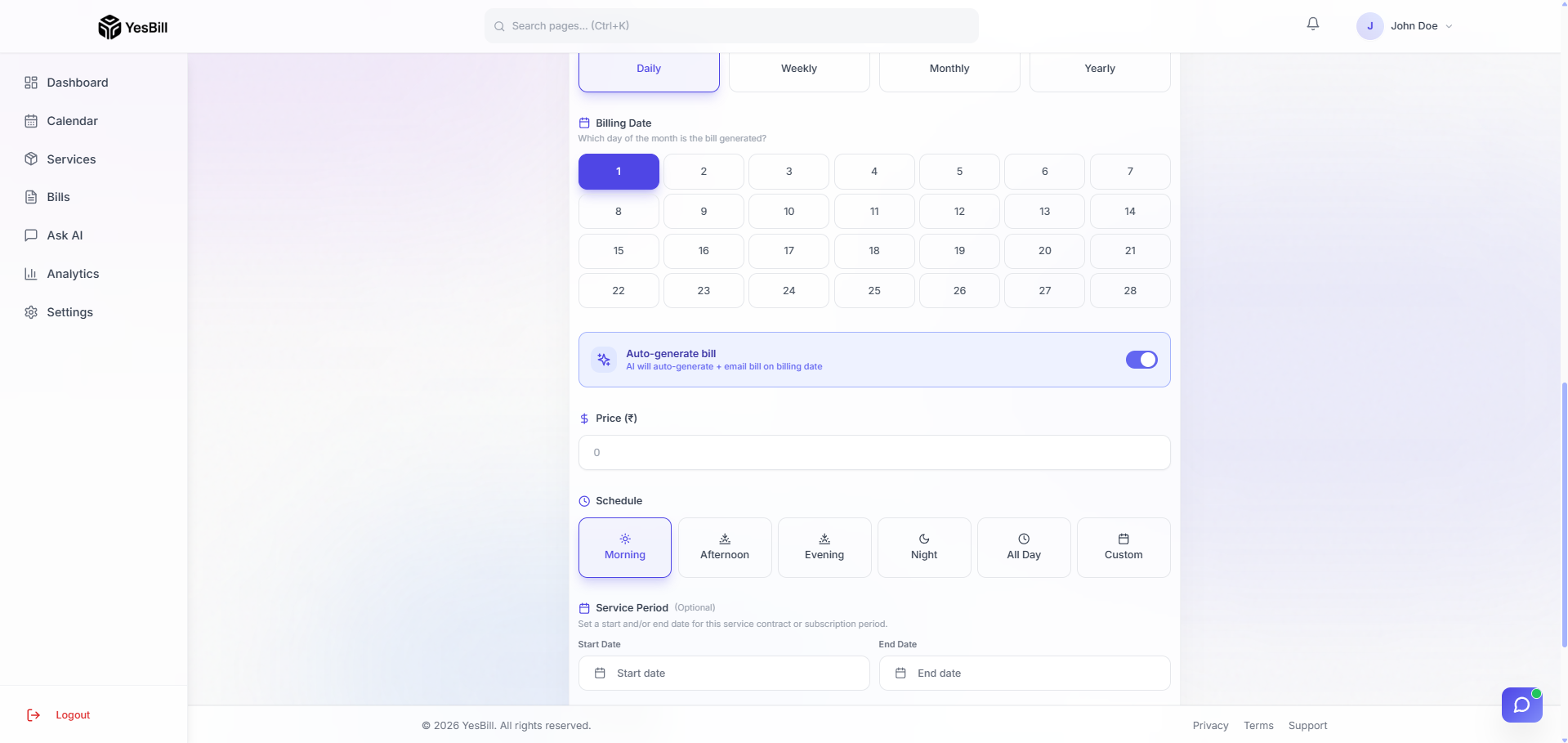
Depending on the service type, additional fields may appear such as start date, billing cycle day, or tracking method. Fill these in as appropriate.
Step 4 — Save and Confirm
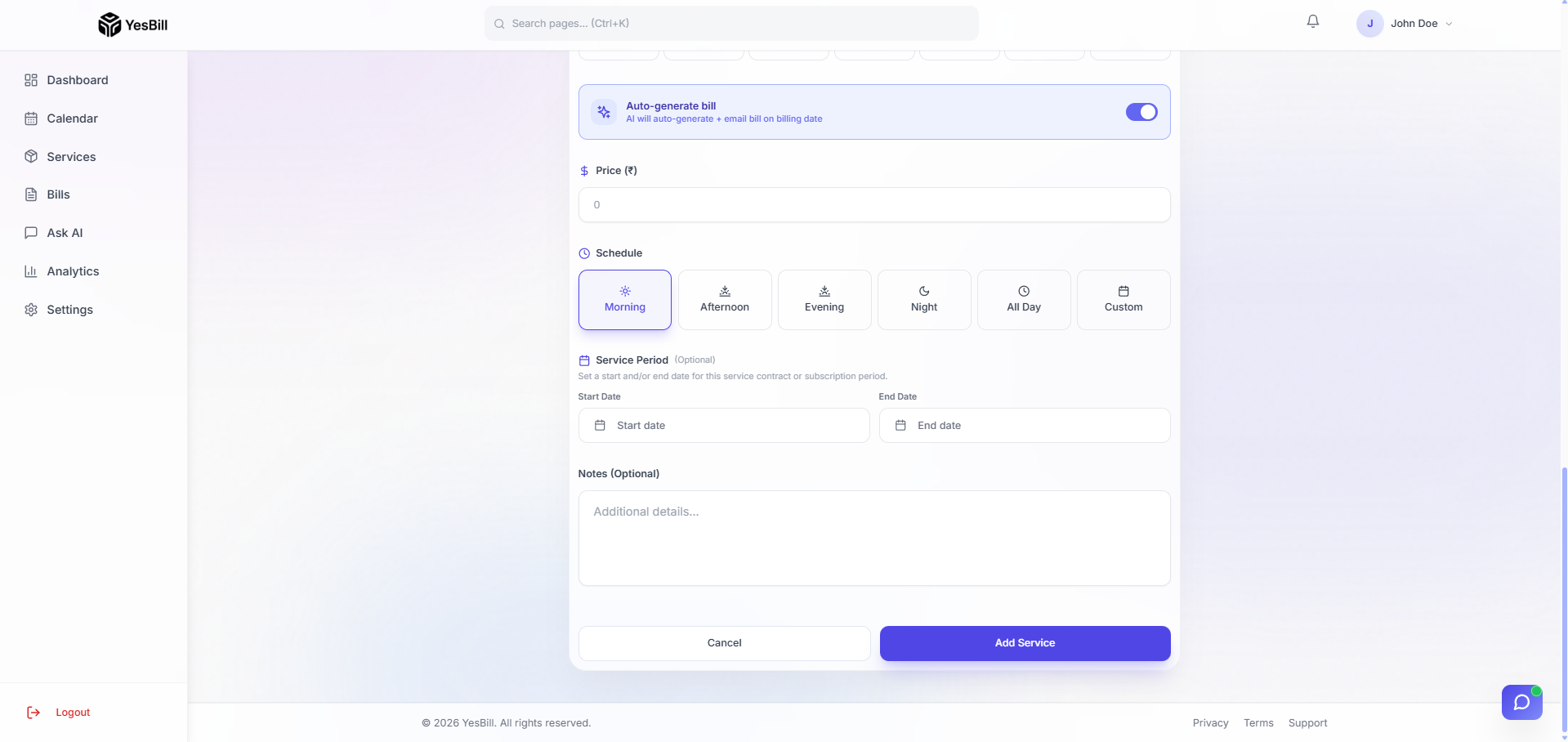
Click Save. Your service is now active and will appear on the Calendar immediately.
Choosing the Right Service Type
| You're Tracking | Use This Type |
|---|---|
| Daily milk, newspaper, tiffin | Home Delivery |
| Maid, cook, gardener visits | Visit-based |
| Internet, DTH, electricity | Utility |
| Netflix, Spotify, gym | Subscription |
| Loan EMI, credit card | Payment |
Example: Tiffin Service
- Name: Morning Tiffin
- Type: Home Delivery
- Daily Rate: ₹80/day
- Tracking: Mark each day as Delivered or Skipped
The calendar will show this service daily. At month end, your bill will be calculated as ₹80 × days delivered.
What Happens Next?
Once a service is added:
- It appears on your Calendar for the current month
- You can start marking days (delivered/visited/active)
- At month end, bills are auto-generated based on your tracking
tip
Add all your regular household services at once — the more you track, the more accurate your monthly bill summary will be.