v1.0.0 — March 2026
YesBill v1.0.0 is the first stable release — a full-featured household expense tracker with AI-powered bill analysis, multi-service management, calendar-based daily tracking, and a conversational AI assistant. Everything you need to understand and control your monthly home expenses.
Authentication & Sign-in
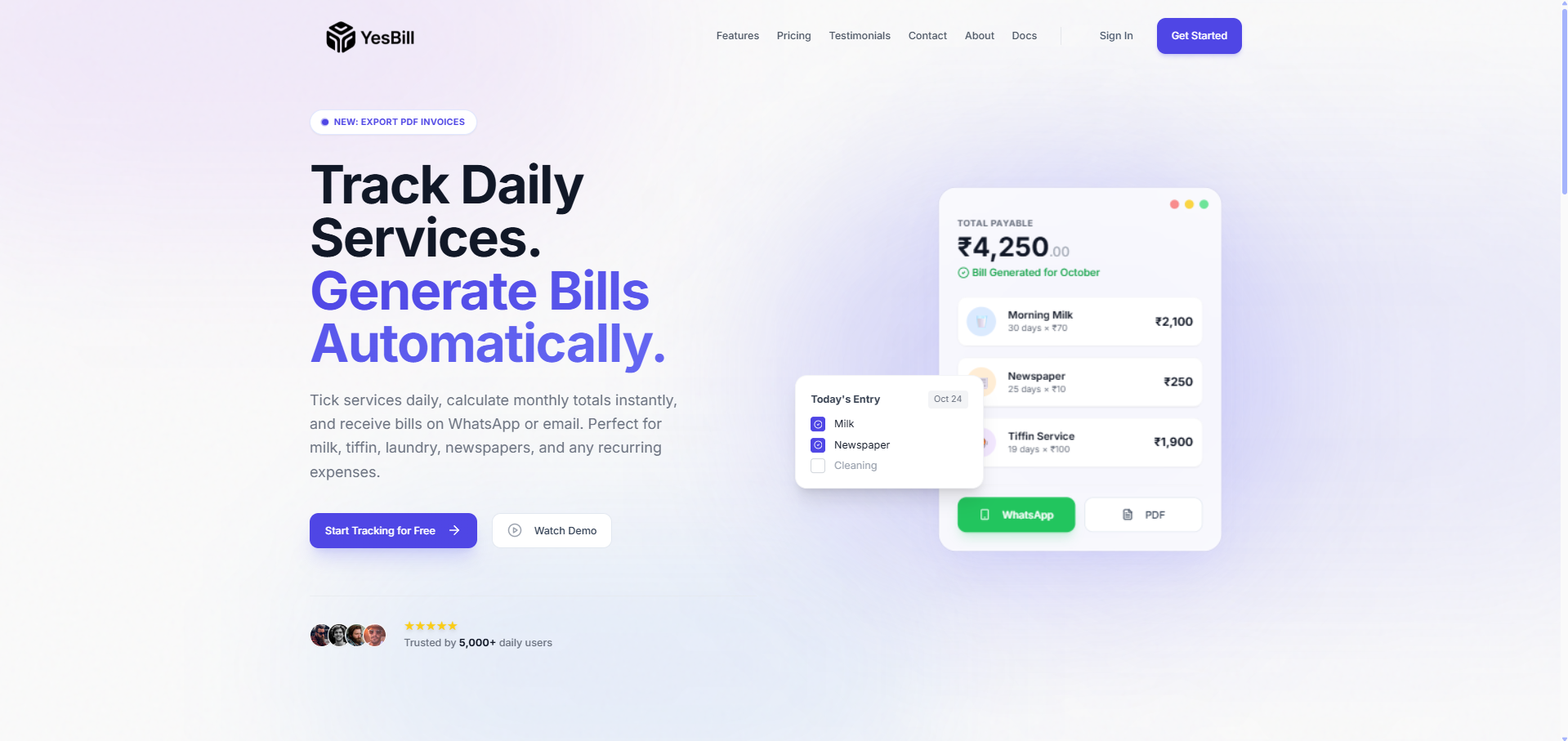
Landing page & sign-up
The onboarding experience starts at the landing page, which introduces YesBill's key features before directing new users to sign up.
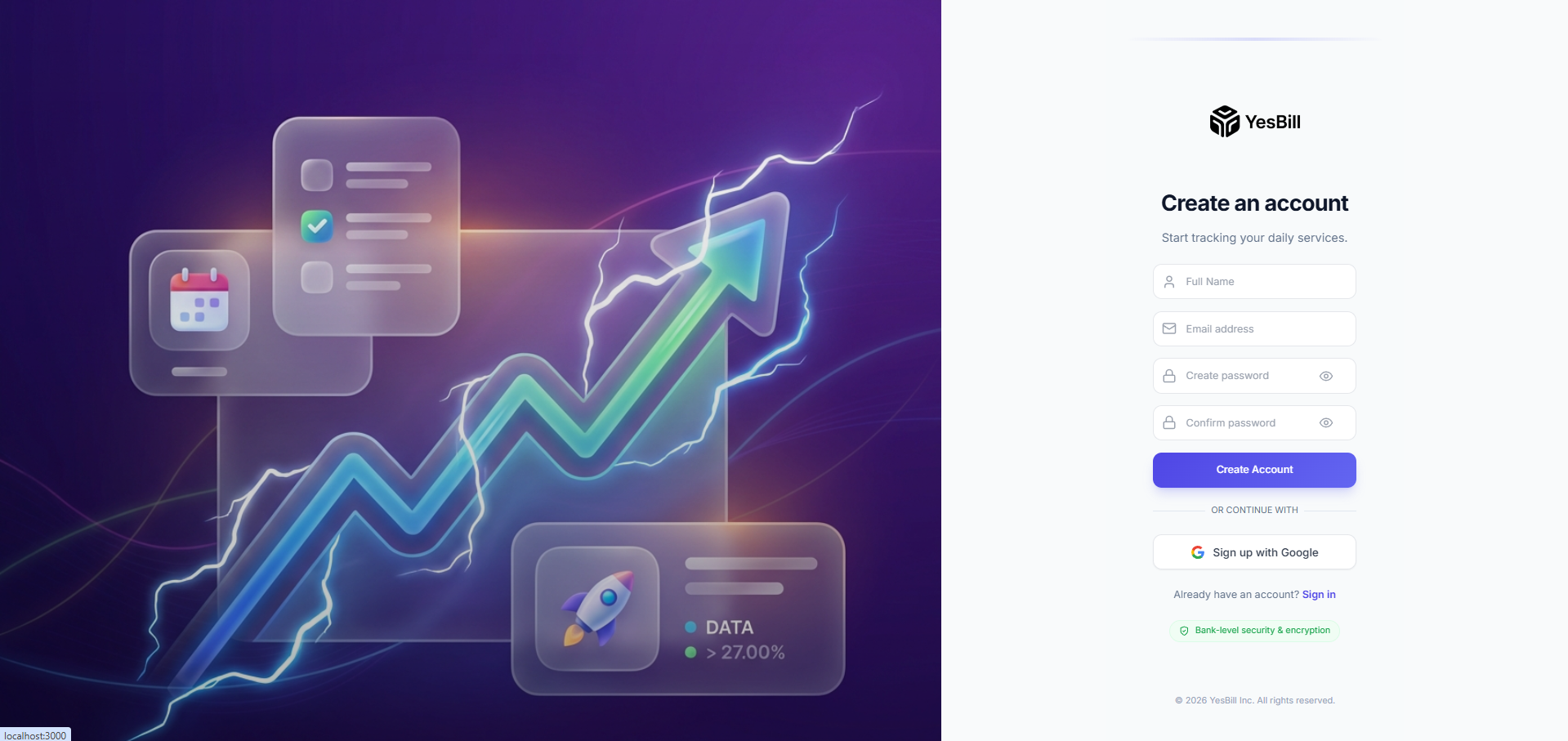
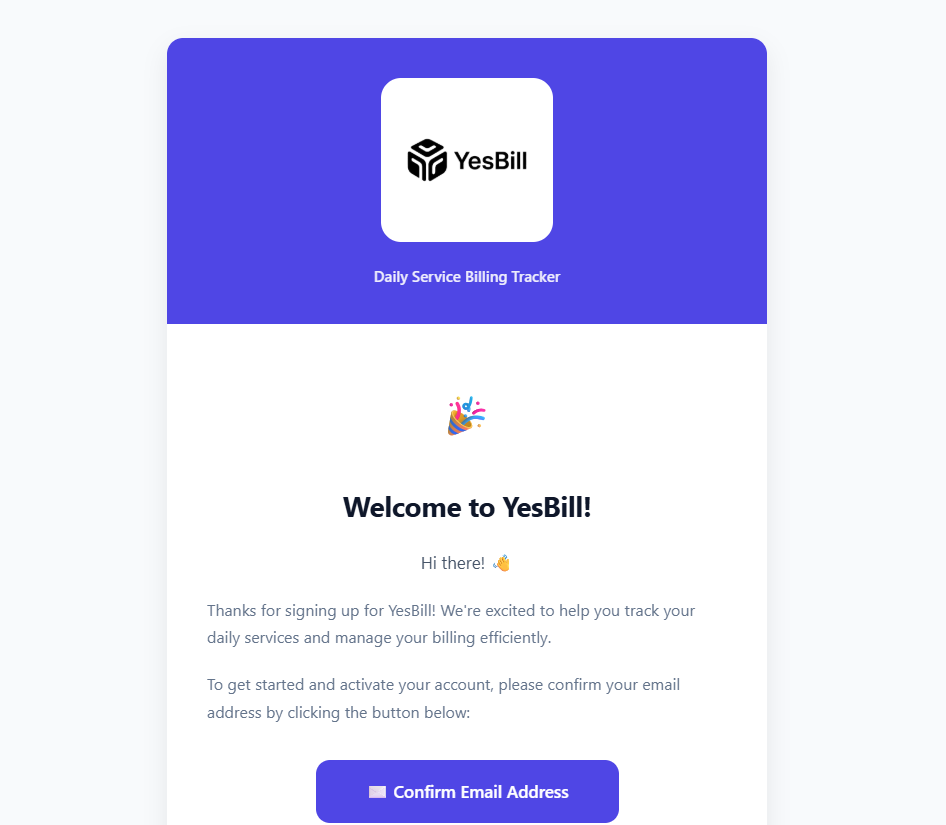
New users create an account with their email and password. A confirmation email is sent immediately to verify the address before the account is activated.
Email & password login
Returning users sign in from the login screen with email and password.

Google SSO
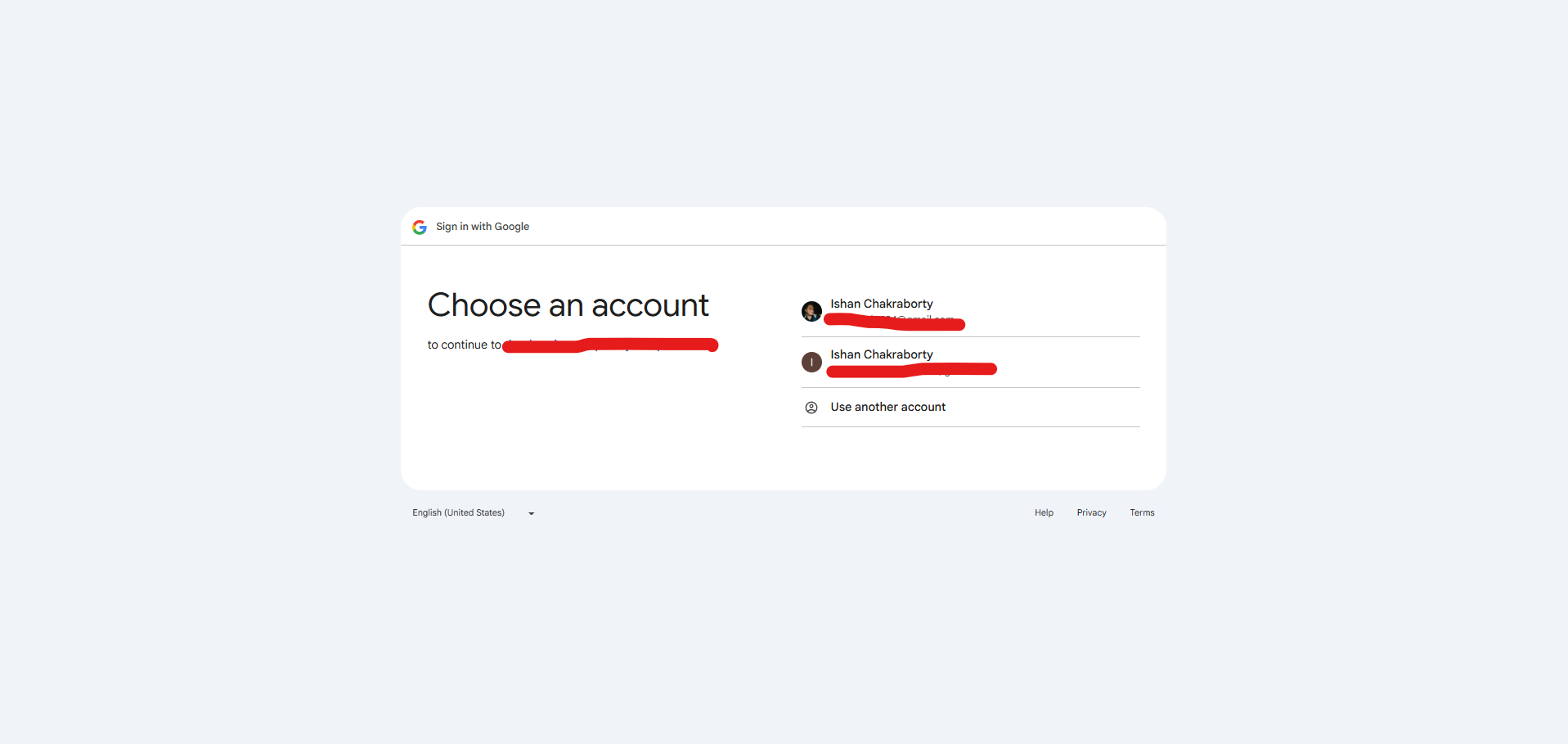
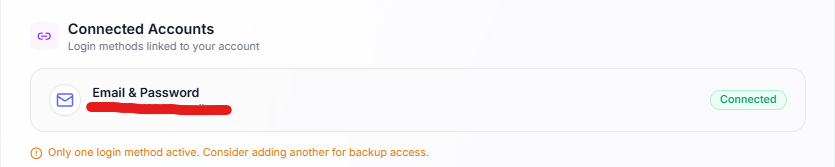
Sign in with a Google account using OAuth. No password required — your Google identity is linked to your YesBill profile automatically.

Forgot password
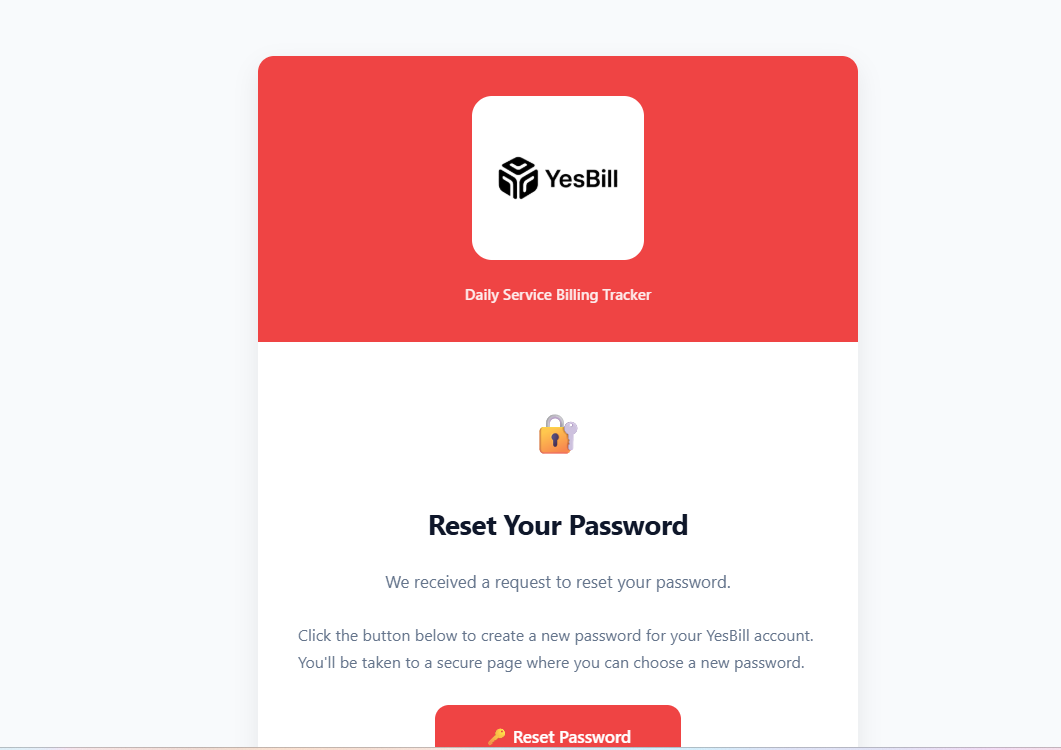
A guided four-step reset flow: enter your email → receive the reset email → open the link → set a new password.



Onboarding
First-time users are walked through a two-step setup wizard before they reach the dashboard. Both steps can be skipped and completed later from Settings.
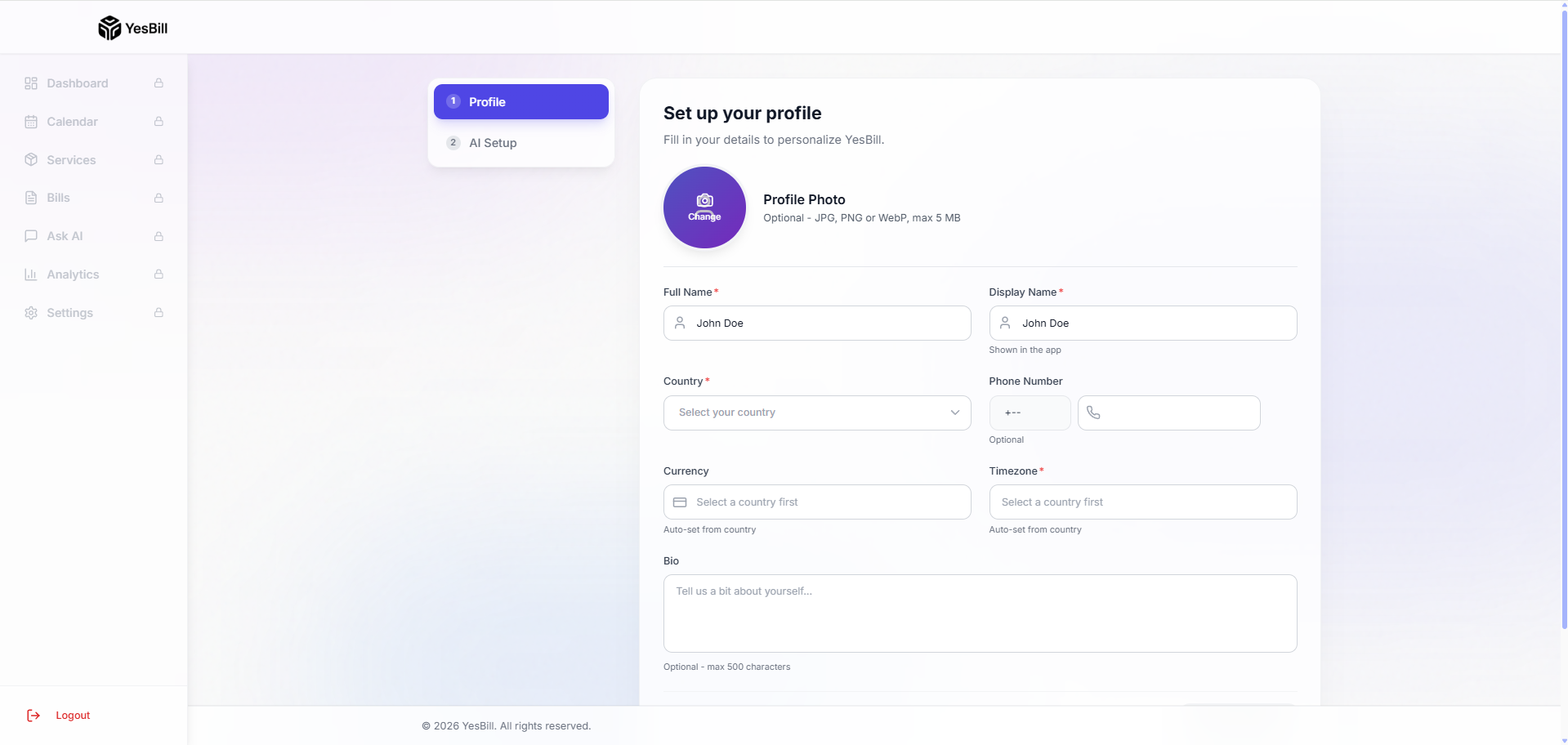
Step 1 — Profile setup
Set your display name, avatar, cover image, and timezone so your bills and calendar are always in sync with your local time.
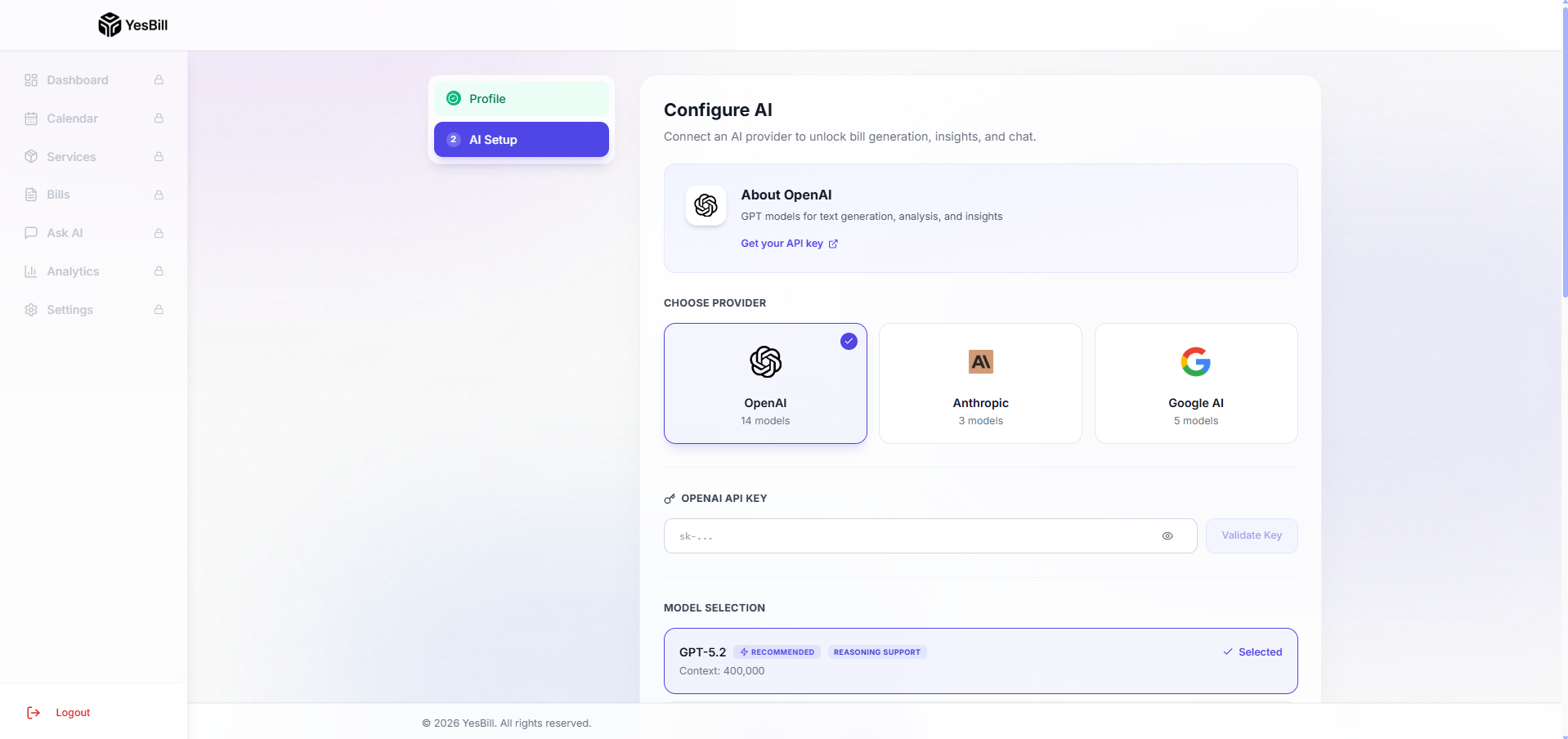
Step 2 — AI configuration
Connect an AI provider (OpenAI, Anthropic, or Google Gemini) to unlock Ask AI, the AI Agent, and AI-powered bill summaries. You can skip this step and configure it later.
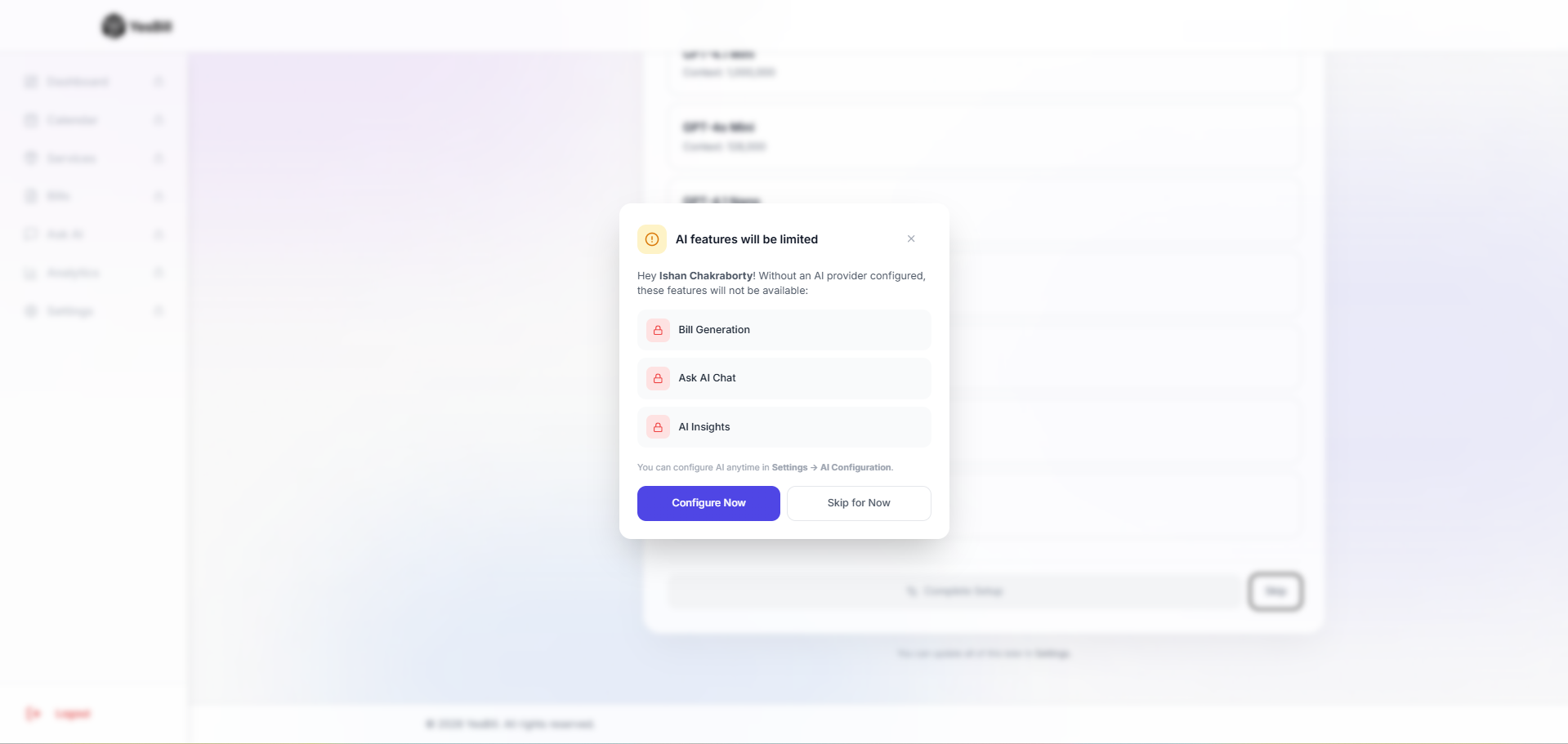
Skip modal
A confirmation dialog explains what you'll miss if you skip, making it easy to decide whether to set up now or later.
Dashboard
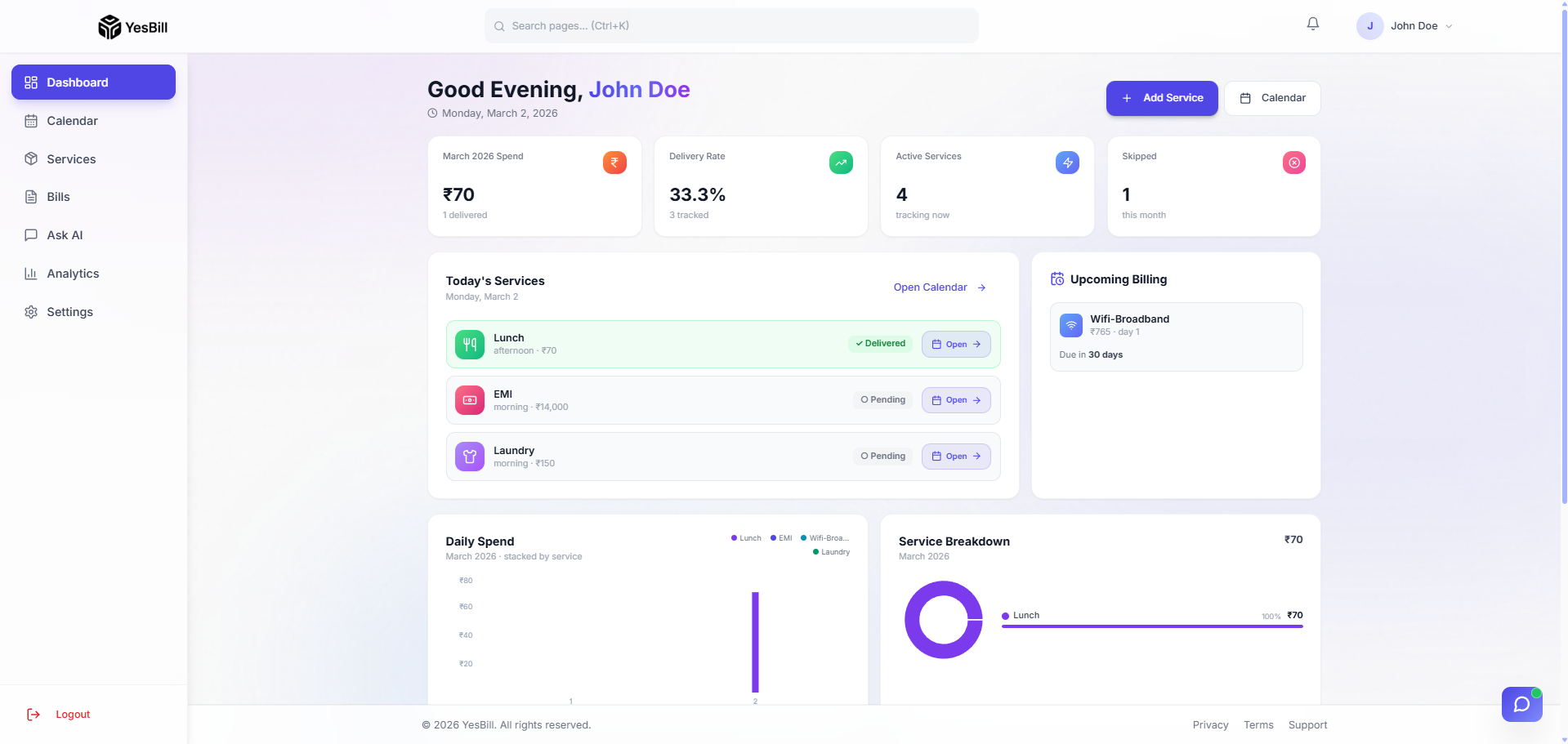
The dashboard is your home screen — a quick-glance summary of pending bills, active services, and overall monthly spend.
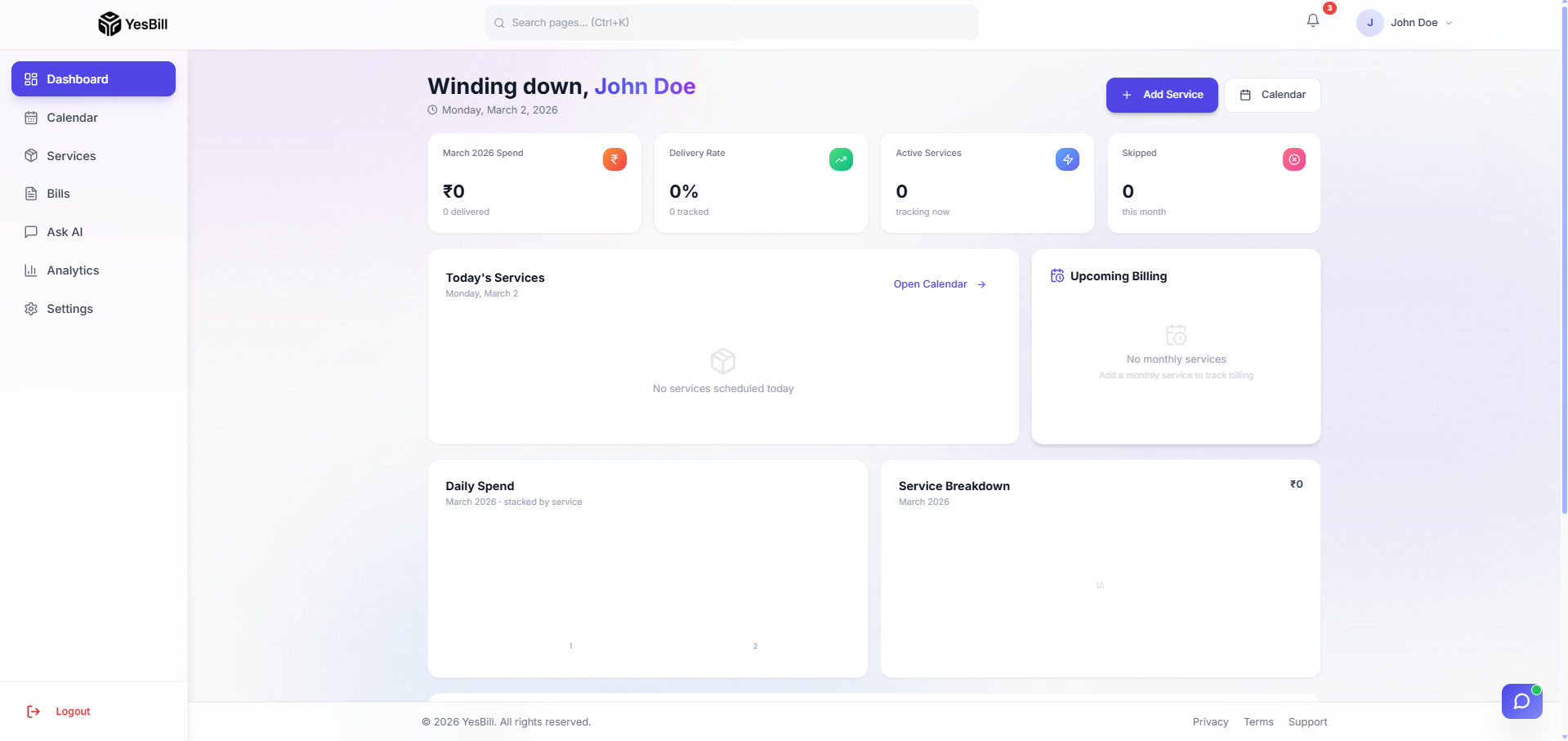
The updated dashboard layout adds prominent KPI cards for total spend, active services, pending dues, and bills this month, with quick-access navigation to the most important sections.
Services
Services are the core of YesBill. Each service represents something you track and pay for every month.
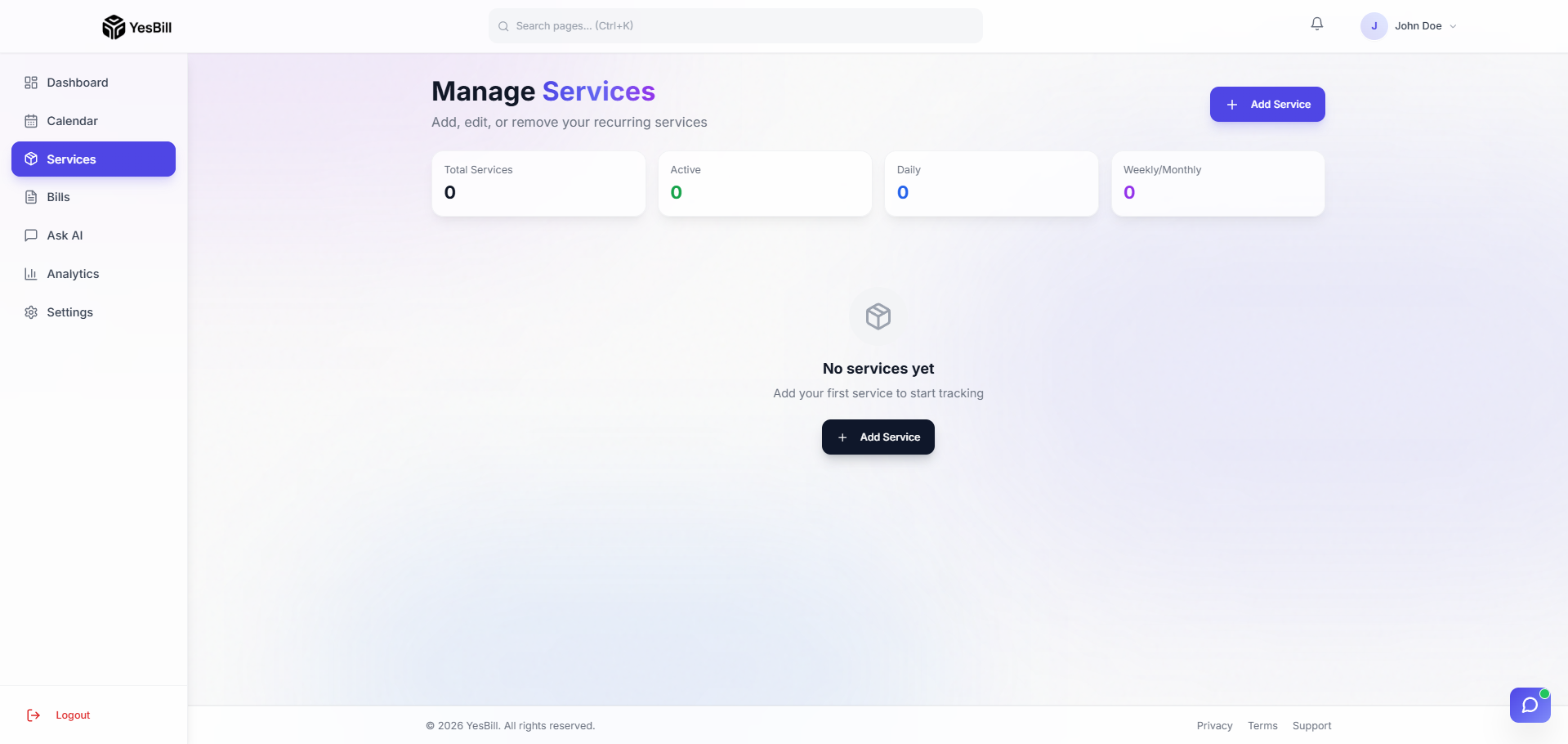
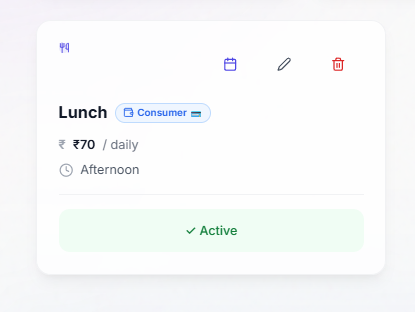
Service overview page
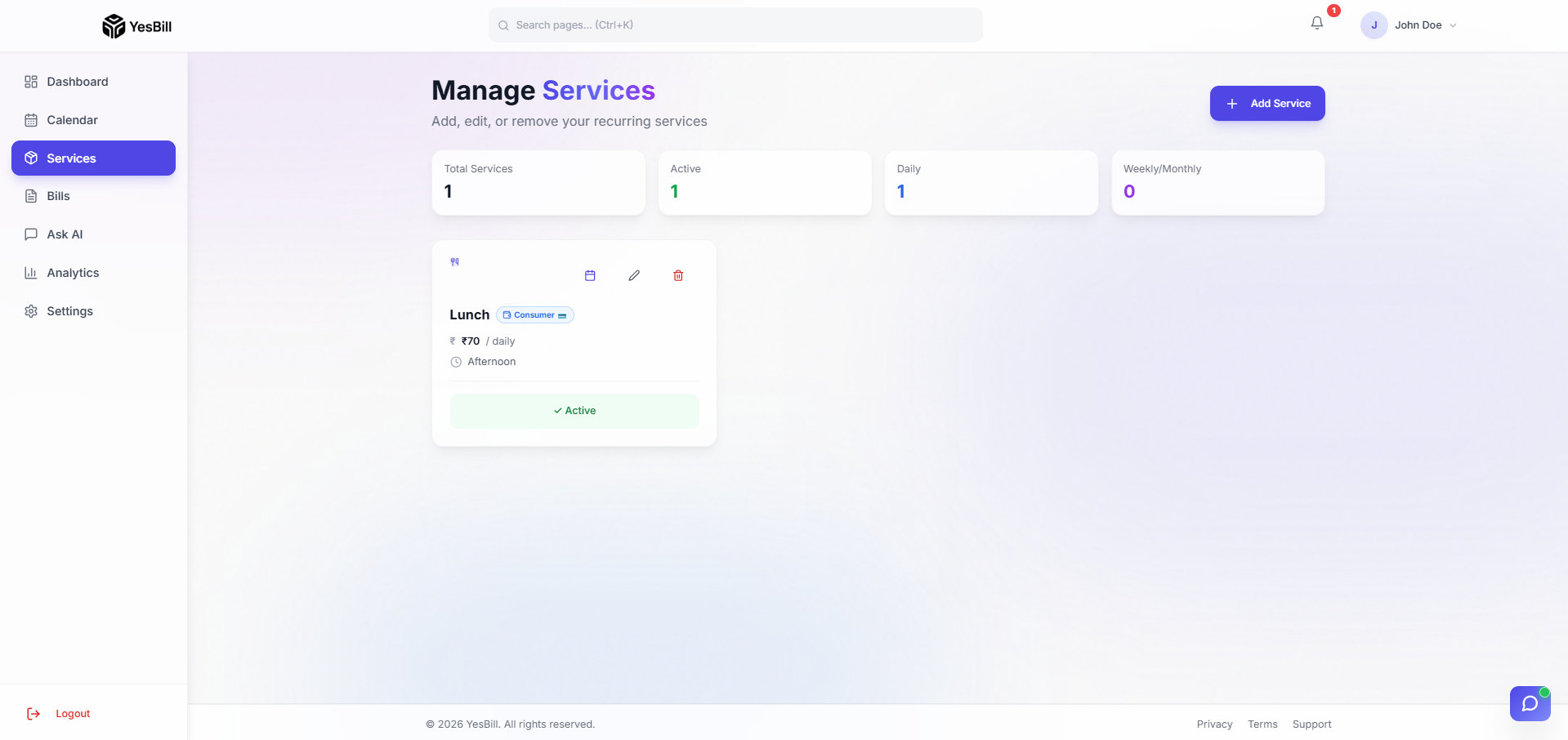
All your services are displayed as cards with their name, type, current amount, and quick-access controls.
Five service types
| Type | How it works |
|---|---|
| Home Delivery | Tracks daily deliveries — Delivered, Skipped, or Missed — and bills per unit delivered |
| Visit-based | Tracks visits by a person (e.g., maid, driver) — Visited or Skipped |
| Utility | Monthly active/inactive toggle for fixed-cost utilities (electricity, water, gas) |
| Subscription | Fixed monthly charge on a set billing day |
| Payment | Custom recurring payment on a fixed date |
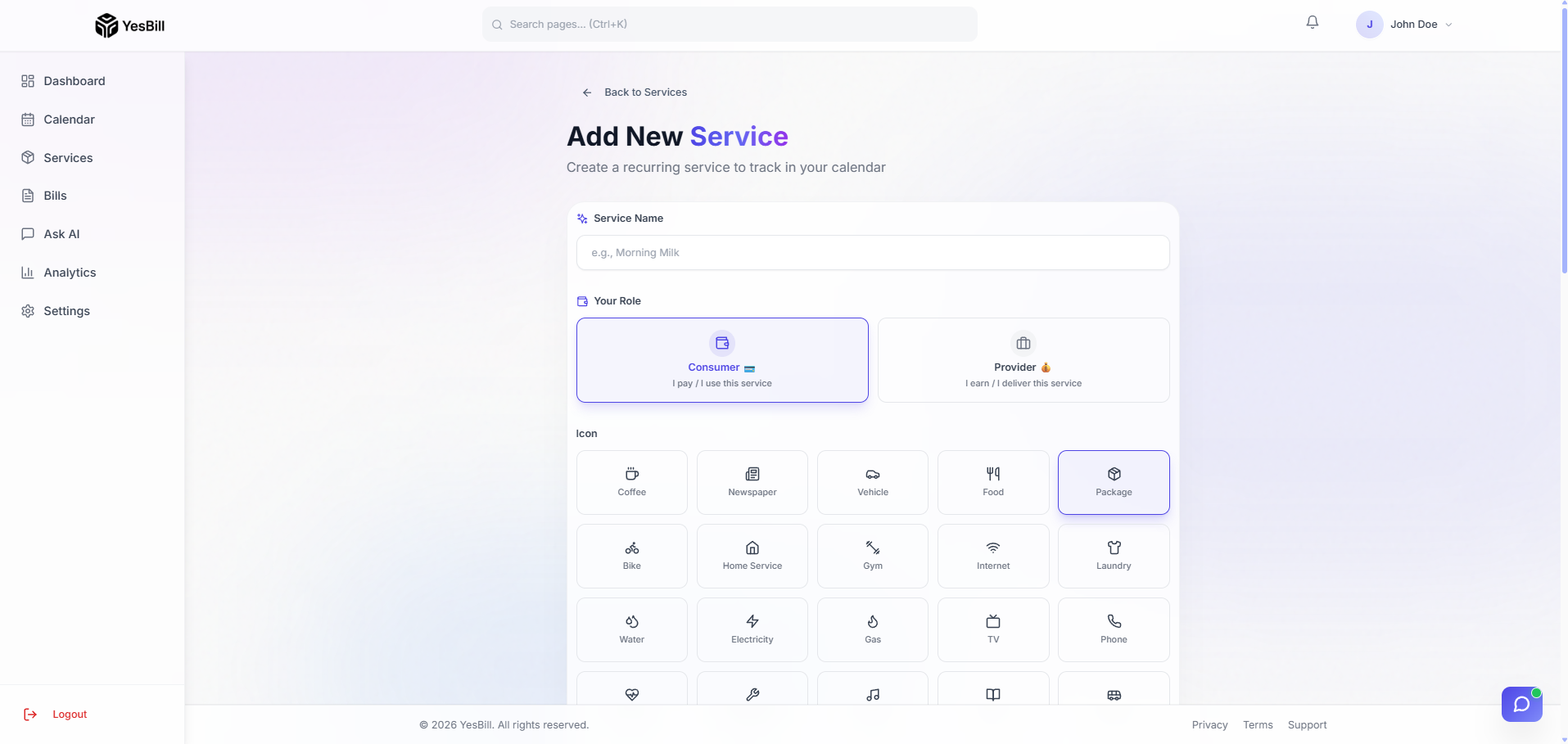
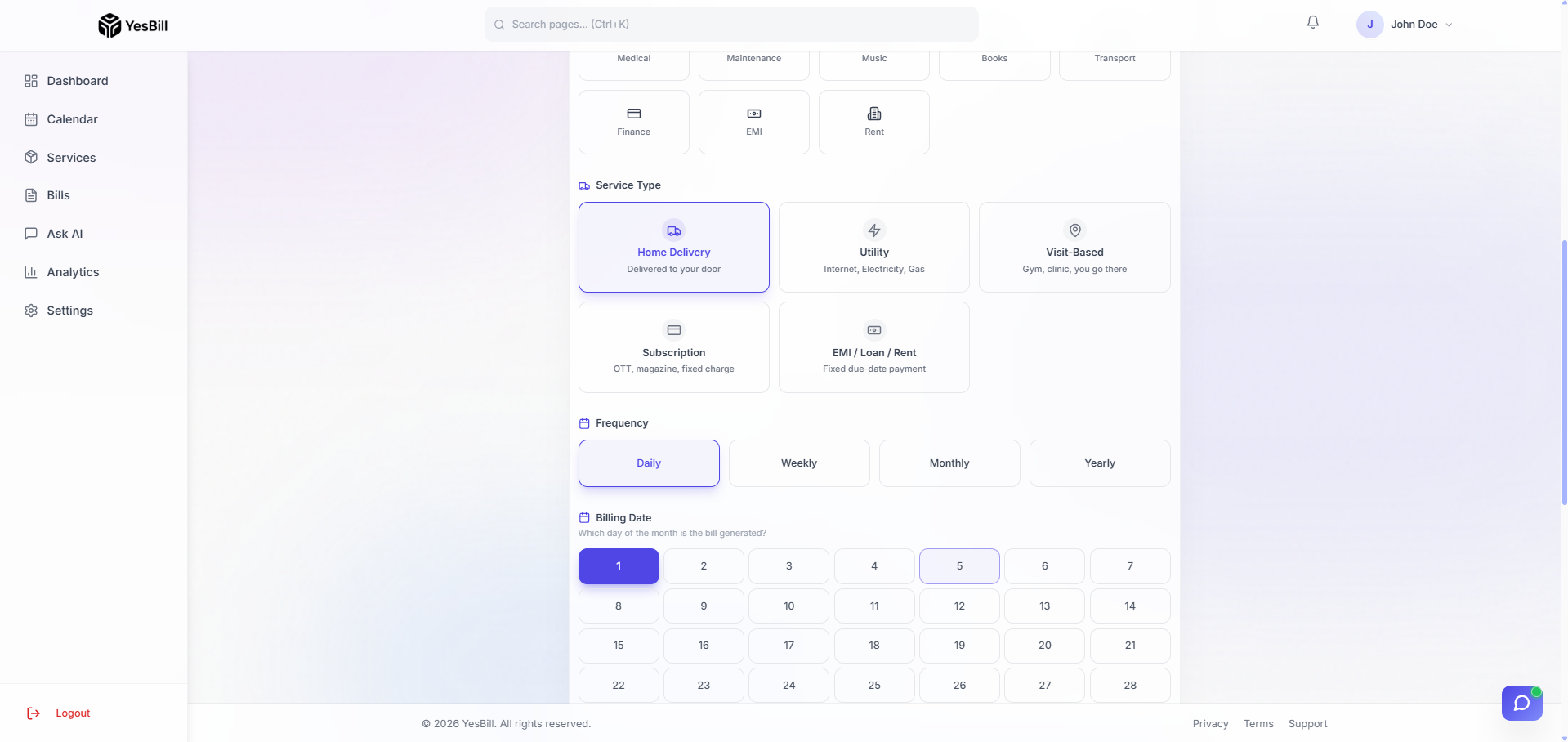
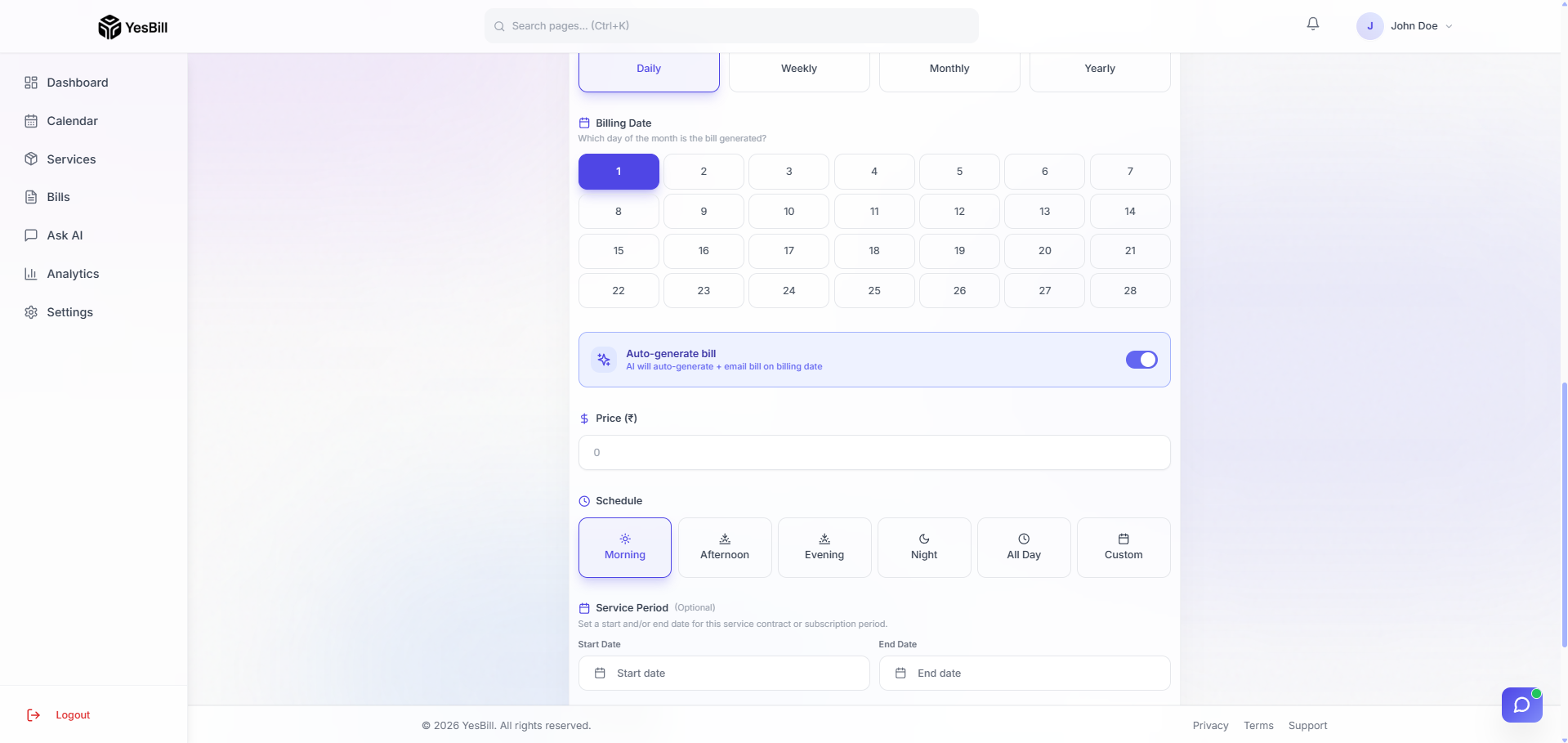
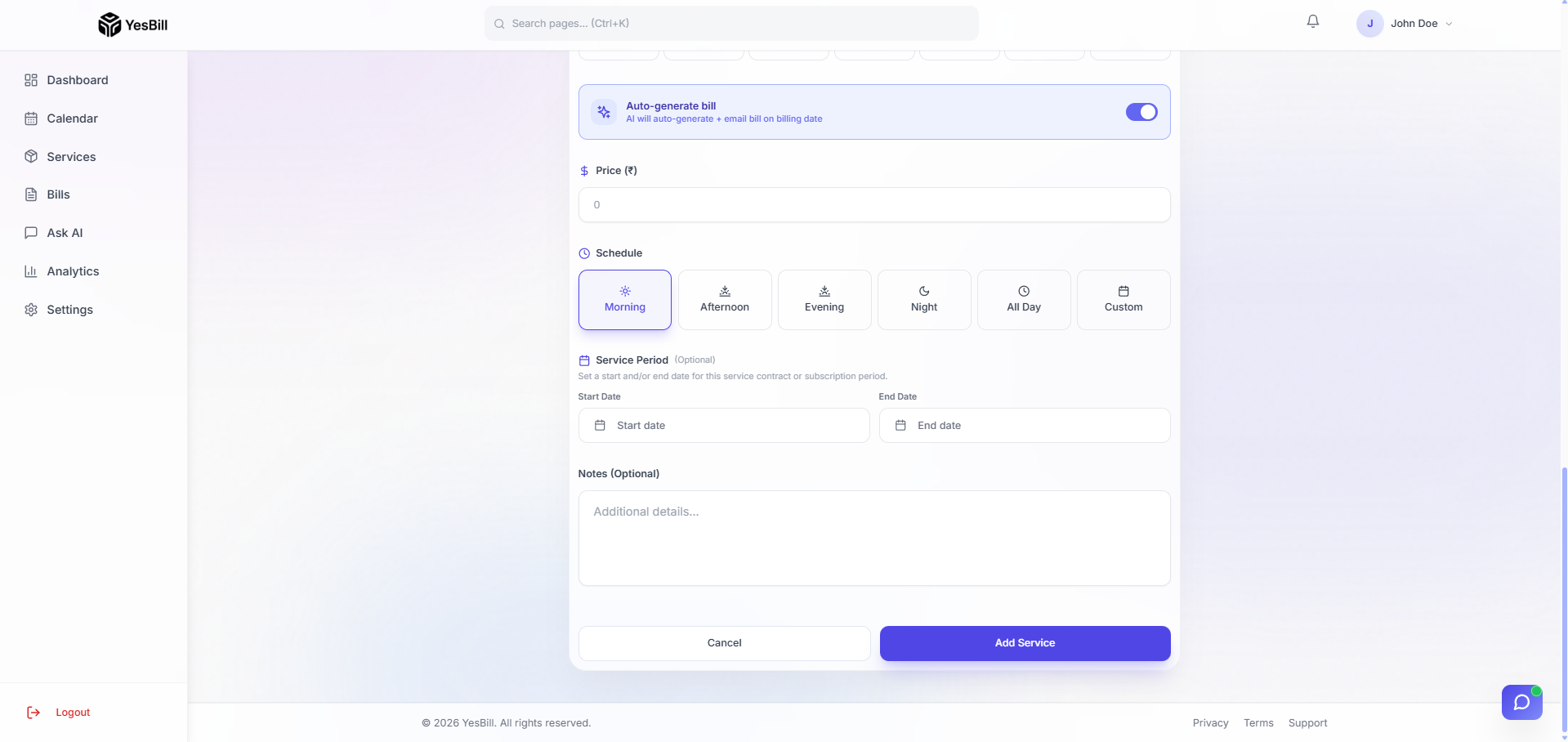
Adding a new service
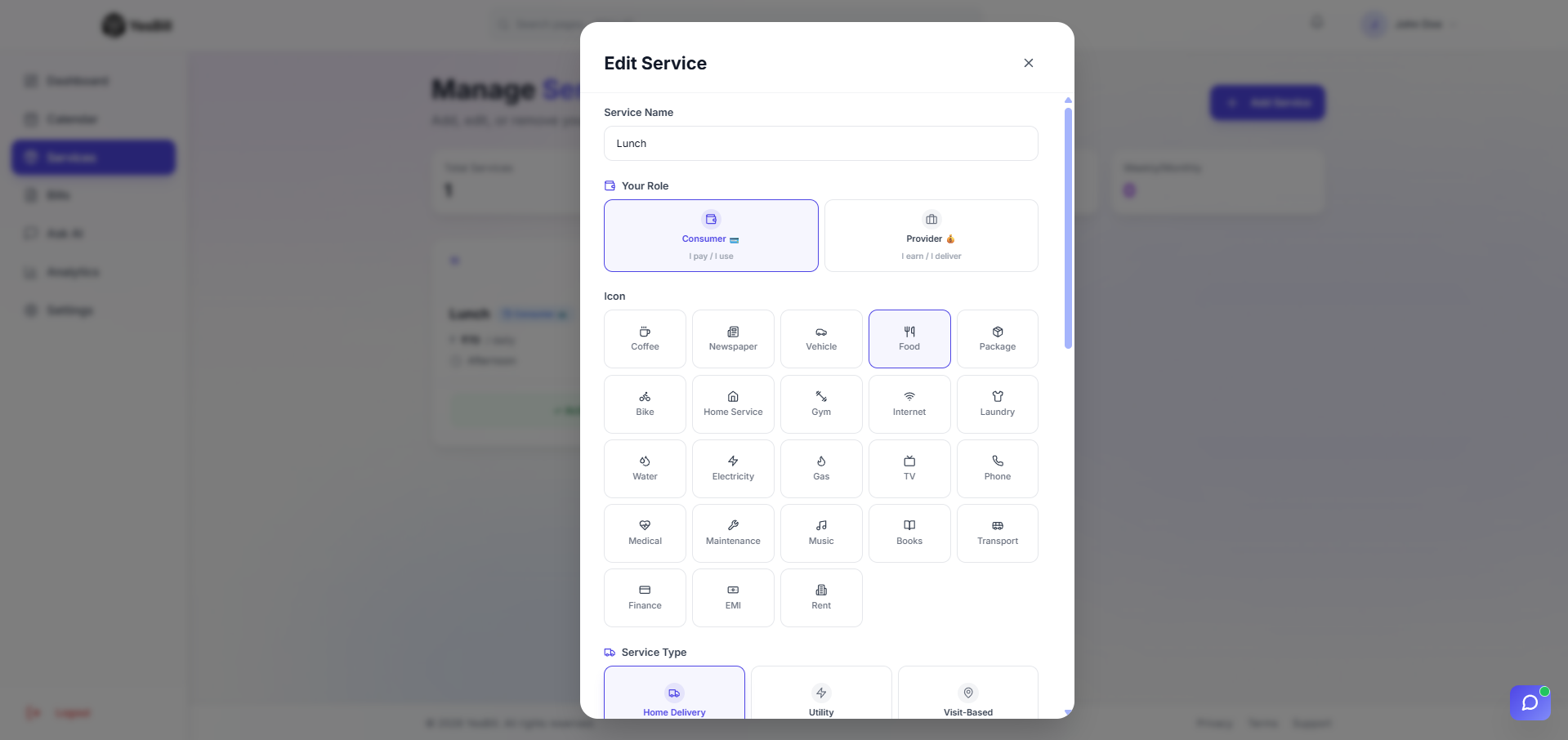
A multi-step wizard guides you through creating any service type — name, icon, amount, billing day, and type-specific settings.
Editing and managing services
Edit any service's details, or use the manage panel to reorder, pause, or delete services without affecting historical bill data.
Calendar
The calendar is where you log daily activity for your services. It provides monthly, weekly, yearly, and per-service views.
Main calendar (monthly view)
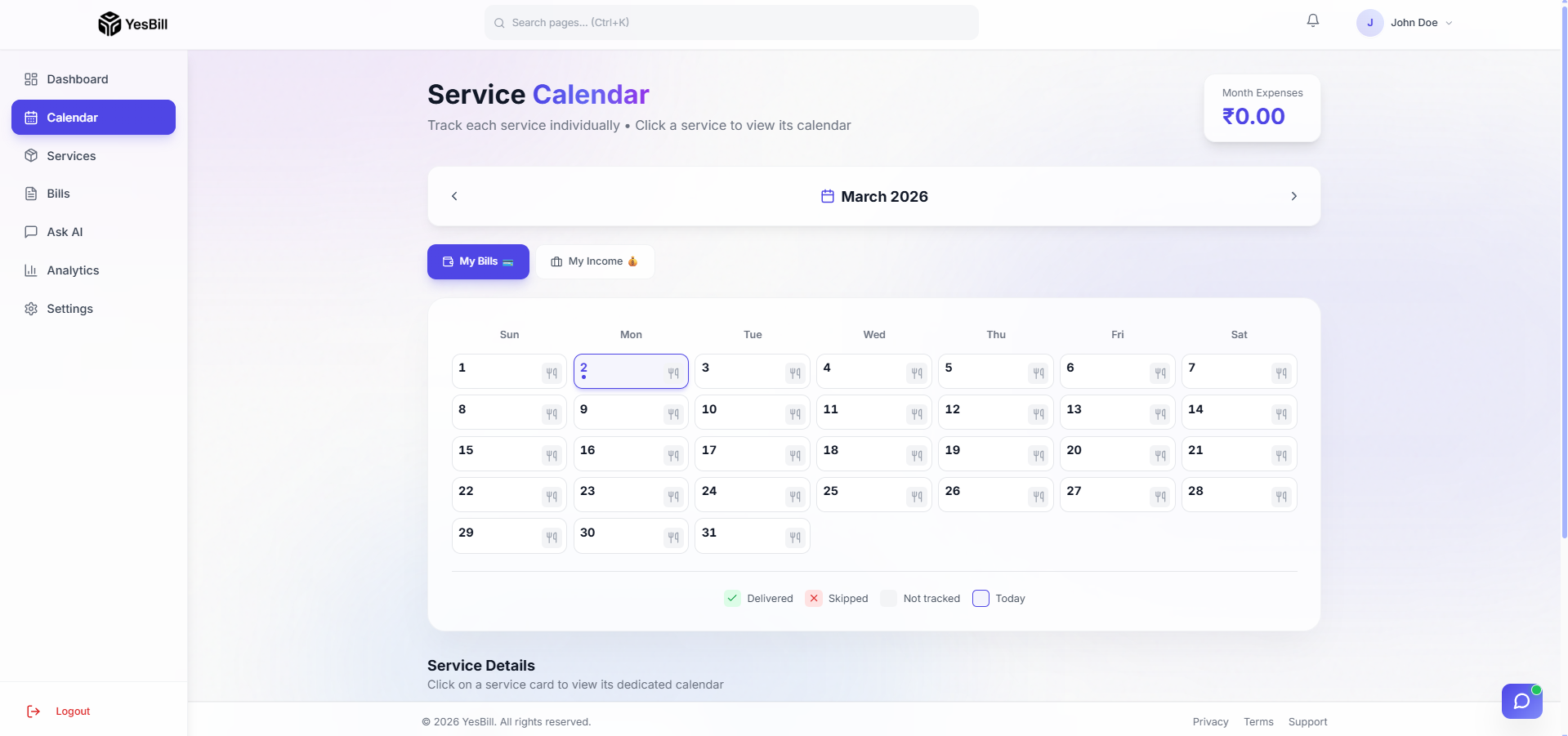
The default calendar shows all services across the current month in a compact grid. Each day displays the tracking status for every active service.
Per-service calendar
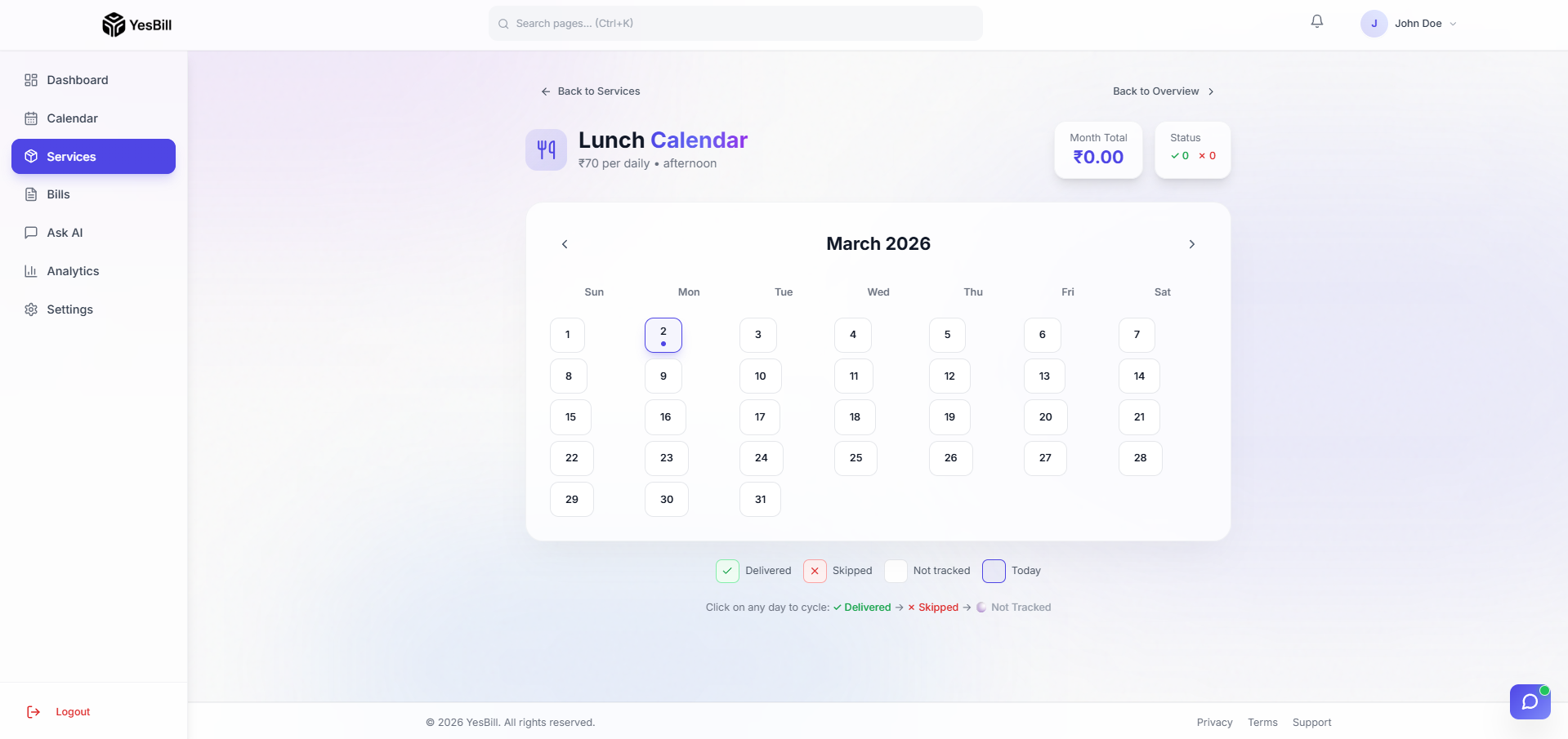
Each service has its own dedicated calendar page. Switch between month, week, and year views, and log status directly from any day cell.
Weekly view
The weekly view zooms into a 7-day window for fine-grained day-by-day tracking.
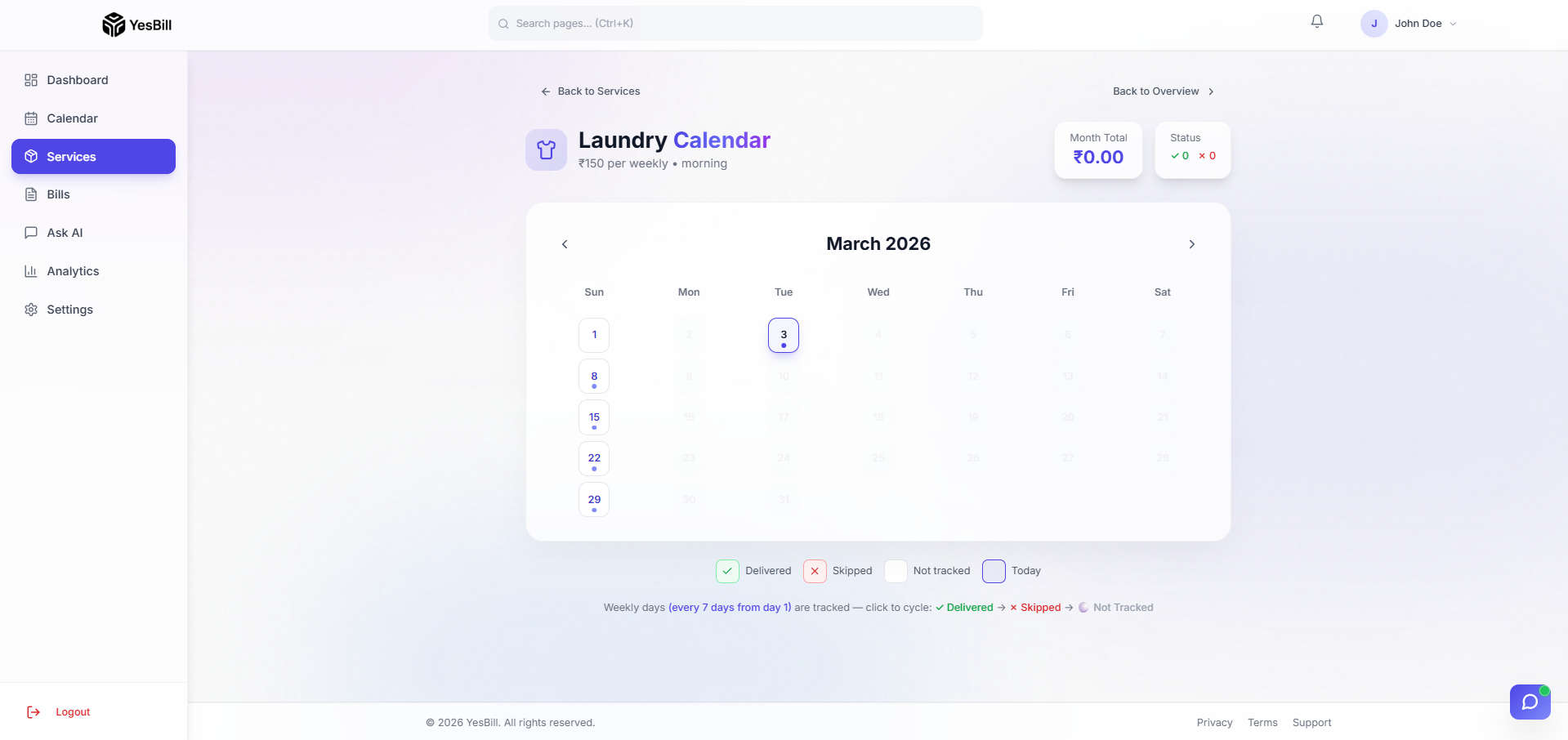
Monthly view (per-service)
A full-month grid view for a single service, showing all statuses side by side.
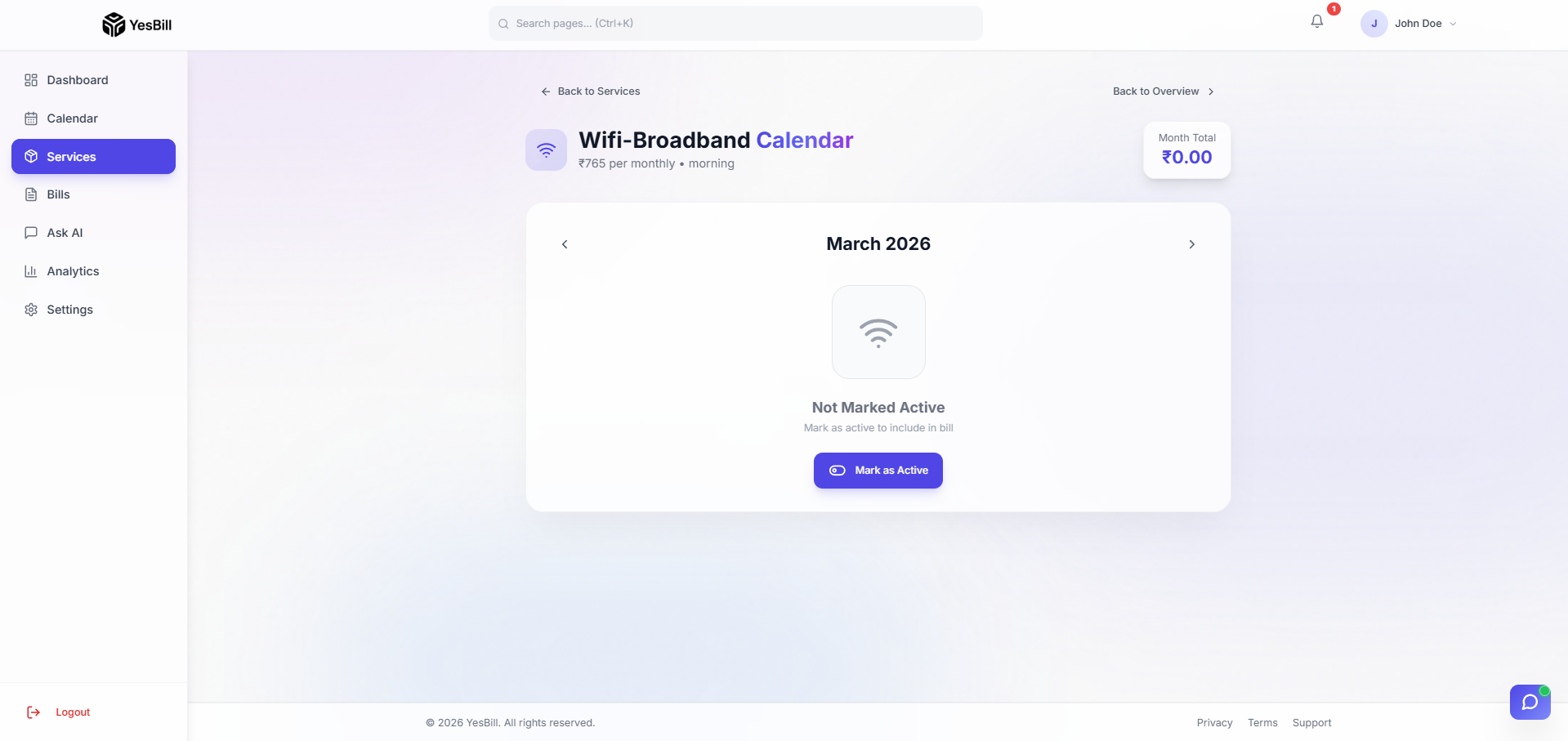
Daily tracking
Tap any day to open the daily tracking panel. Each service shows its current status with one-tap buttons to change it.
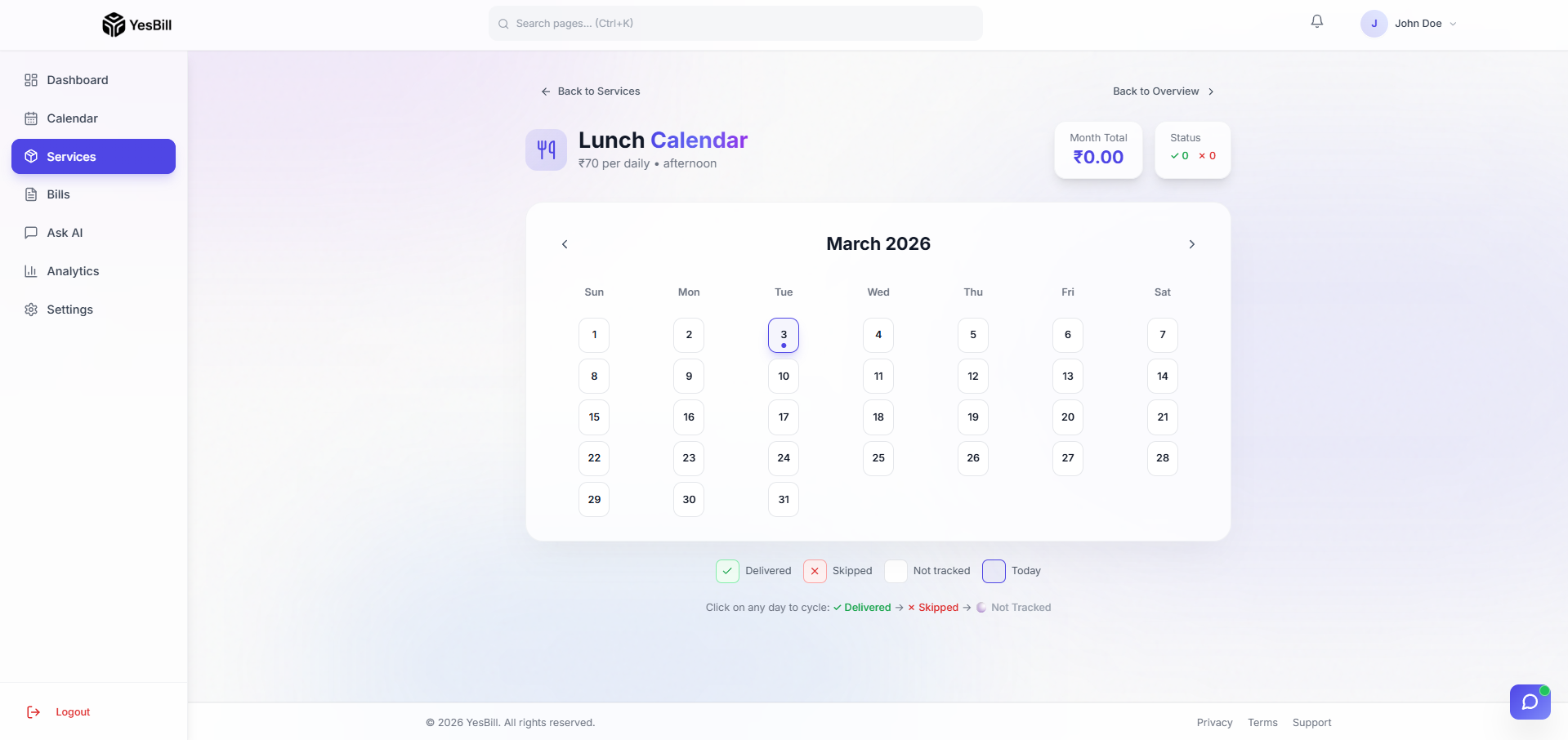
After marking selections, the calendar grid updates immediately to reflect the logged statuses.
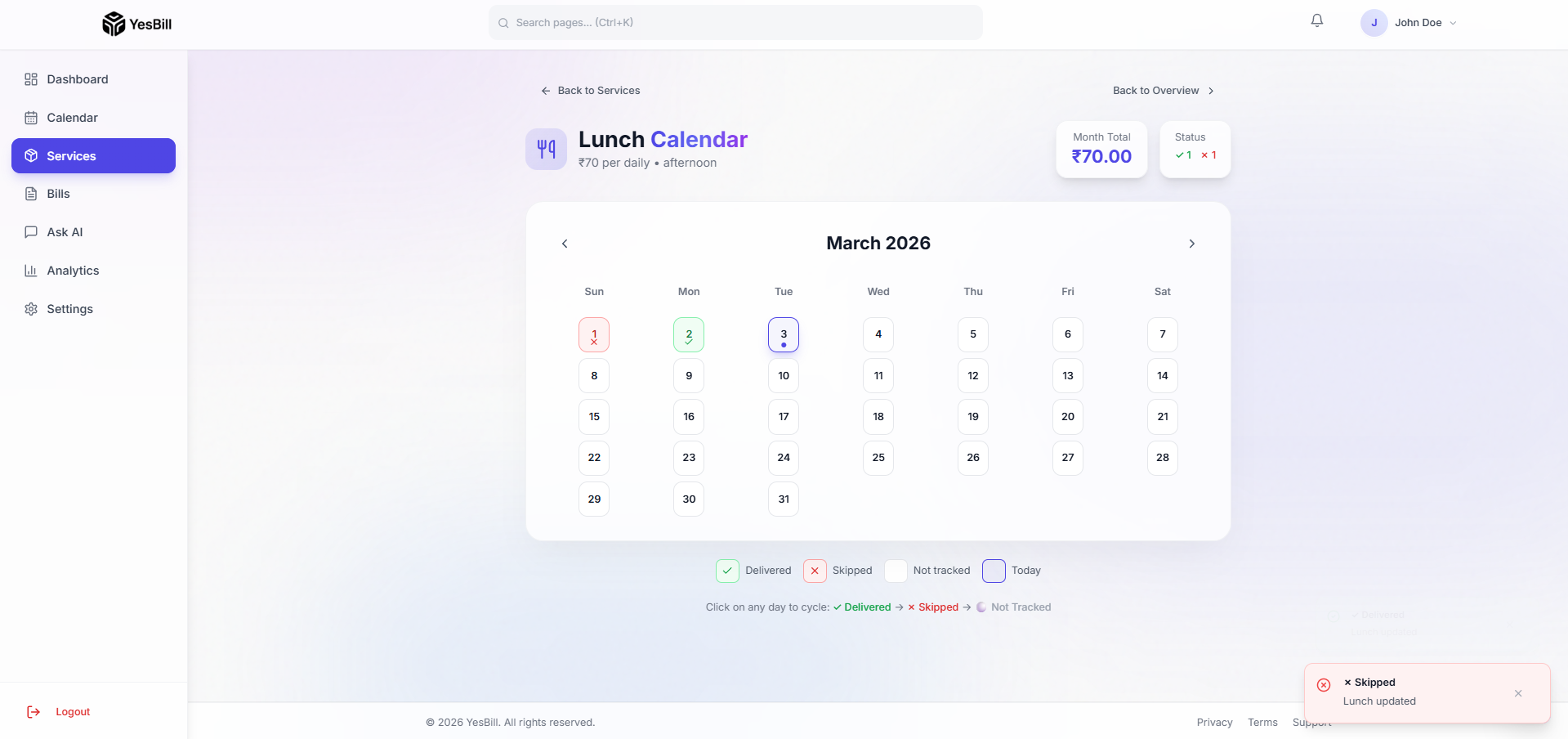
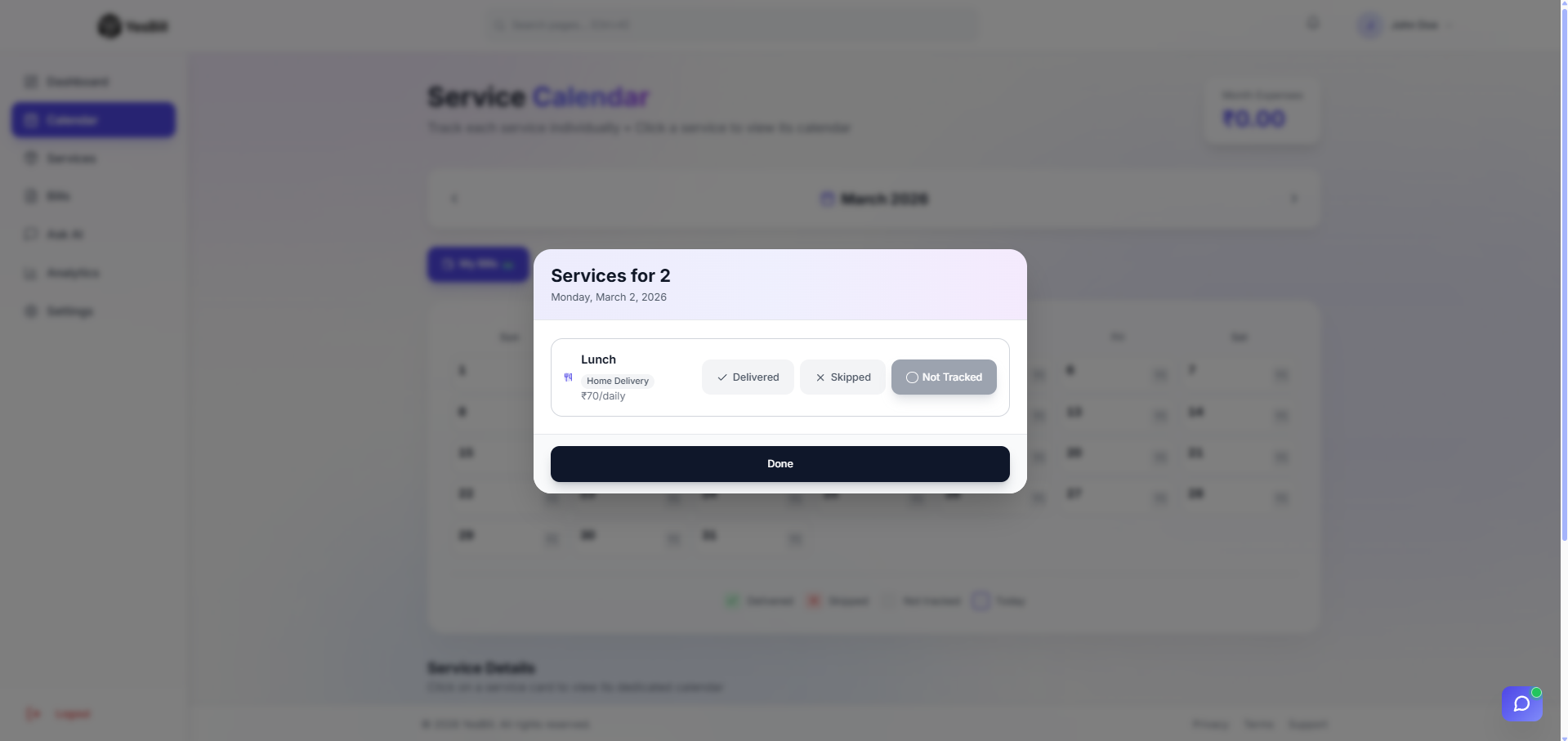
Date detail modal
Click any date on the main calendar to see a combined summary of all service statuses for that day.
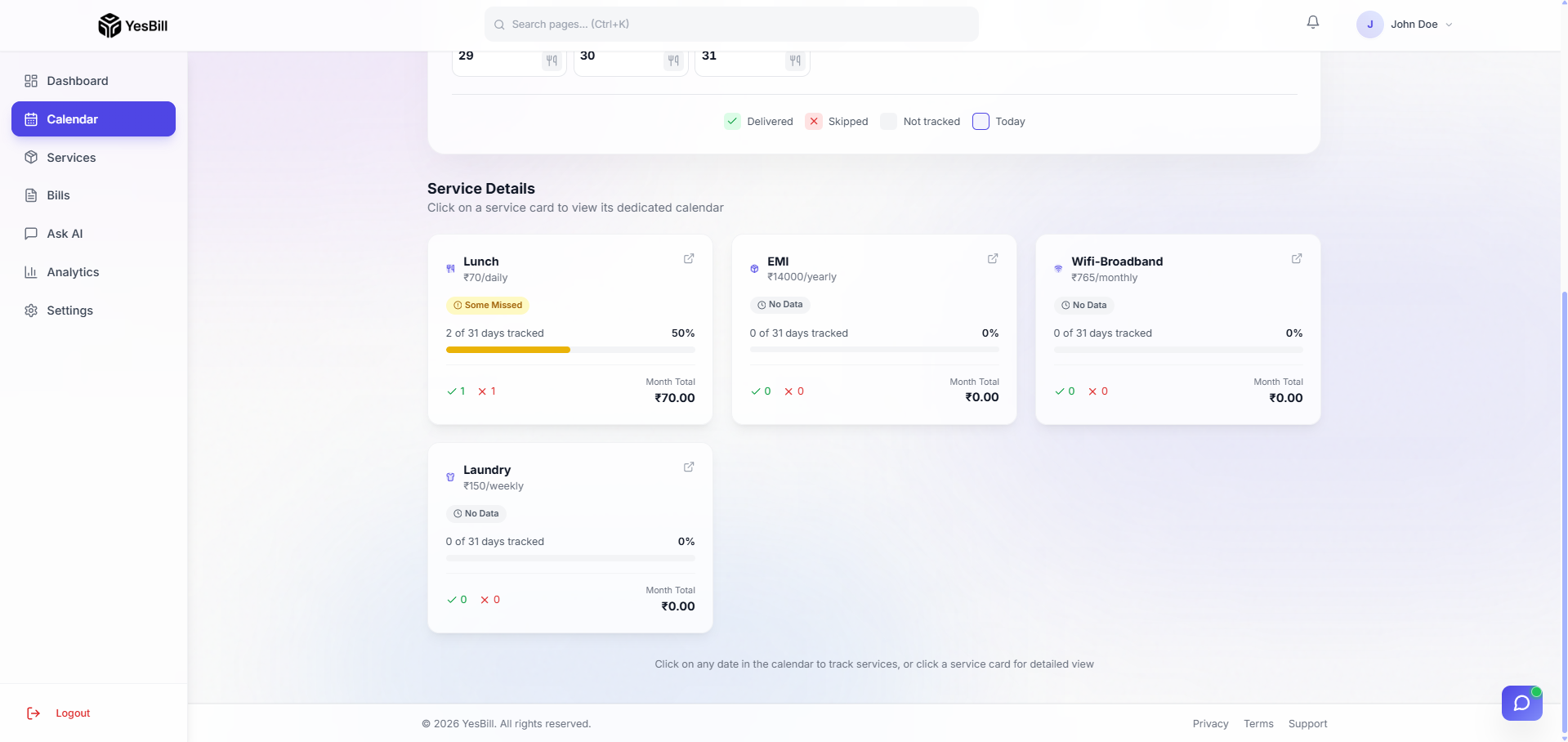
Service details panel
The service details side panel appears when you tap a service name on the calendar. It shows the service's current settings, rates, and billing day.
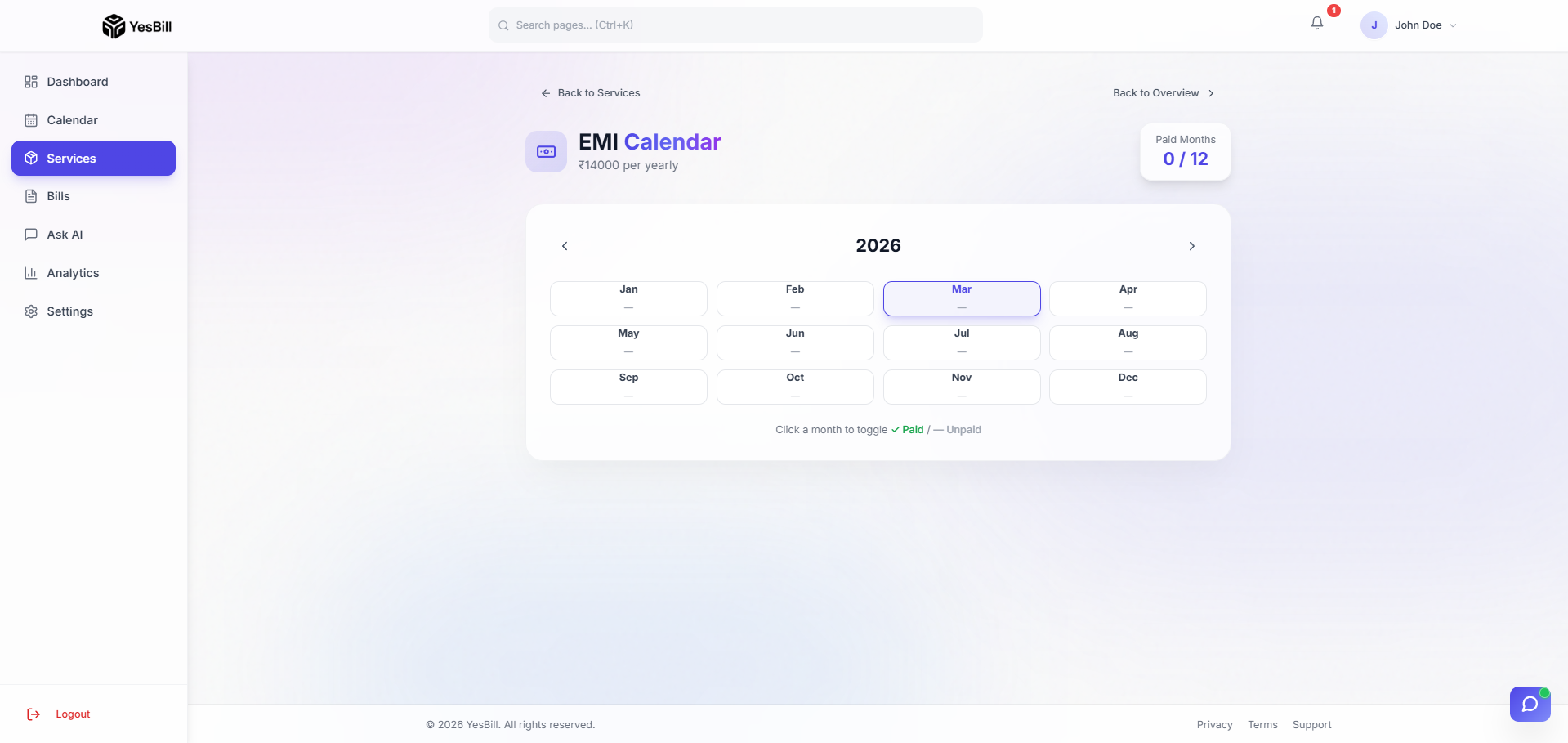
Yearly view
A 12-month summary grid showing payment activity across the full year. Useful for spotting gaps and verifying consistency.
Bills
Bills are auto-generated every month based on your logged calendar activity and service settings. Every bill is detailed, trackable, and exportable.
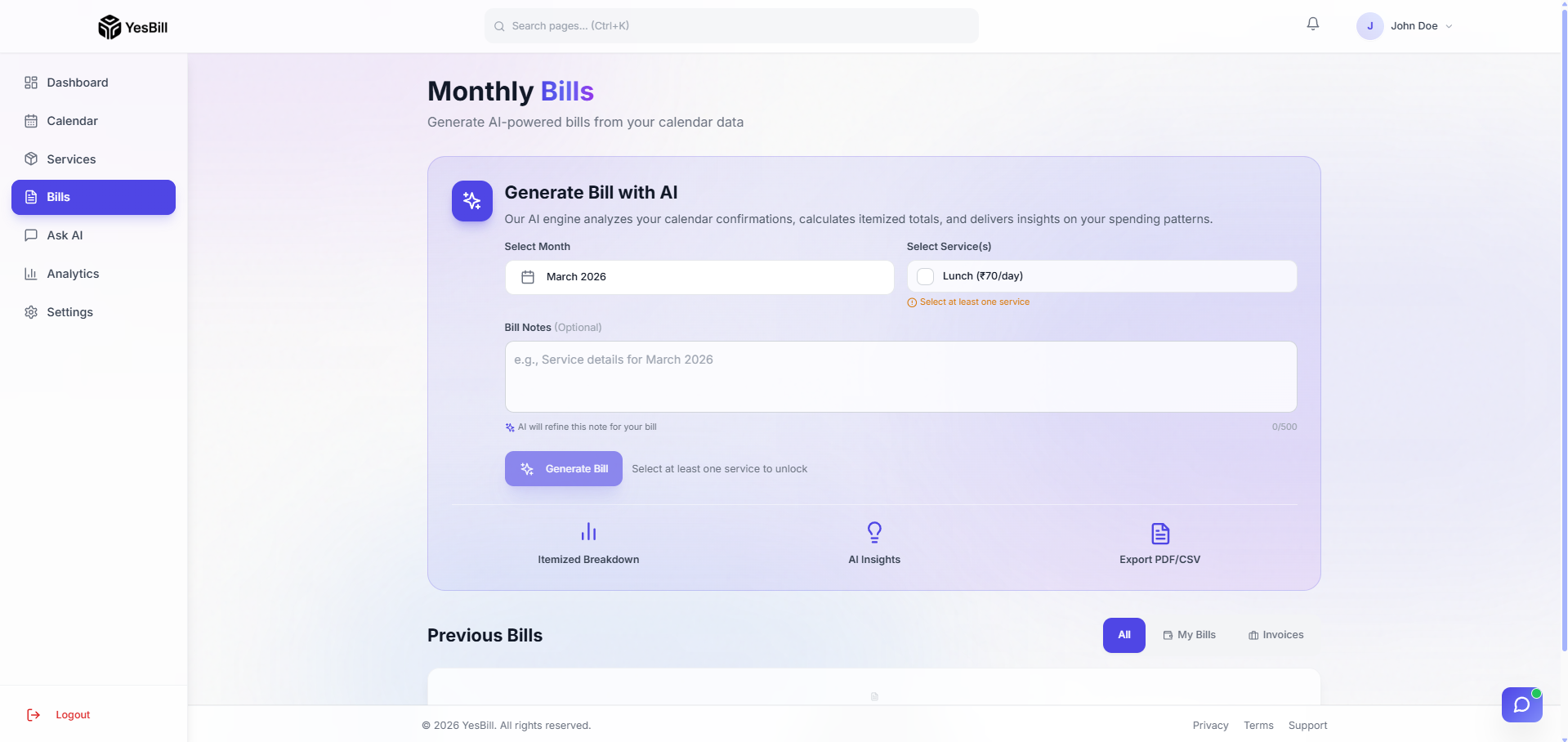
Bill overview screen
The Bills section lists all current-cycle bills with their amounts, services, and payment status.
Auto-generated bills
Bills are generated automatically via a scheduled cron job at the start of each month. Each bill aggregates that month's tracked activity into a final amount.
Auto-bill notification email
When a new monthly bill is generated, you receive an email notification summarising the charges.
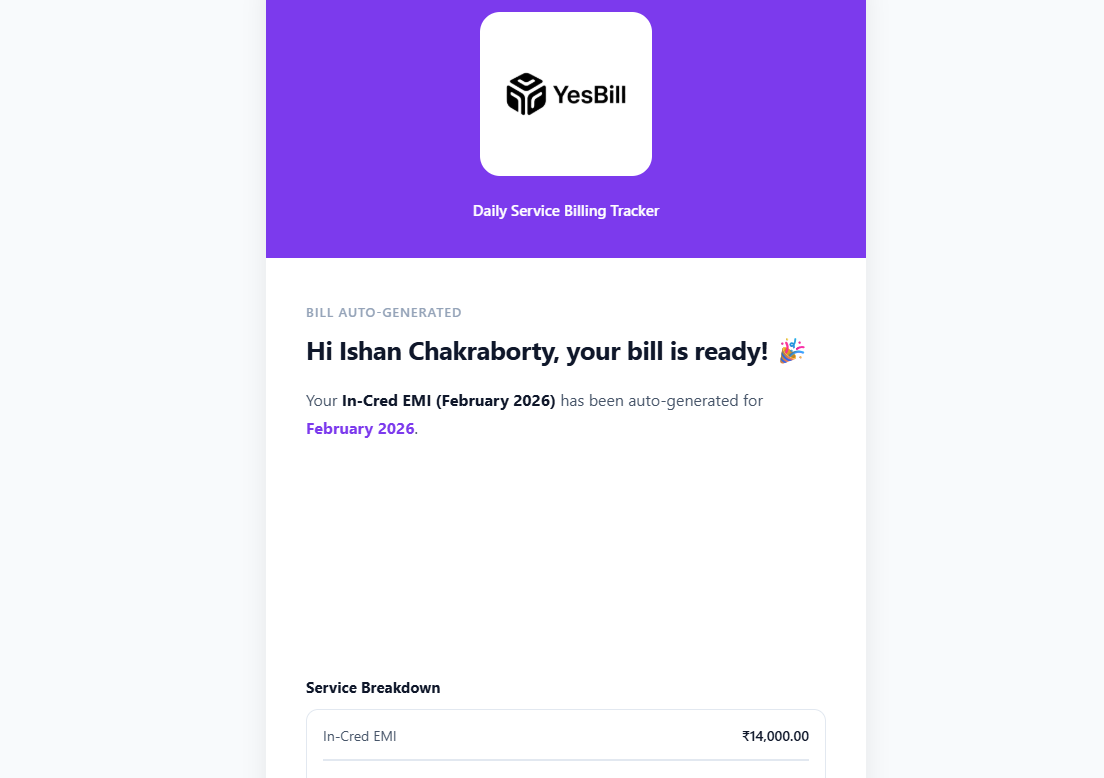
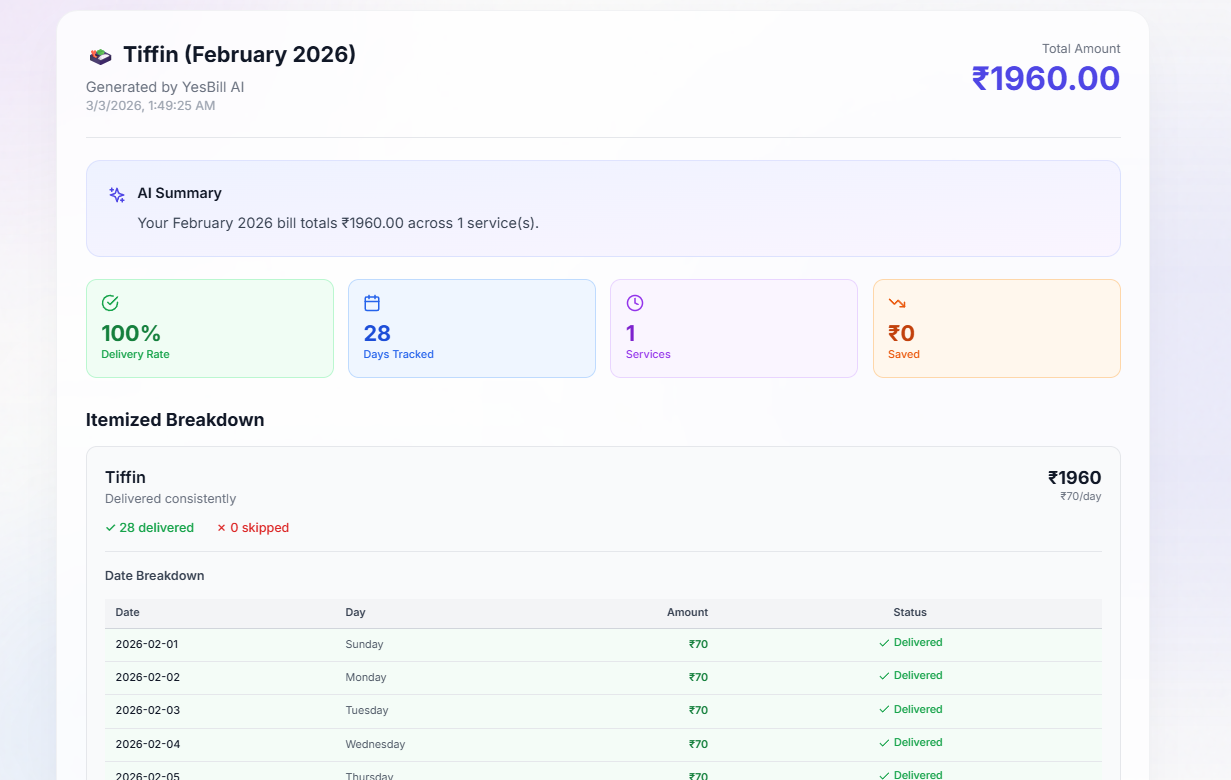
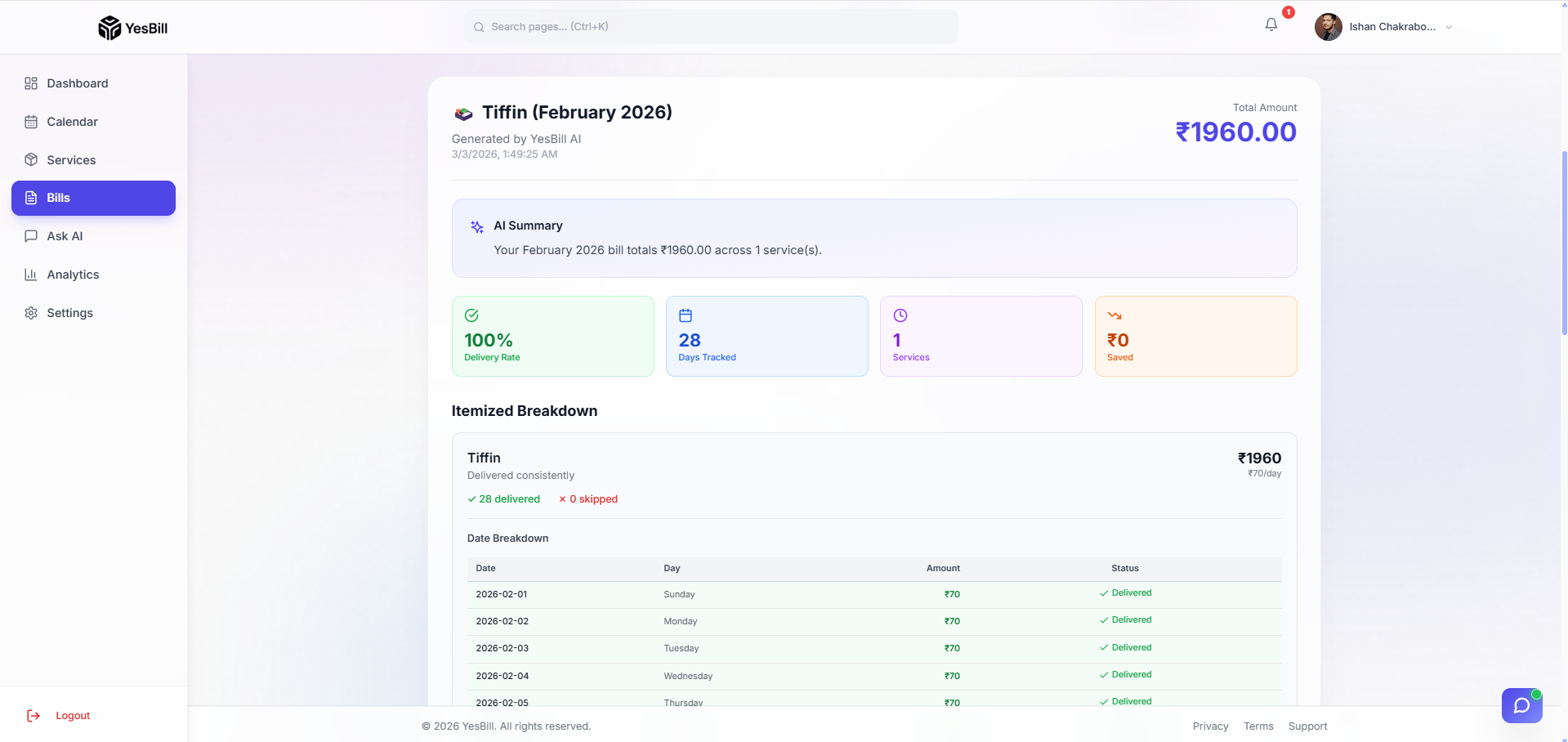
AI-enhanced bill view
When AI is configured, each bill displays an AI-generated summary card that explains the charges in plain English and highlights any notable changes.
Mark as paid
Open the Mark as Paid modal on any bill to record the payment method (cash, UPI, bank transfer, etc.) and add optional notes.
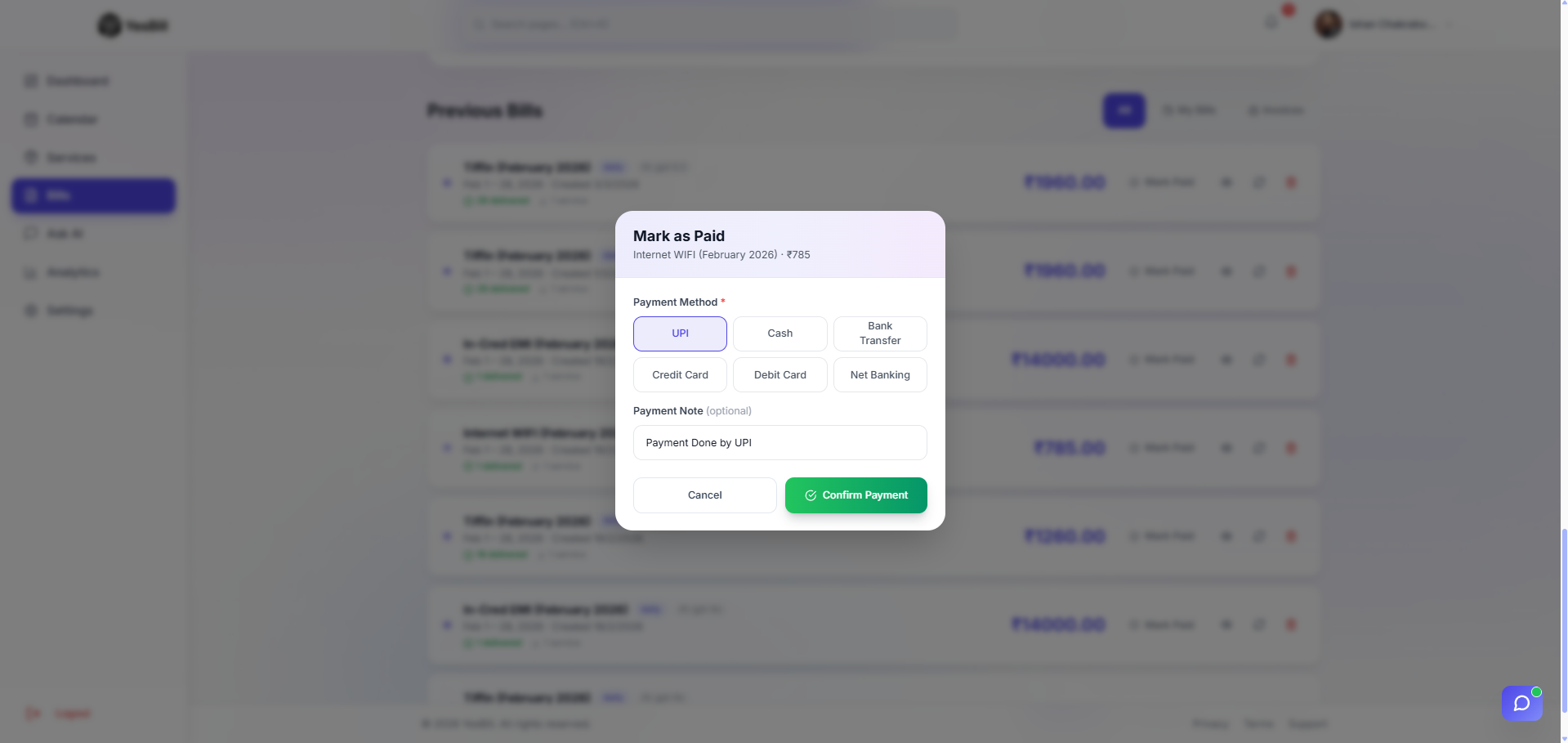
After confirming, the bill status updates to Paid with a visible confirmation badge.
-01-04b90cd983b9cca6b9384d718dde858f.png)
Bill history
All past bills are archived and searchable. Filter by month, service, or payment status.

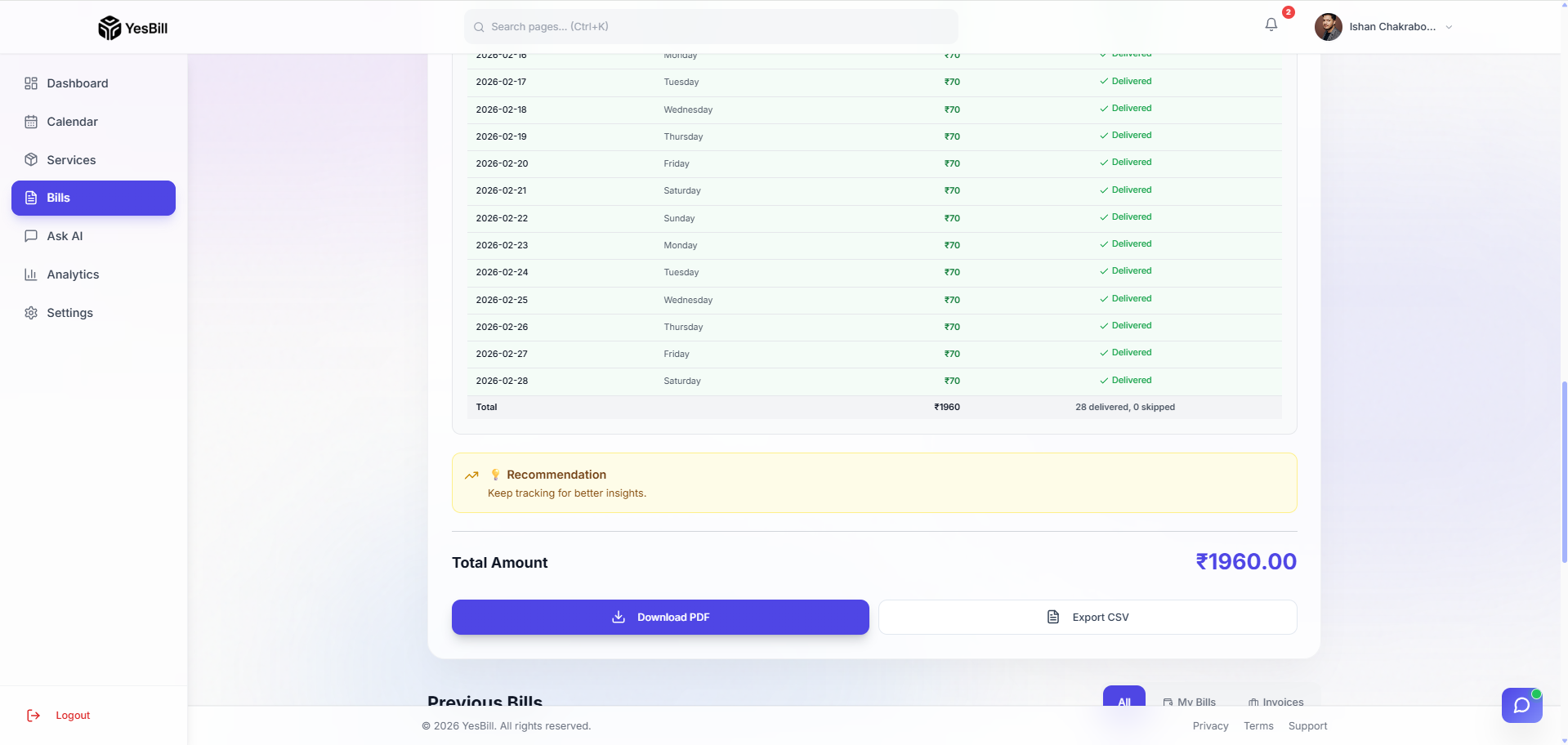
Export as PDF or CSV
Download any bill as a formatted PDF for records, or export to CSV for spreadsheet analysis.
AI Features
YesBill includes three distinct AI experiences: a persistent chat assistant, a floating action agent, and AI-generated content embedded throughout the app.
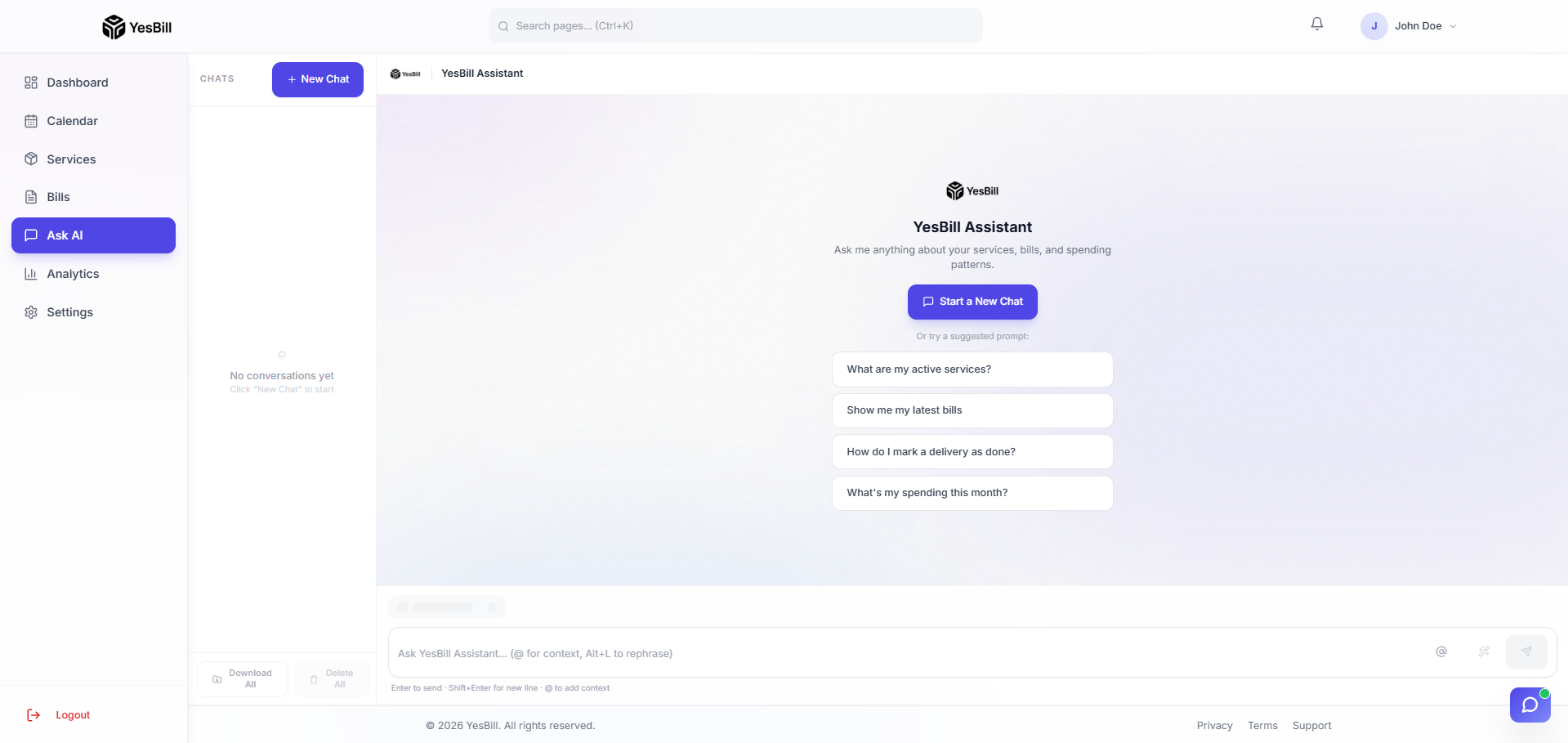
Ask AI — persistent chat
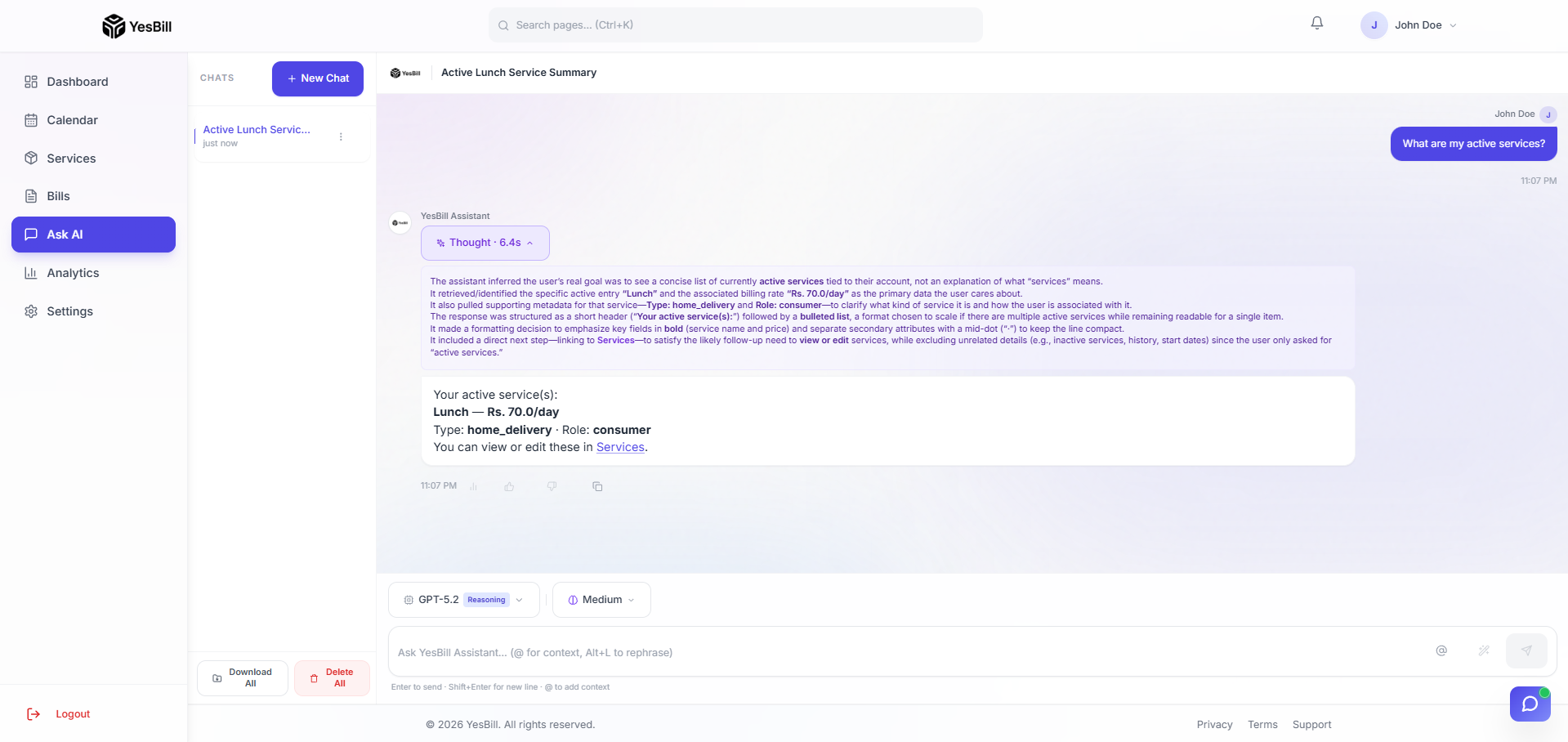
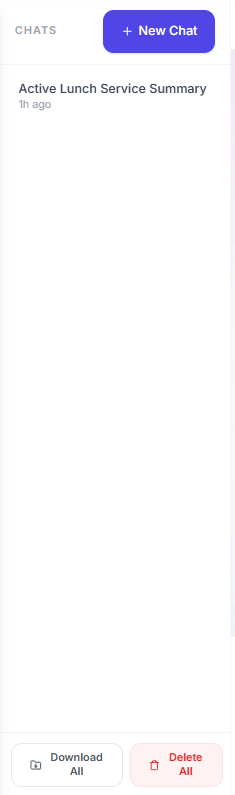
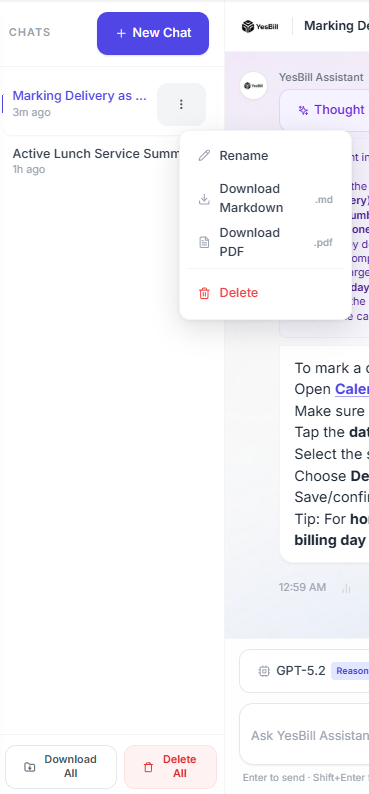
Ask AI is a full chat interface with persistent conversation history. Ask it anything about your bills, services, spending habits, or household finances.
Conversation options & per-message features
Each message has contextual actions — copy the response, provide thumbs-up/down feedback, and view per-message token usage and cost.

Model selection
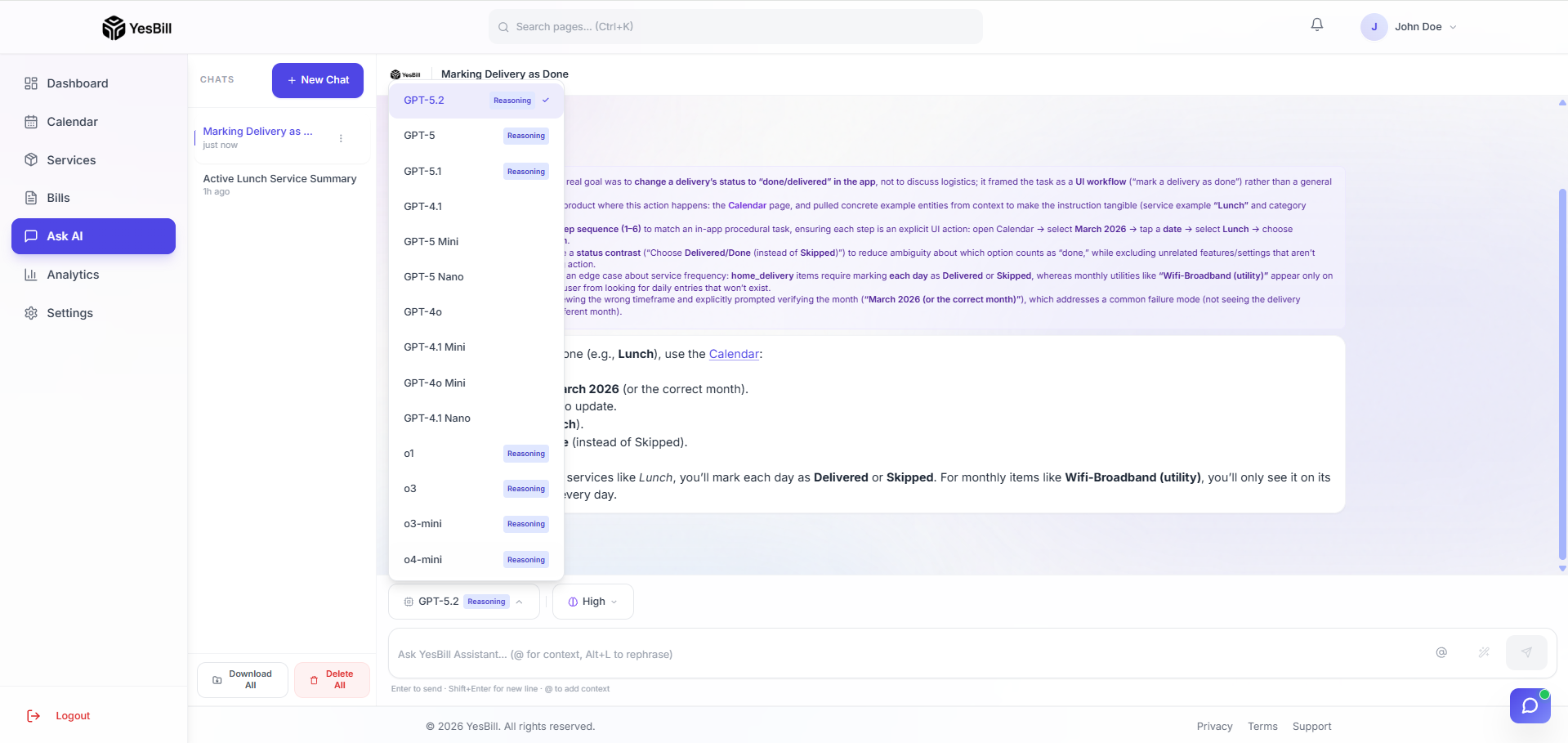
Switch between all available models from your configured AI provider. Each model is listed with its display name so you can choose the right tool for your query.
Reasoning model support
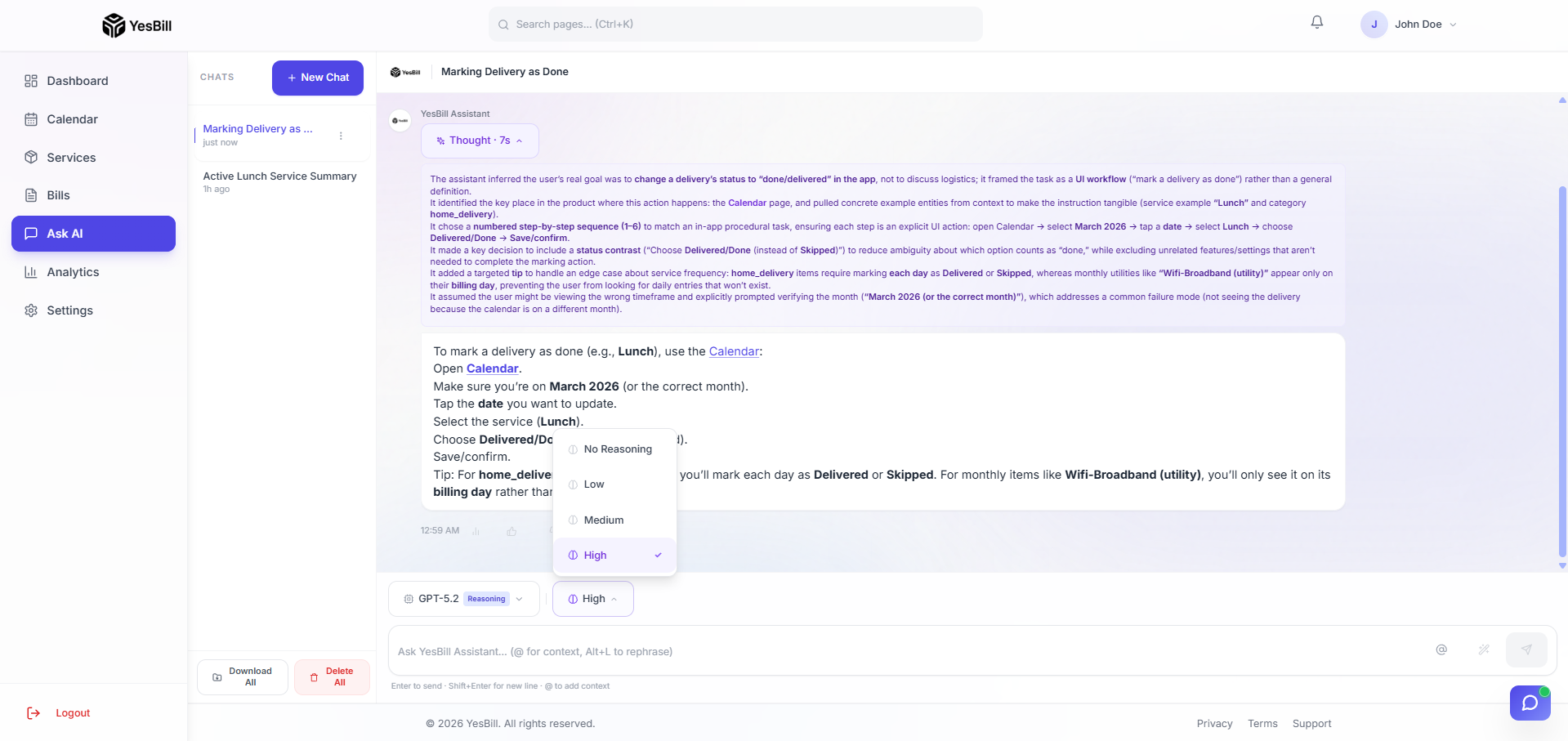
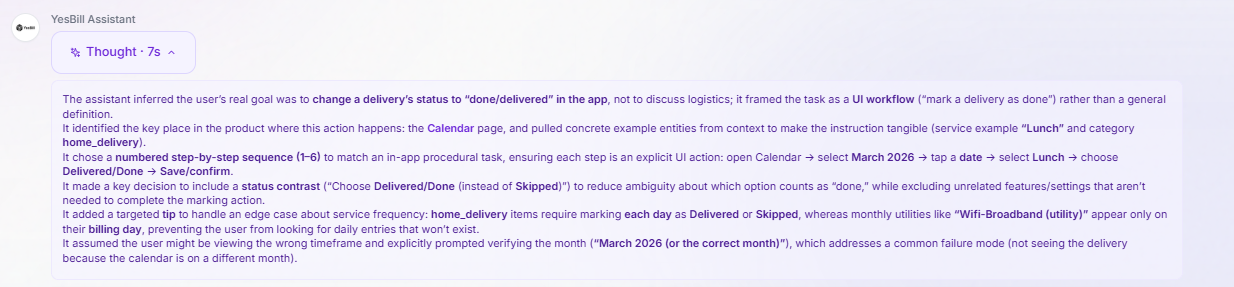
For providers and models that support extended reasoning (e.g., OpenAI o-series, Anthropic Claude, Gemini with thinking), select the reasoning effort level — Low, Medium, or High — to control depth and cost.
Ask AI analytics
The analytics panel shows cumulative token usage and cost across your Ask AI conversations, broken down per message.
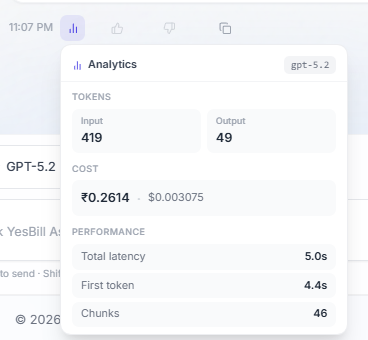
When a reasoning model is in use, the analytics panel additionally shows thinking tokens and reasoning cost separately.
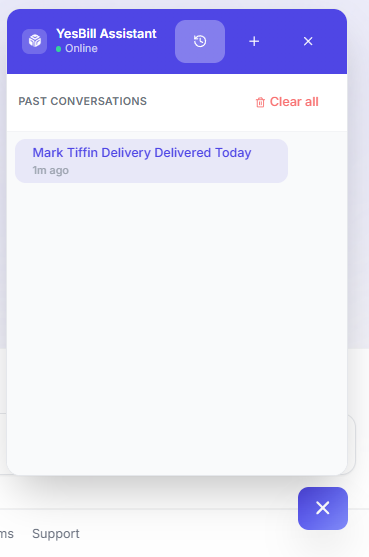
AI Agent — floating assistant
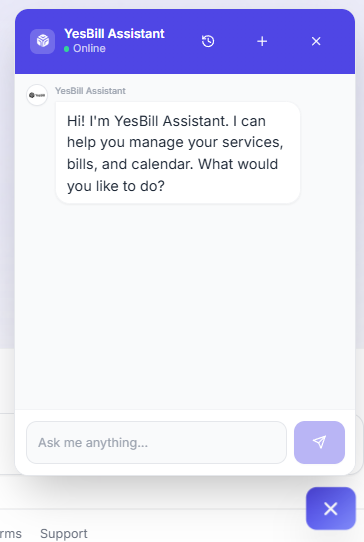
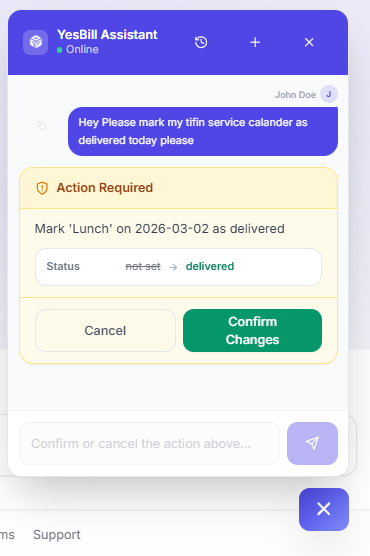
The AI Agent is a floating, Intercom-style chatbot widget that lives on every screen. It can take actions in the app — creating services, logging calendar entries, looking up bills — with a confirmation step before committing any change.

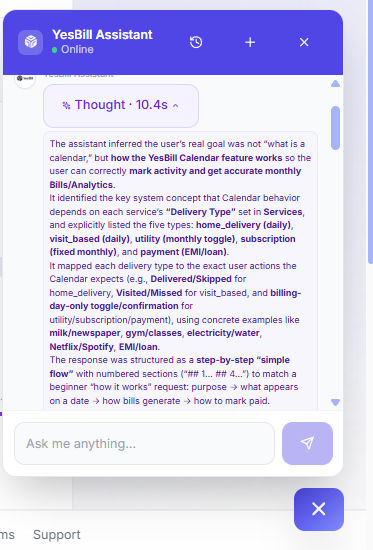
Agent thinking mode
When a reasoning-capable model is selected for the Agent, a Thinking indicator shows while the model reasons through multi-step tasks.
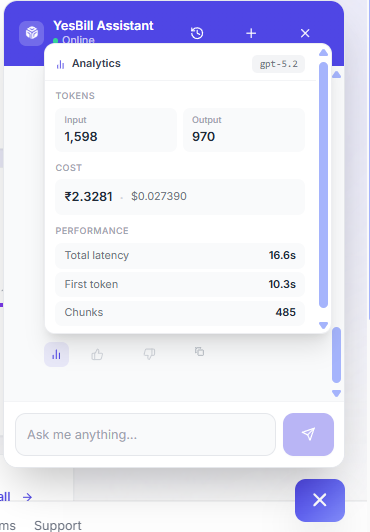
Agent analytics
Token usage, reasoning tokens, cost, and latency for every Agent message are accessible from the analytics panel inside the Agent chat.
AI Configuration
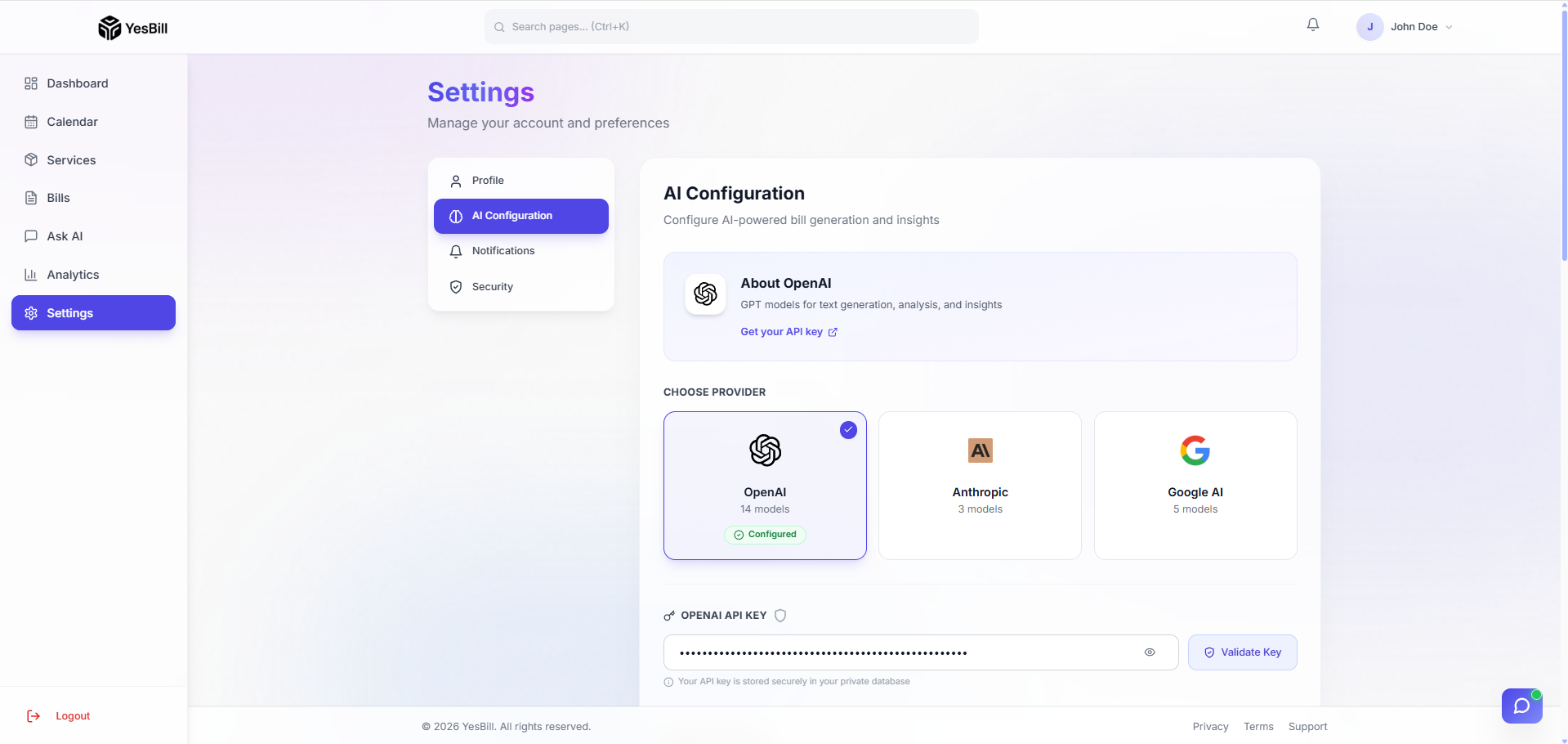
AI settings are available both during onboarding and at any time from Settings → AI Configuration.
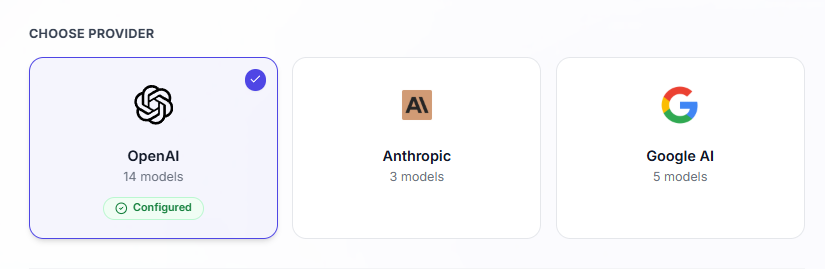
1 — Choose your provider
Select from OpenAI, Anthropic (Claude), or Google Gemini. Enter your API key for the selected provider.
2 — Select a model
Choose which model to use as the default for Ask AI and the Agent. All models available on your provider are listed.
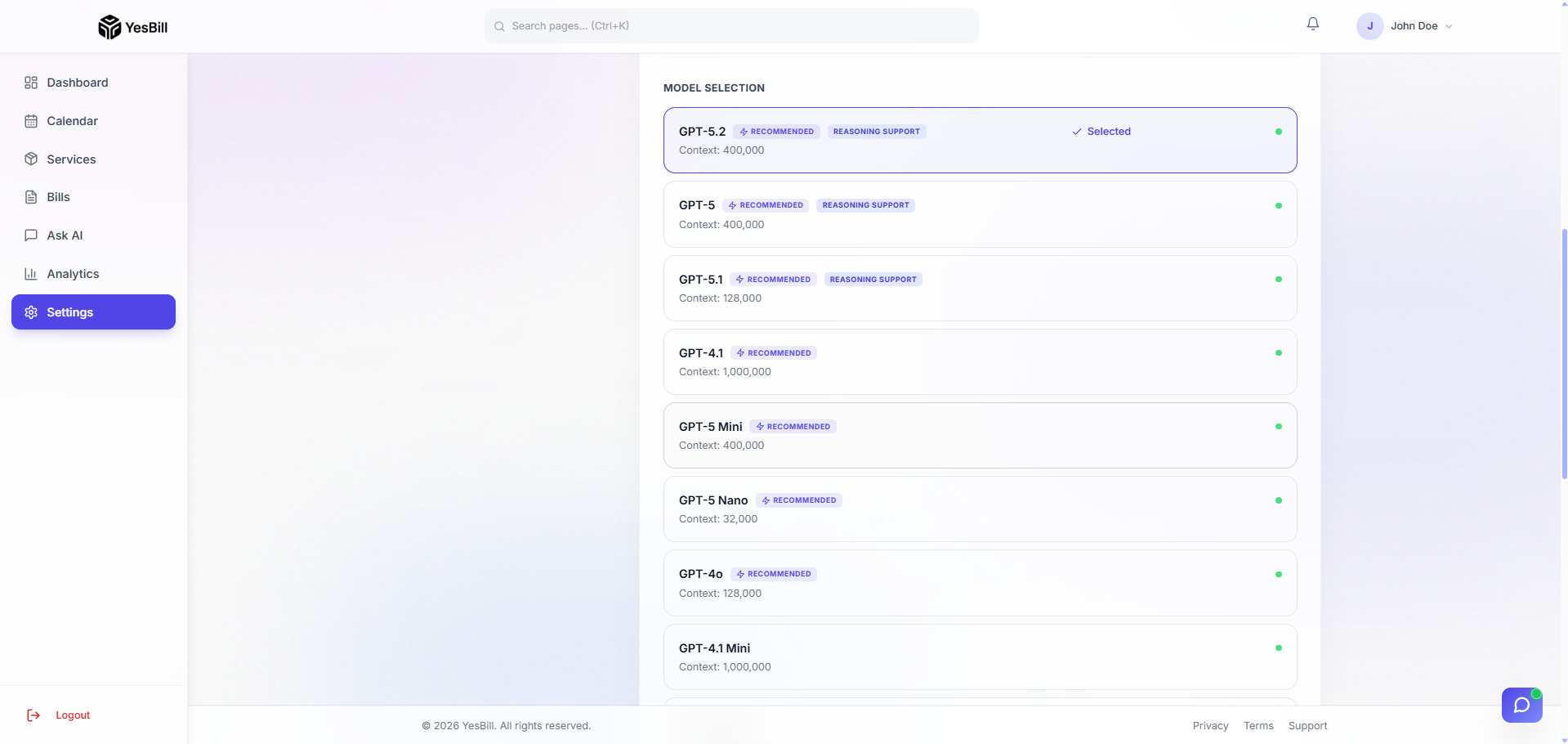
3 — Set default reasoning effort
For reasoning-capable models, choose a default effort level — Low, Medium, or High. This becomes the default across all AI features and can be overridden per-session in Ask AI.

4 — AI Insights toggle
Enable or disable AI-generated bill summaries globally. When enabled, each new bill gets an automatically generated natural-language summary. When disabled, the AI Bill Summary card is hidden across all bills.

The same configuration is accessible from the Settings page.
Analytics
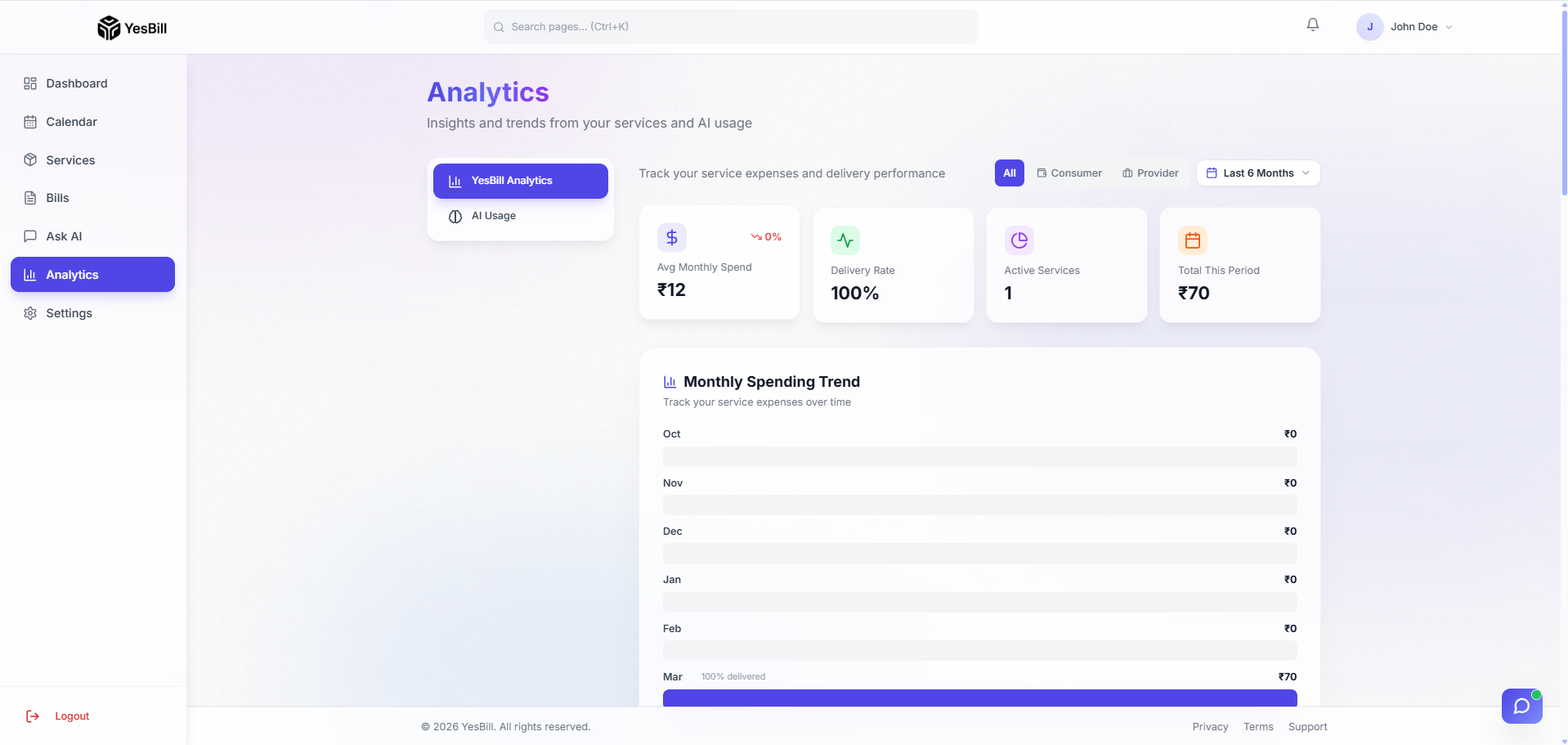
Spend analytics
The Analytics dashboard breaks down your total monthly spend by service type and individual service. See at a glance where your money goes each month.
AI usage analytics
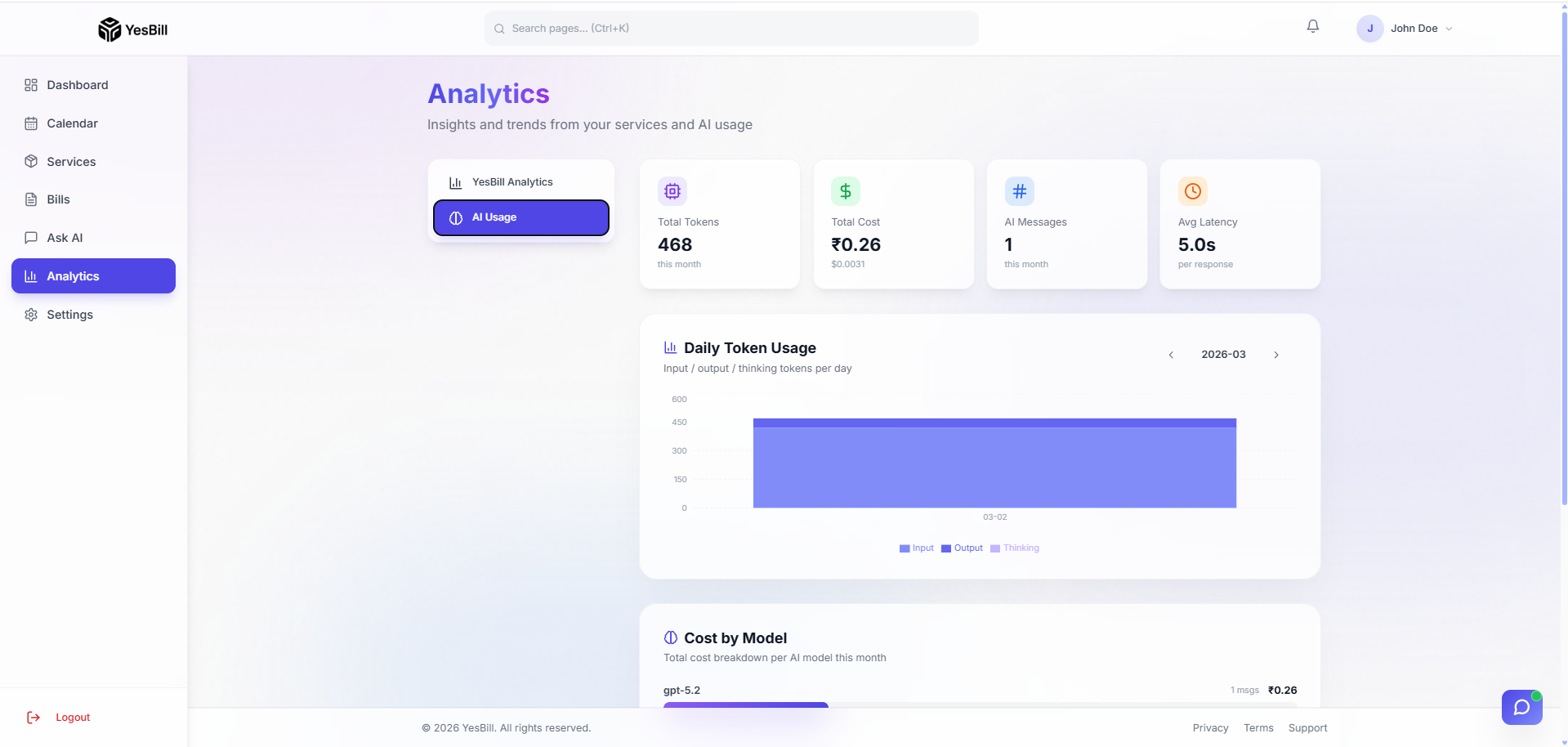
A dedicated AI usage panel tracks your total API consumption — input tokens, output tokens, reasoning tokens where applicable, total cost, and average latency per request.
Settings
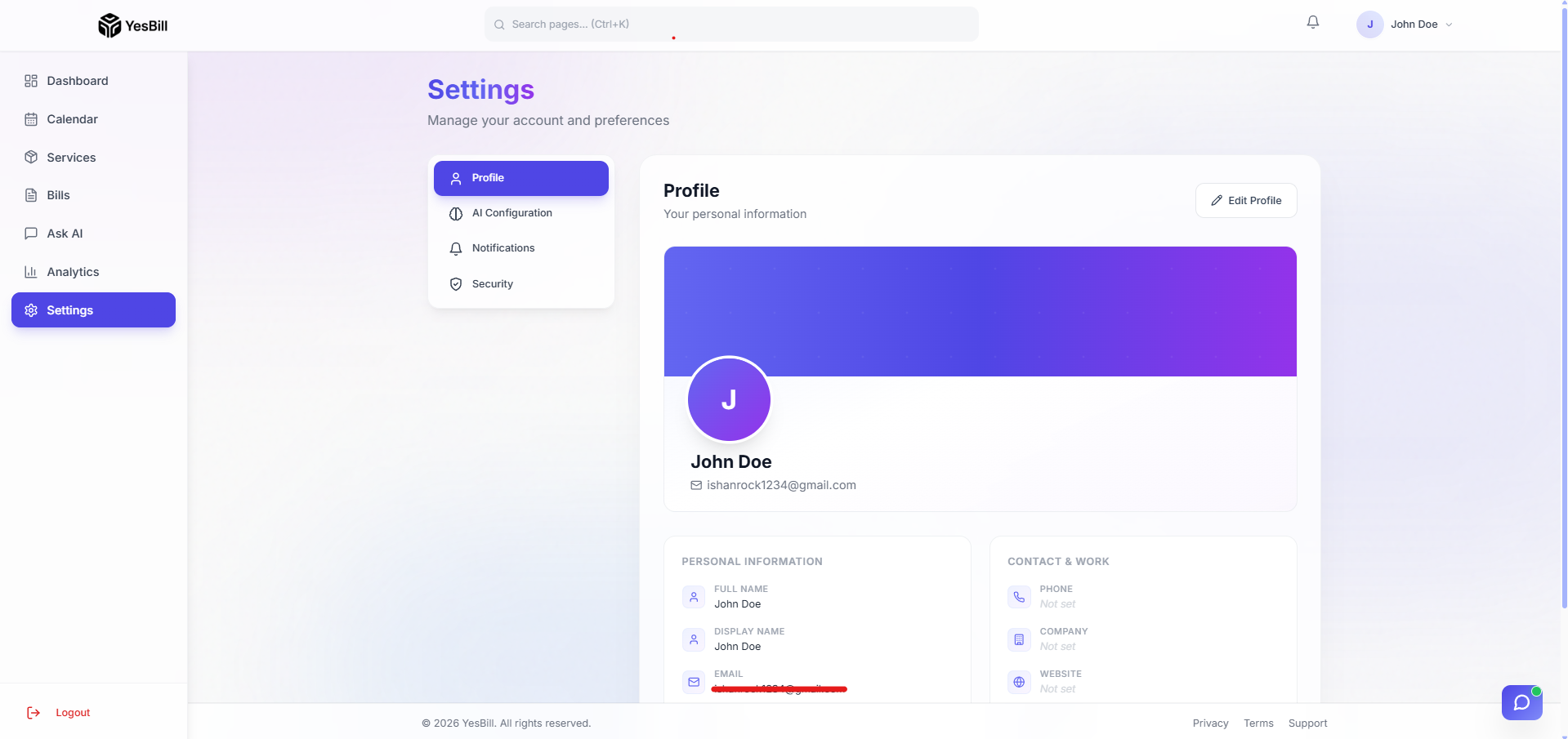
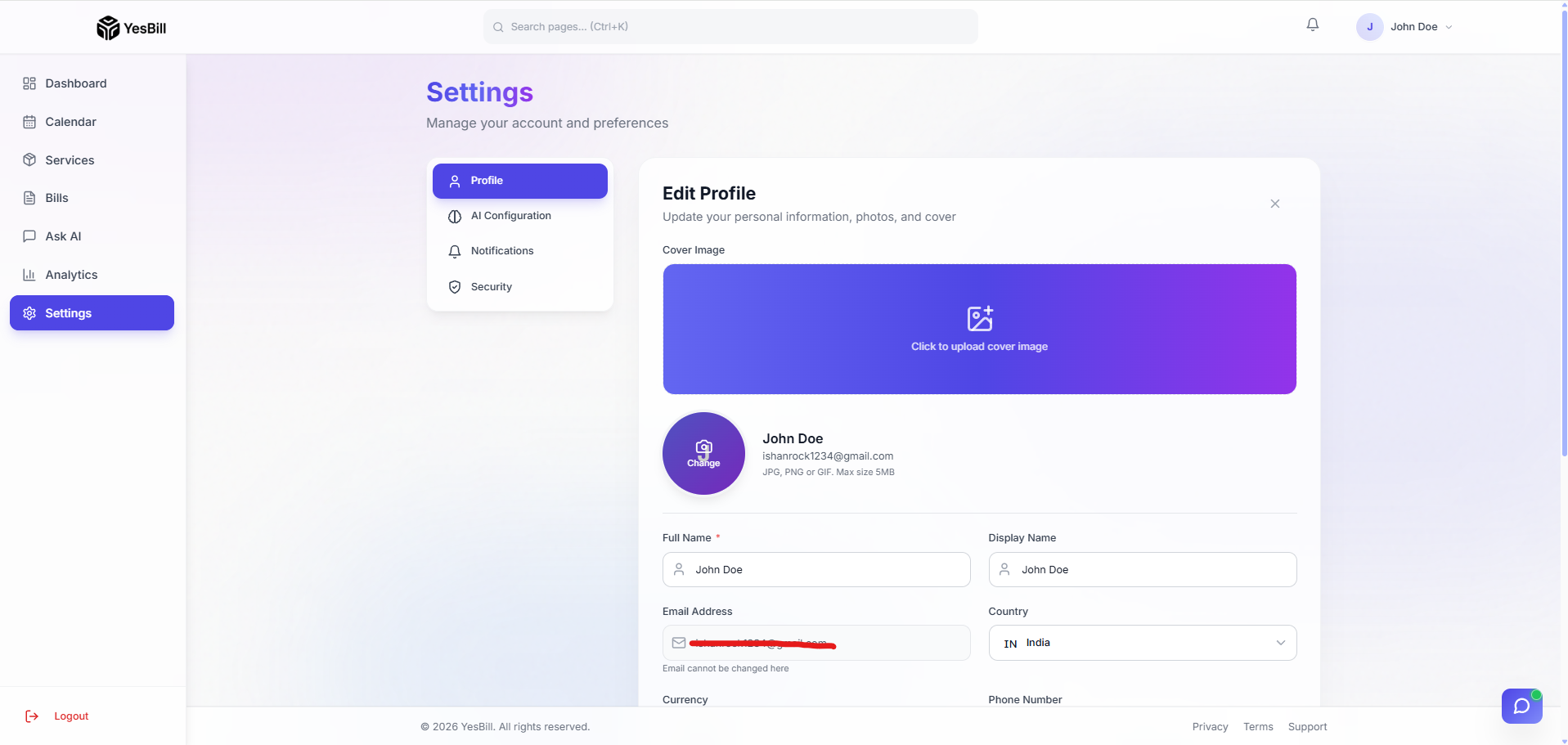
Profile
Update your display name, avatar photo, cover image, bio, and timezone from the Profile settings page.
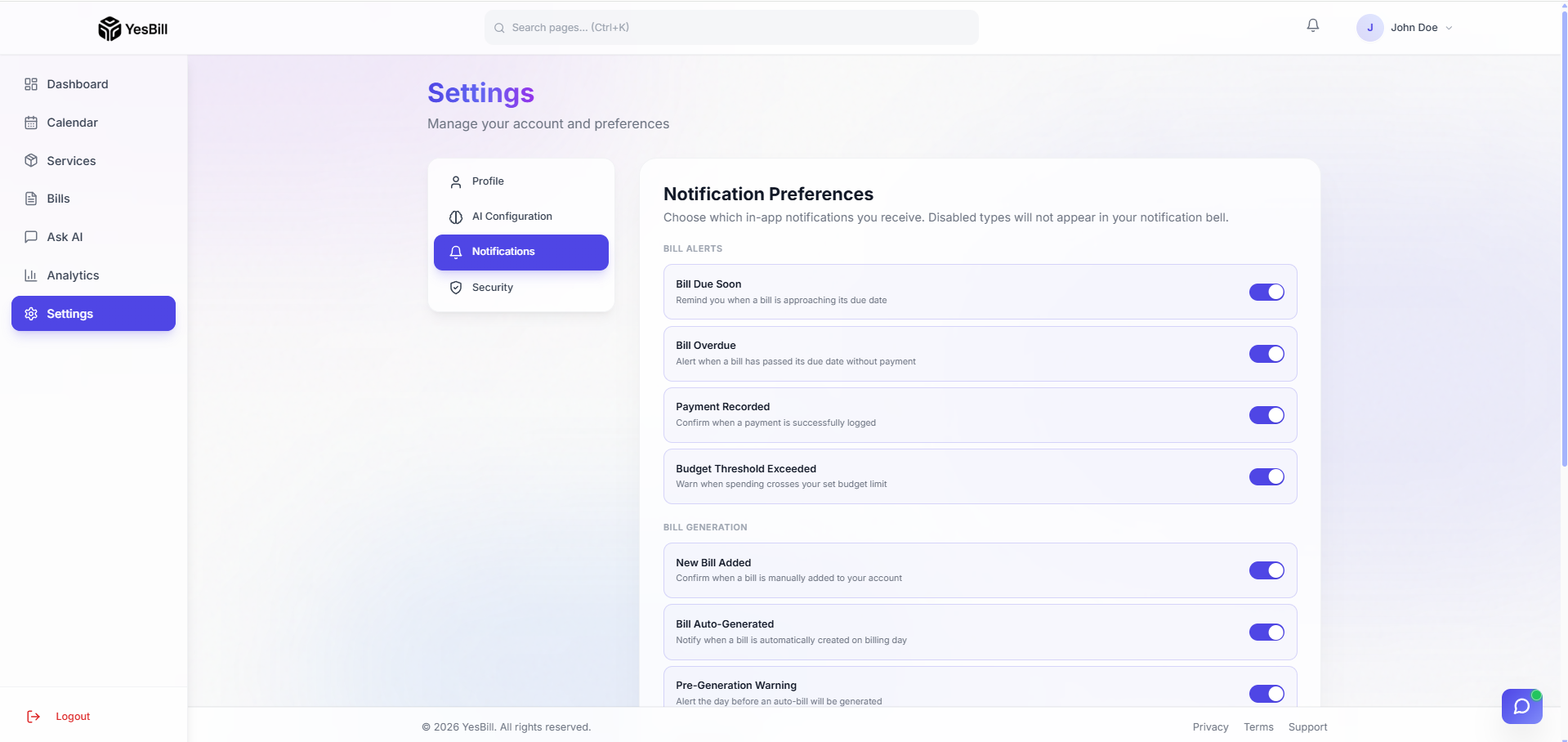
Notifications
Configure which events trigger in-app notifications. Preferences are per notification type — bill generated, bill due, payment confirmed, and more.
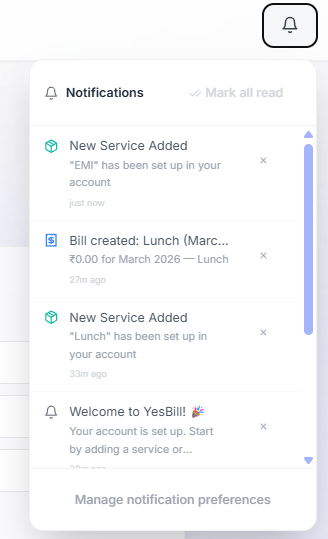
The notification panel shows recent activity and can be accessed from the header bell icon on any screen.
Security
The Security settings page centralises all account security actions.
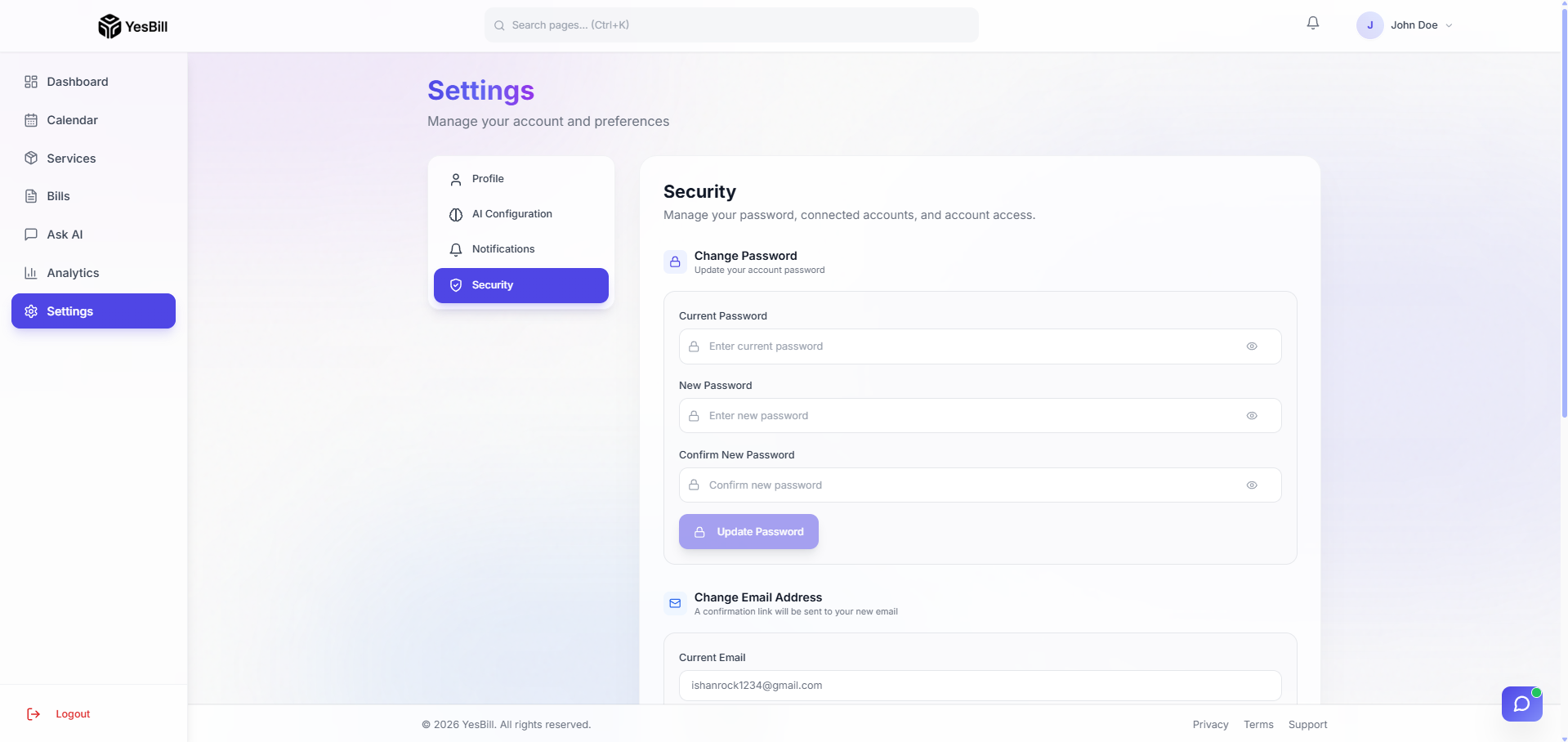
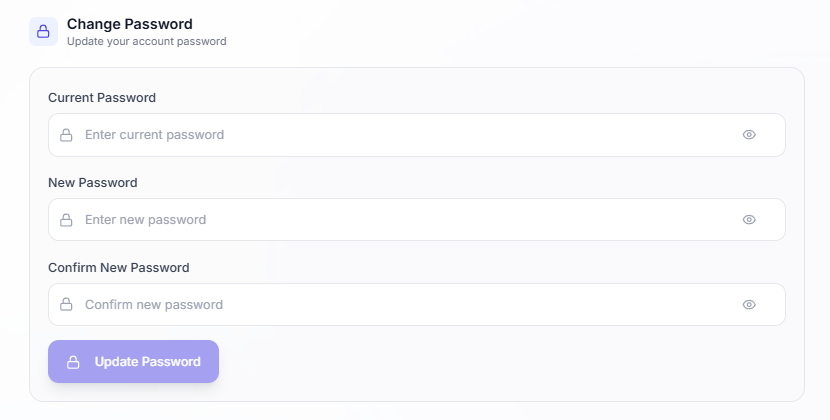
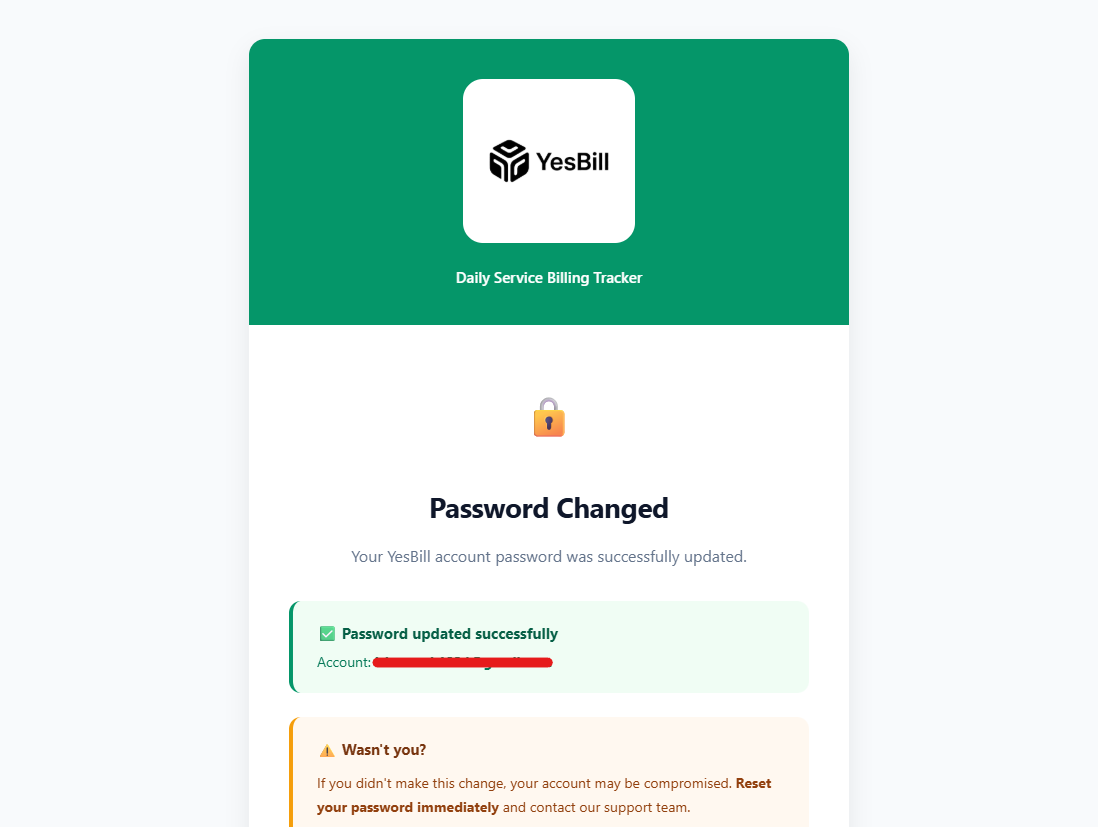
Change password
Enter your current password and set a new one. A confirmation email is sent to your address after the change succeeds.
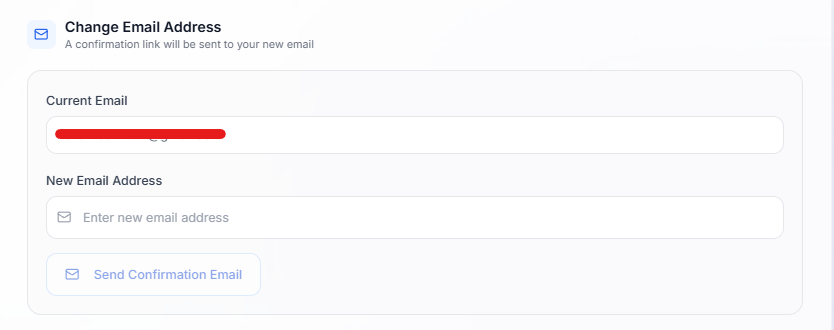
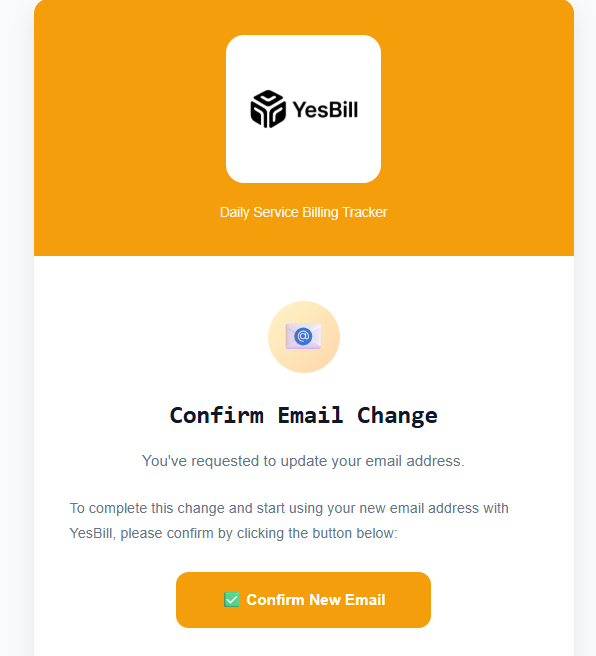
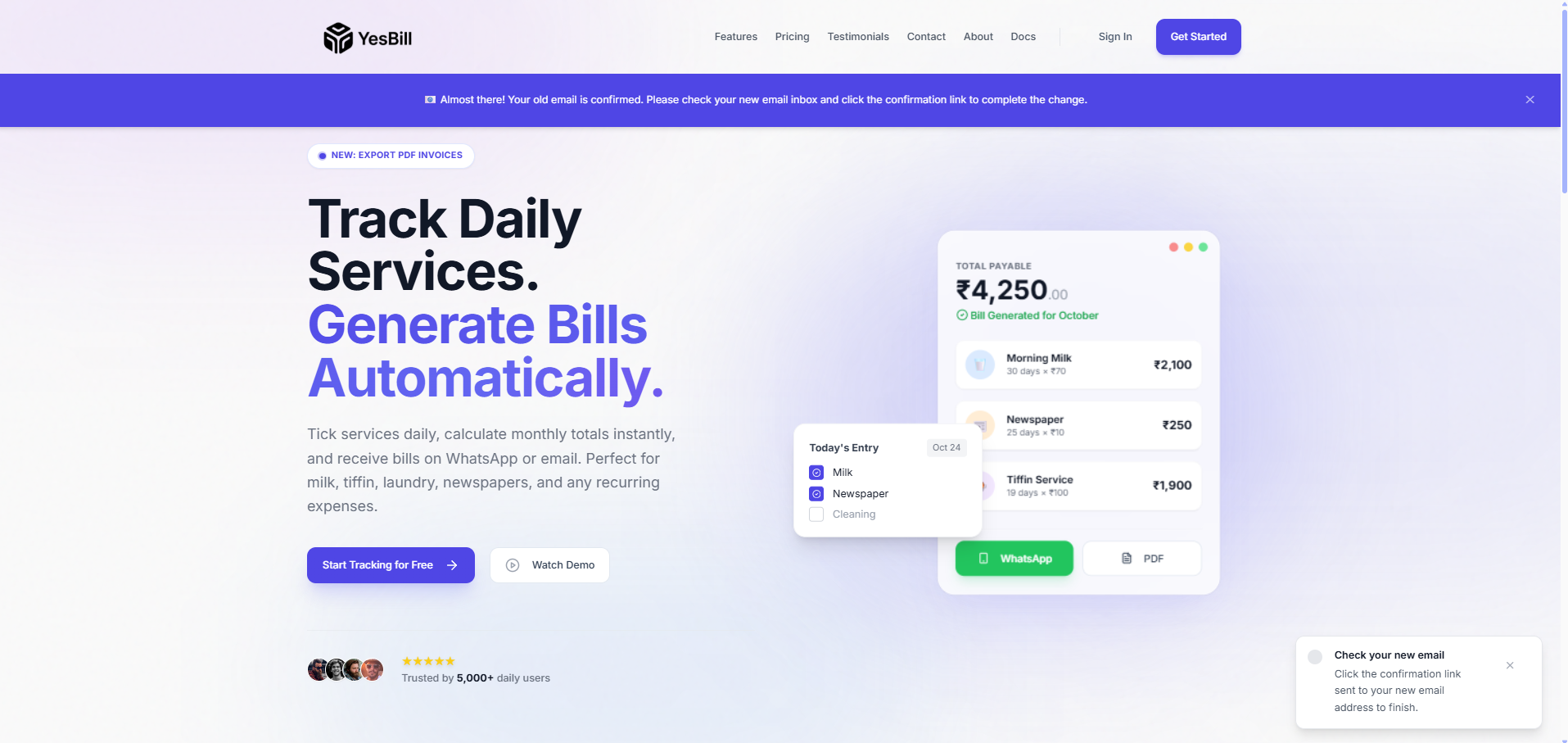
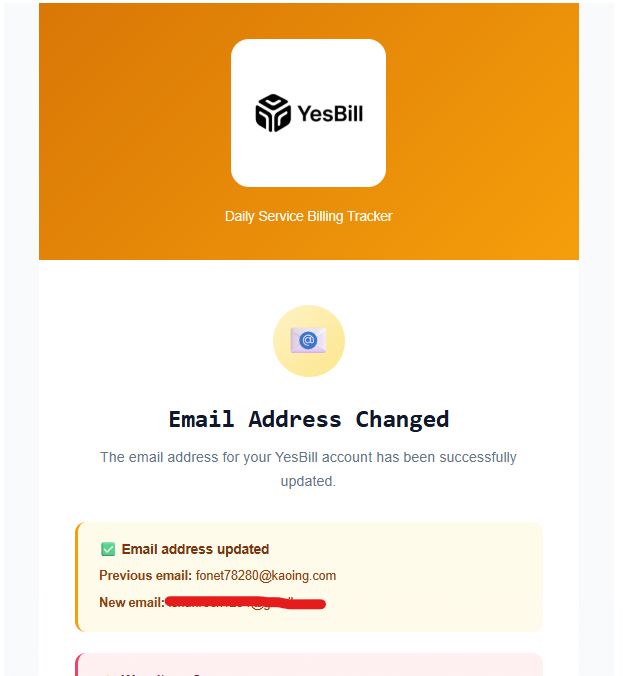
Change email address
A three-email confirmation flow keeps your account secure:
- Submit the new email address from Settings.
- A confirmation link is sent to your new email address — click it to approve the change.
- A notification email is sent to your old address so you are always informed if the change was not initiated by you.
Active sessions
View all currently active login sessions for your account — browser, device type, and last active timestamp. Useful for spotting unexpected access.
Delete account
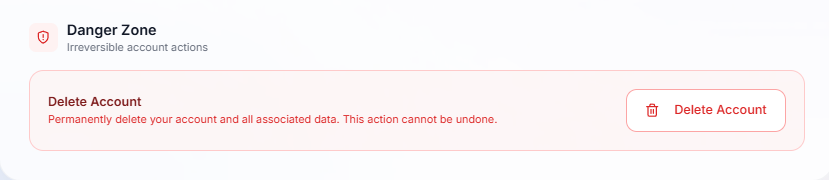
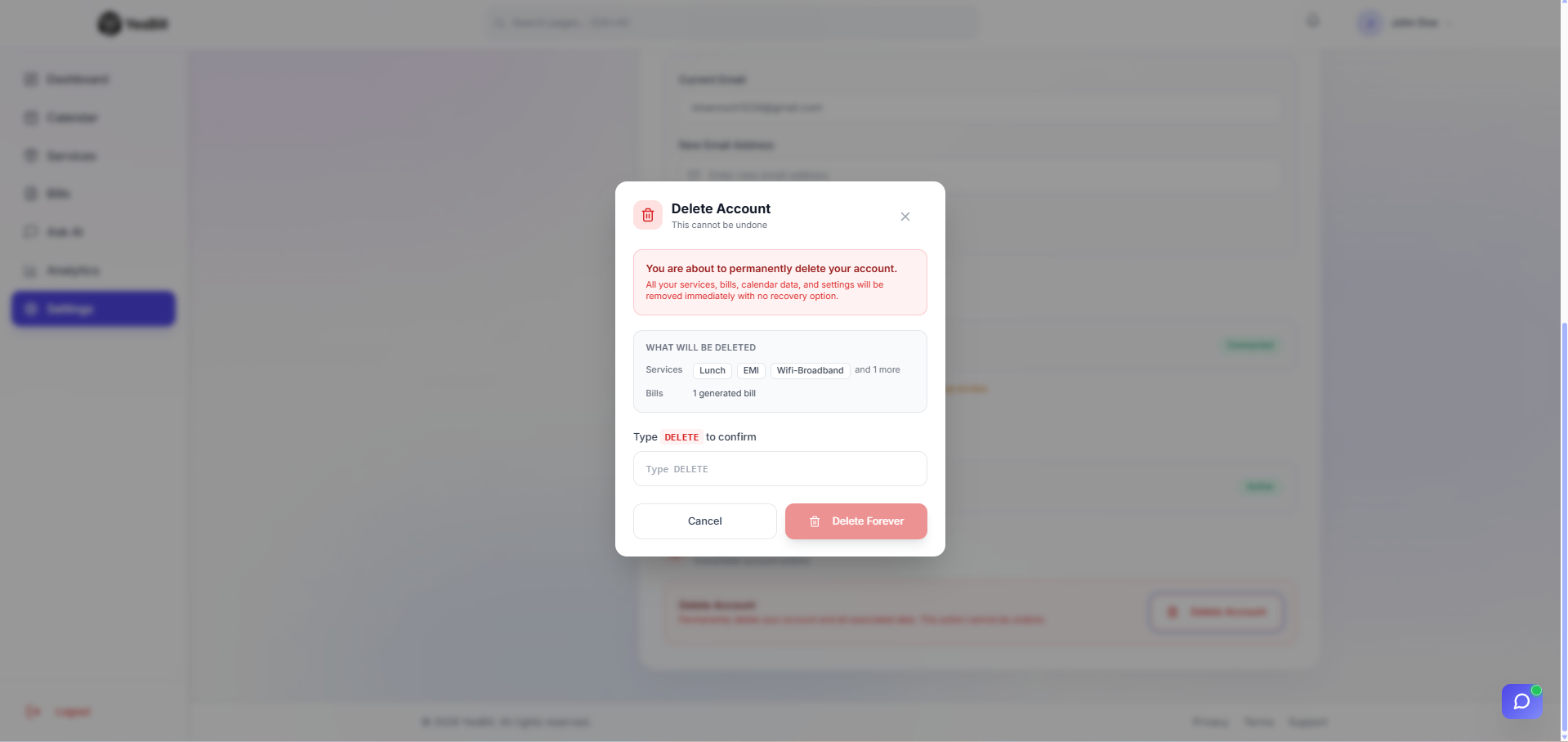
Permanently delete your account and all associated data. A confirmation dialog requires you to acknowledge the action before it proceeds.
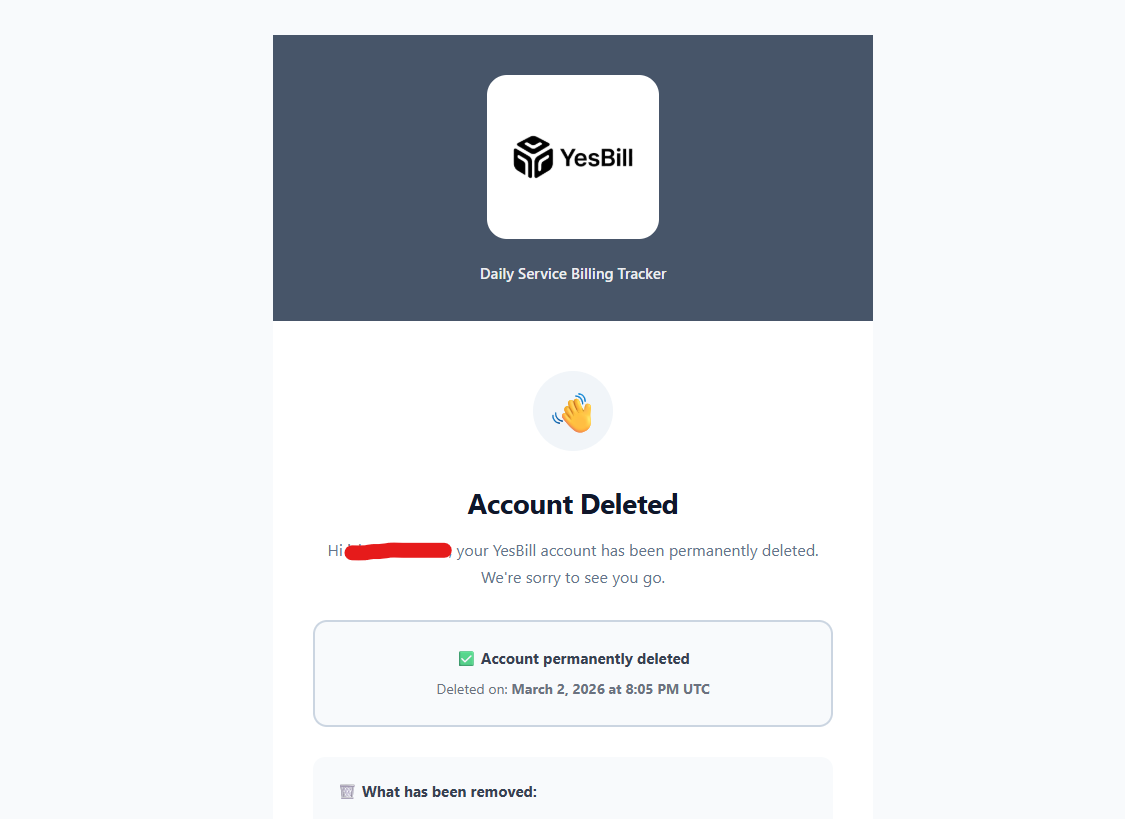
A final confirmation email is sent to confirm the account has been deleted.
Technical
- Backend: FastAPI + Python
- Auth: Secure email/password + Google OAuth
- Frontend: React + TypeScript + Vite + Tailwind CSS
- AI: Multi-provider — OpenAI, Anthropic Claude, Google Gemini
- Realtime: Live notification delivery via real-time push
- Bill generation: Automated cron job via scheduled cloud task
- Deployment: Netlify (frontend) + Render (backend)
Released March 2026 · YesBill v1.0.0