Understanding Bills
A bill in YesBill is a monthly summary of what you owe for a specific service. Bills are generated automatically at the end of each month based on your tracking data.
What's in a Bill?
Each bill contains:
- Service name and type
- Billing period (e.g. January 2026)
- Line items — each tracked day or charge
- Total amount in ₹
- Payment status — Paid or Unpaid
- AI Summary (if AI is configured) — a plain-English description of the charges
Bill Structure by Service Type
| Service Type | Bill Items | Total Calculation |
|---|---|---|
| Home Delivery | Days marked Delivered | Count × Daily Rate |
| Visit-based | Days marked Visited | Count × Daily Rate |
| Utility | Active/Inactive for month | Monthly Rate or ₹0 |
| Subscription | Fixed monthly charge | Monthly Rate |
| Payment | Fixed EMI/due amount | Monthly Rate |
Where to Find Bills
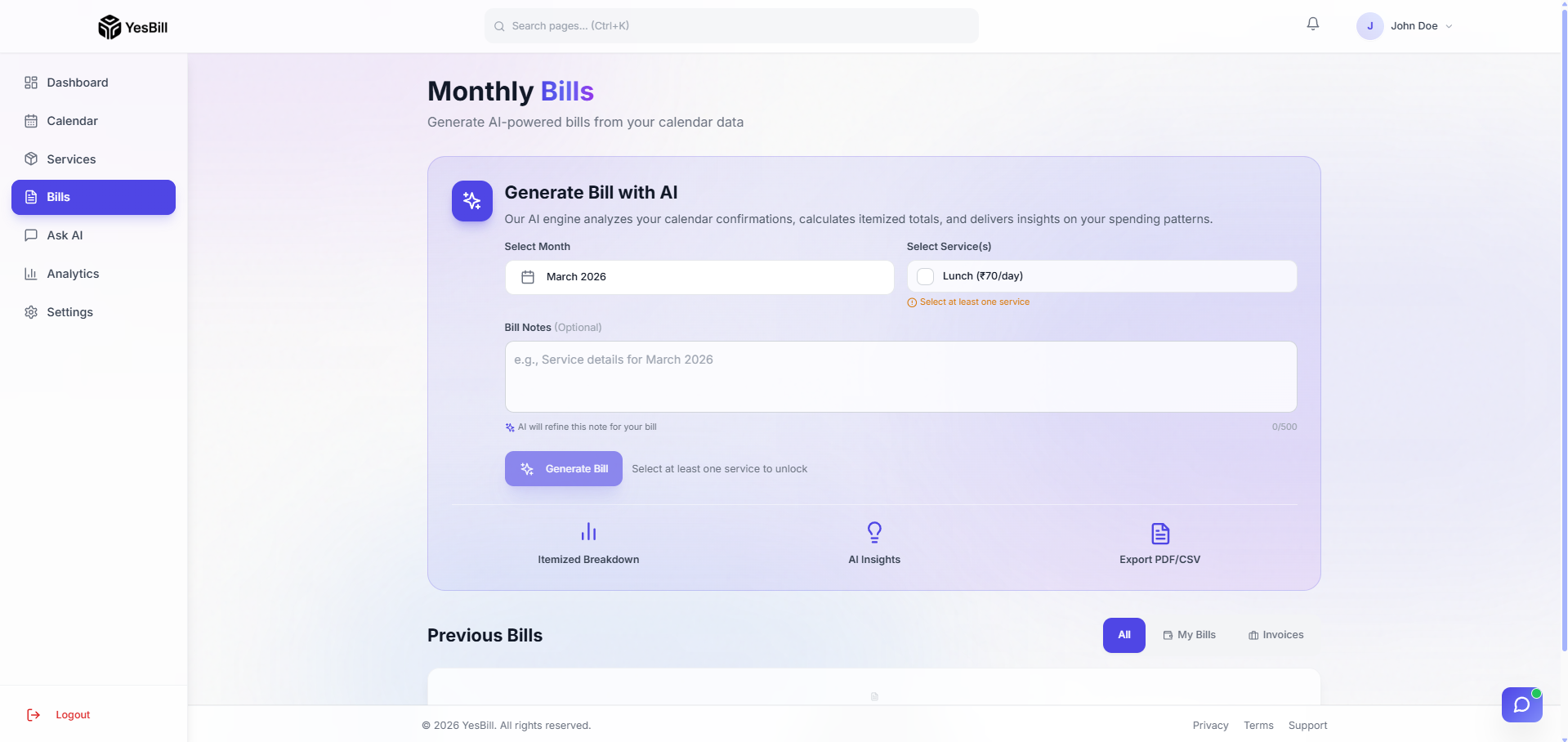
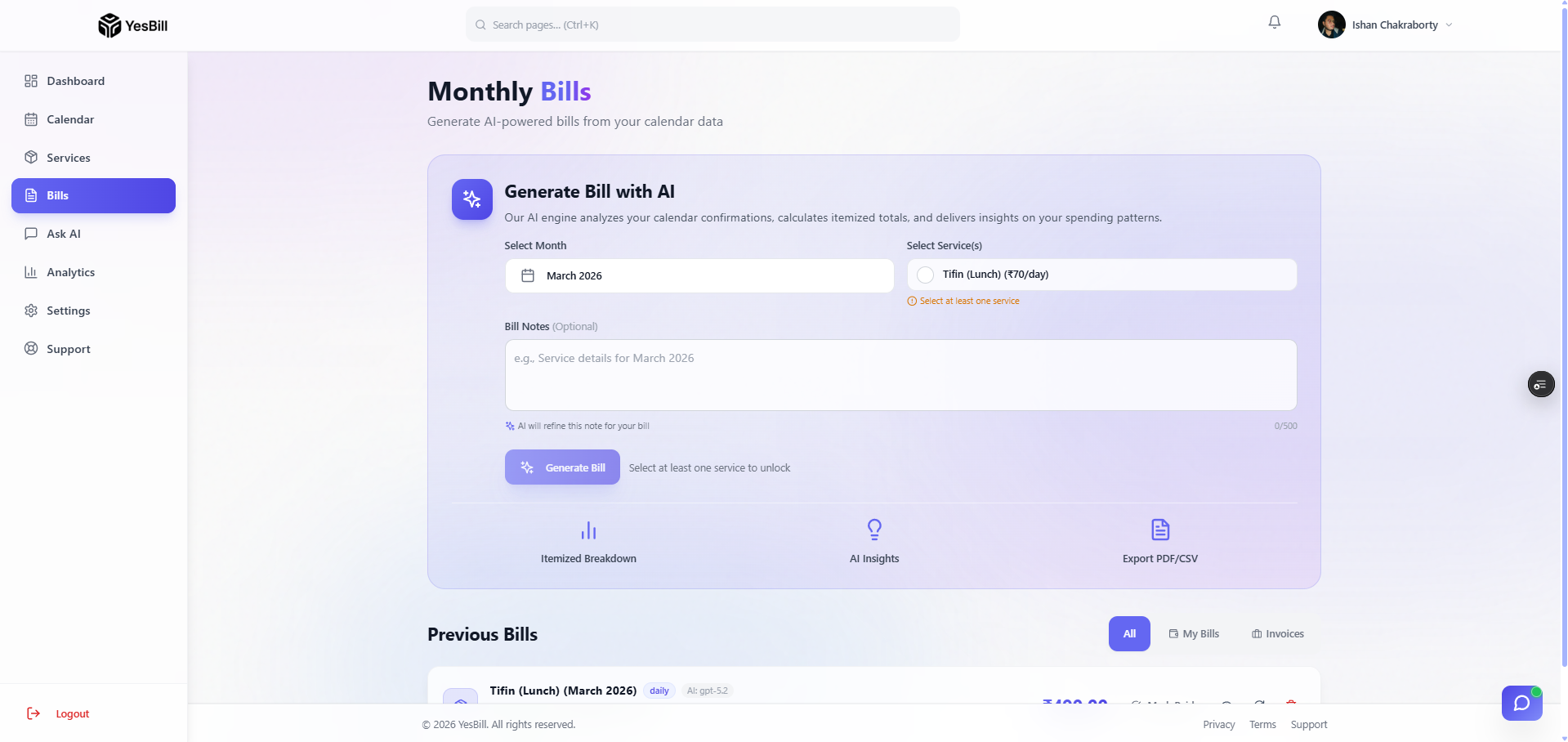
- Go to Bills in the sidebar
- Use the month/year selector to browse bills by period
- Click any bill to see the full breakdown
Generated Bill Details
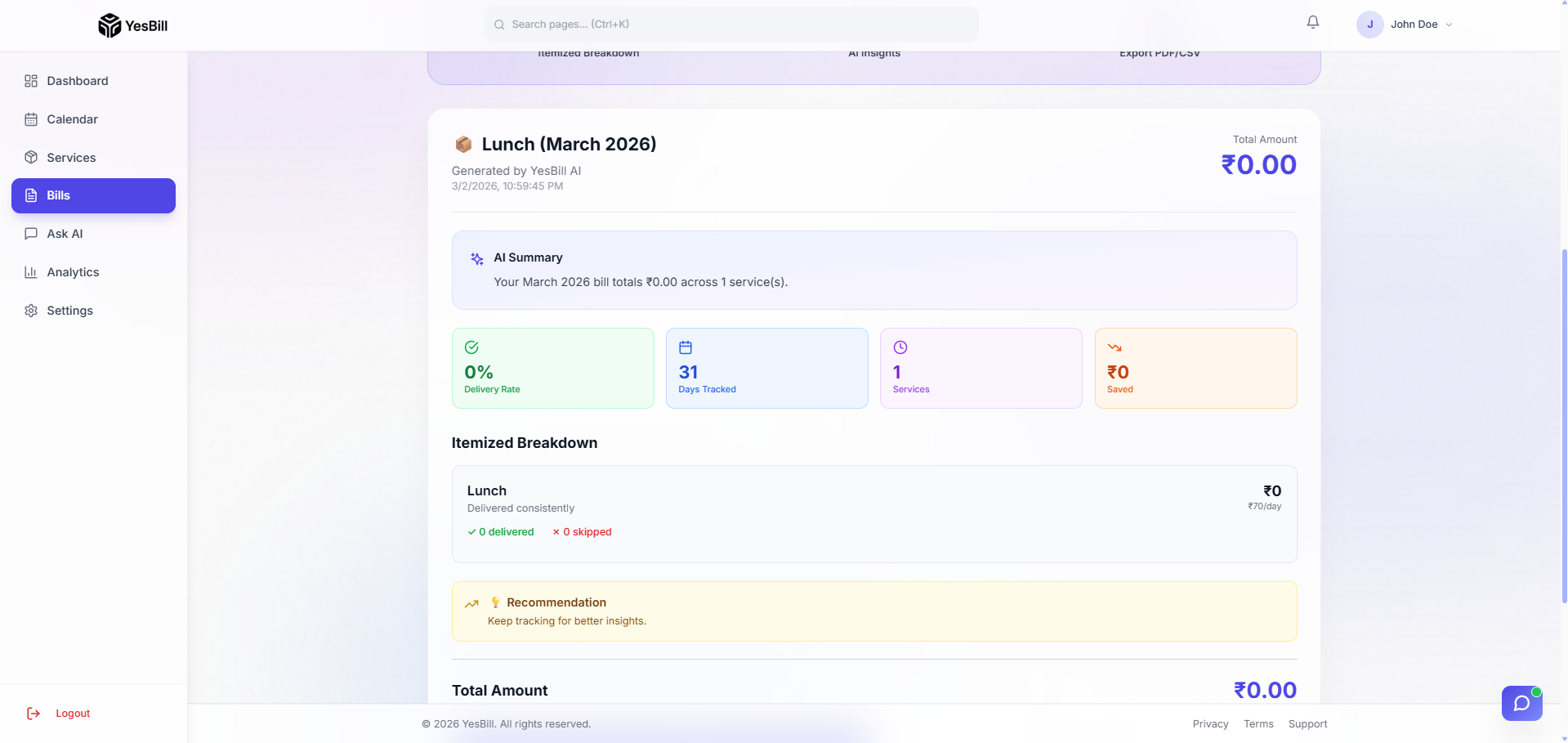
Clicking into an individual bill shows the full breakdown: each line item, the daily rate or fixed charge, and the total amount. If AI is configured, you can generate a plain-English summary directly from this screen.
Bill with AI Summary
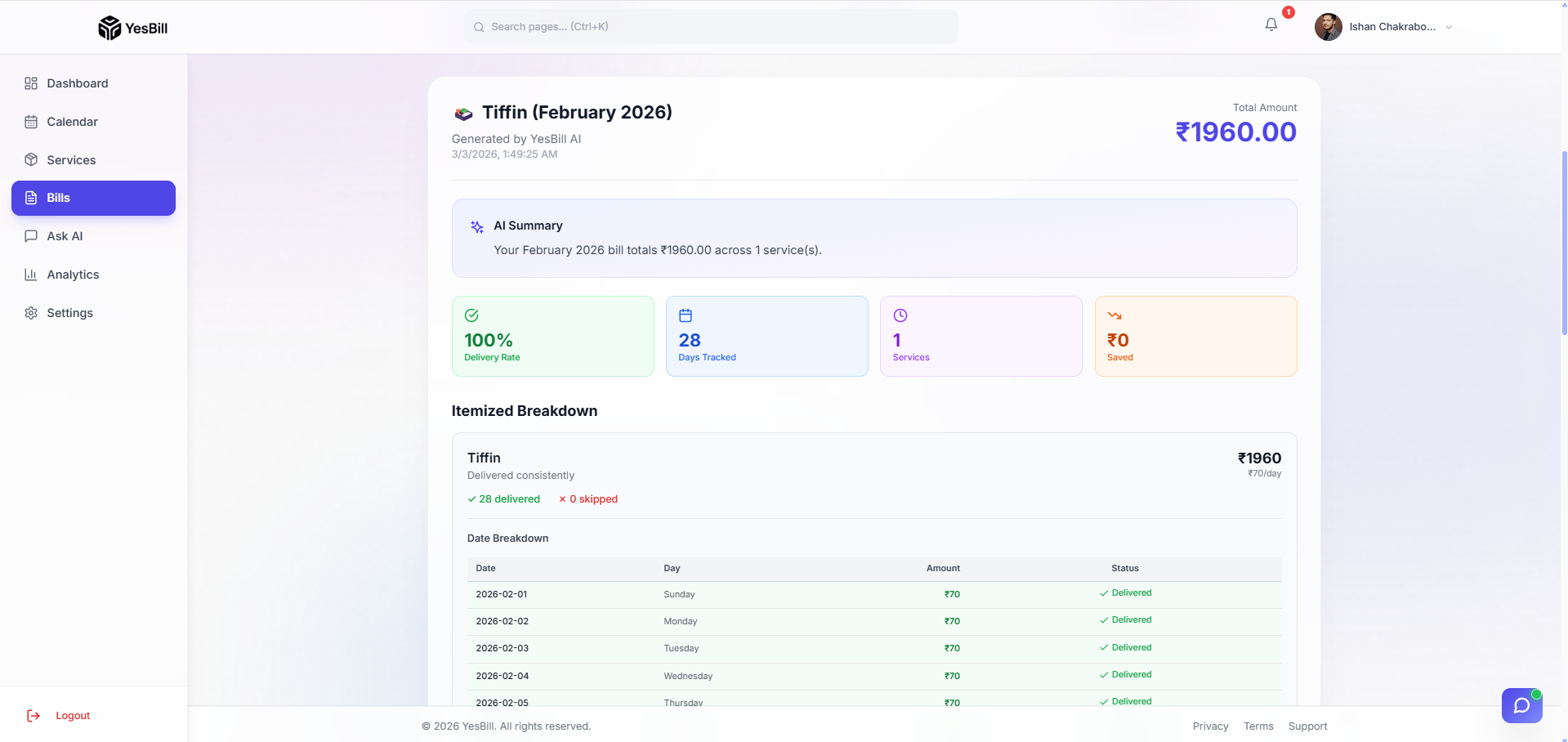
When an AI summary has been generated for a bill, it appears as a highlighted card at the top of the bill detail view — giving you an at-a-glance plain-English explanation of all charges before diving into the line items.
Bill Status
- Unpaid 🔴 — Bill has been generated but not yet paid
- Paid 🟢 — You've recorded payment for this bill
AI Bill Summary
If you have AI configured, each bill can have an AI-generated summary that explains:
- What was charged and why
- Unusual months (e.g. "Only 18 days delivered — 3 days missed")
- Total spend in plain language
Click Generate Summary on any bill to create one.