Marking Bills as Paid
Once you've paid a service for the month, record it in YesBill to keep your records clean.
How to Mark a Bill as Paid
From the Bills Page
- Go to Bills in the sidebar
- Find the bill you've paid
- Click Mark as Paid
- A modal opens:
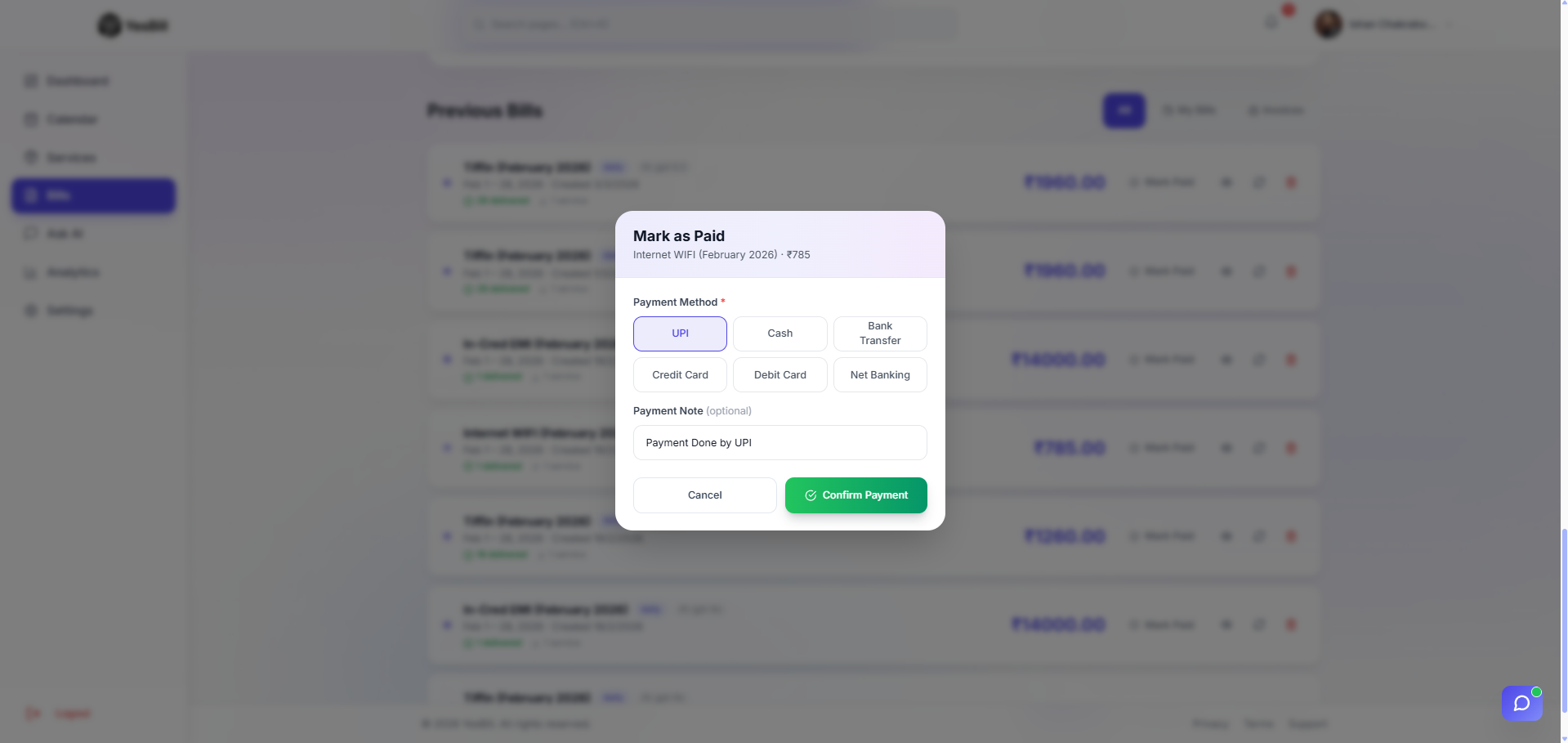
- Select your payment method
- Optionally add a payment note (e.g. UPI transaction ID)
- Click Confirm
Paid Bill Status
-01-04b90cd983b9cca6b9384d718dde858f.png)
Once confirmed, the bill card updates to show a green Paid badge along with the payment method and the date you recorded the payment.
From the Calendar
- Open the Service Calendar for a subscription/payment service
- Click the billing day cell
- Click Mark Paid in the popup
Payment Methods
You can record how you paid:
| Method | Examples |
|---|---|
| Cash | Hand-to-hand cash payment |
| UPI | GPay, PhonePe, Paytm, BHIM |
| Bank Transfer | NEFT, RTGS, IMPS |
| Cheque | Cheque payment |
| Card | Debit/credit card |
| Auto-debit | Bank auto-debit or SI |
Undoing a Payment
To unmark a bill as paid:
- Open the bill
- Click Undo Payment (shown when bill is marked Paid)
- Confirm the action
Payment History
All payment records are stored permanently. You can:
- Filter bills by "Paid" or "Unpaid" status
- See payment method and notes on each bill
- Use Ask AI to query payment history ("Did I pay the internet bill in December?")