AI Agent Chatbot
The AI Agent goes beyond answering questions — it can take actions in your account on your behalf, with your confirmation.
Opening the Agent
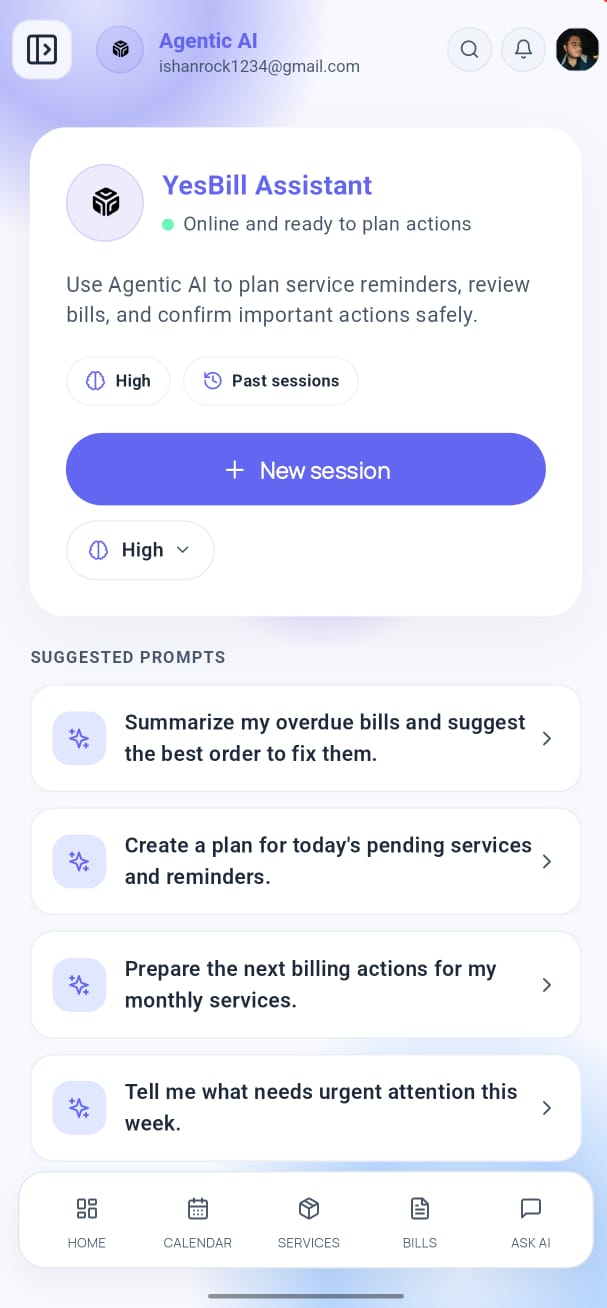
Tap Ask AI in the bottom navigation bar, then tap the Agent tab (or the robot icon with a wrench). This switches from Q&A mode to the agent mode.
Chatting with the Agent
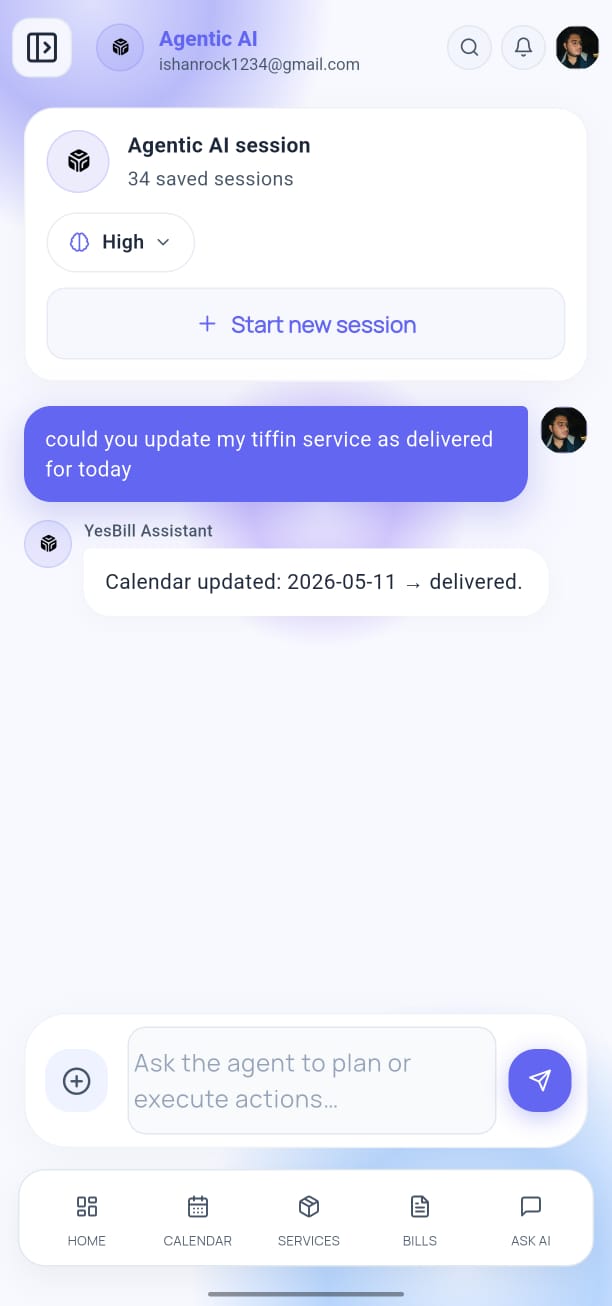
Type what you want the agent to do. Examples:
- "Generate all bills for this month"
- "Add a new service called 'Evening Newspaper' at ₹5 per day"
- "Mark all milk deliveries for last week"
- "Delete the tiffin service"
The agent understands natural language and figures out the right actions to take.
Confirmation Before Action
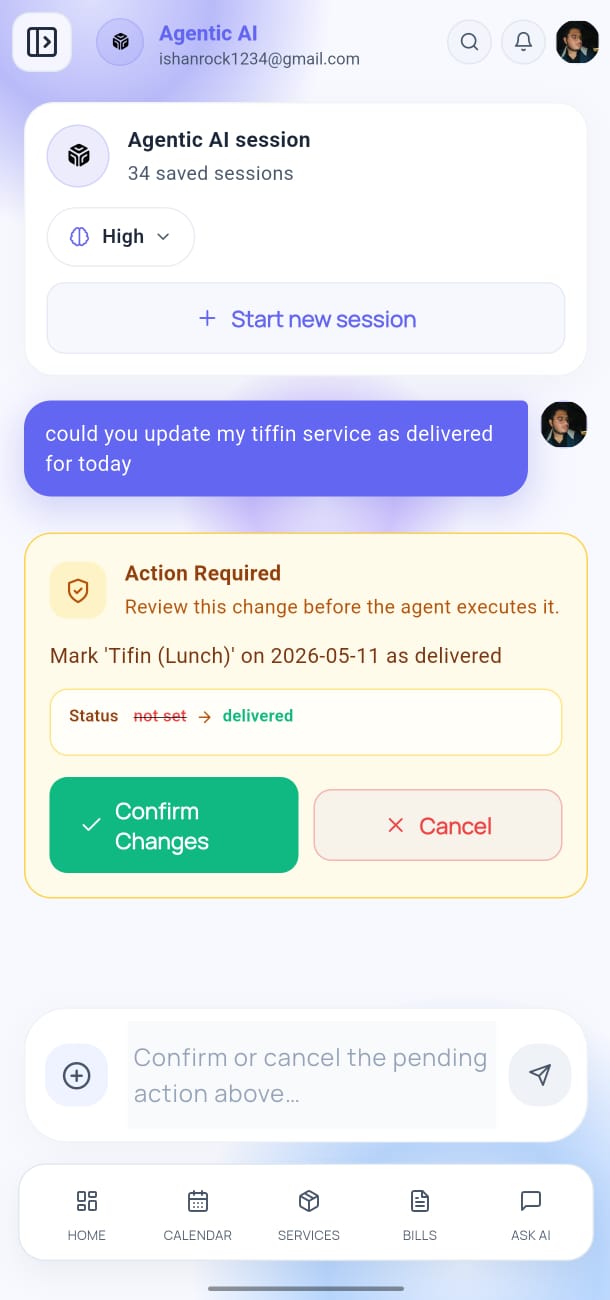
Before the agent makes any change to your data, it shows a confirmation dialog listing exactly what it will do. You can:
- Tap Confirm to proceed
- Tap Cancel to abort
- Edit your request and try again
This ensures the AI never makes unexpected changes without your approval.
What the Agent Can Do
| Action | Example Command |
|---|---|
| Generate bills | "Generate milk bill for October" |
| Add a service | "Add tiffin service at ₹80/day" |
| Update a service | "Change the milk rate to ₹28/litre" |
| Mark calendar entries | "Mark all deliveries for last Monday" |
| Answer questions | "What's my total for this month?" |
AI Provider
The agent uses the same AI provider as Ask AI. See AI Configuration to set up your provider.
The agent actions are irreversible in some cases (e.g. deleting a service). Always review the confirmation carefully before tapping Confirm.