Daily Tracking
Daily tracking is the core activity in YesBill. You spend a few seconds each day marking your service statuses.
How to Mark a Day
From the Calendar View
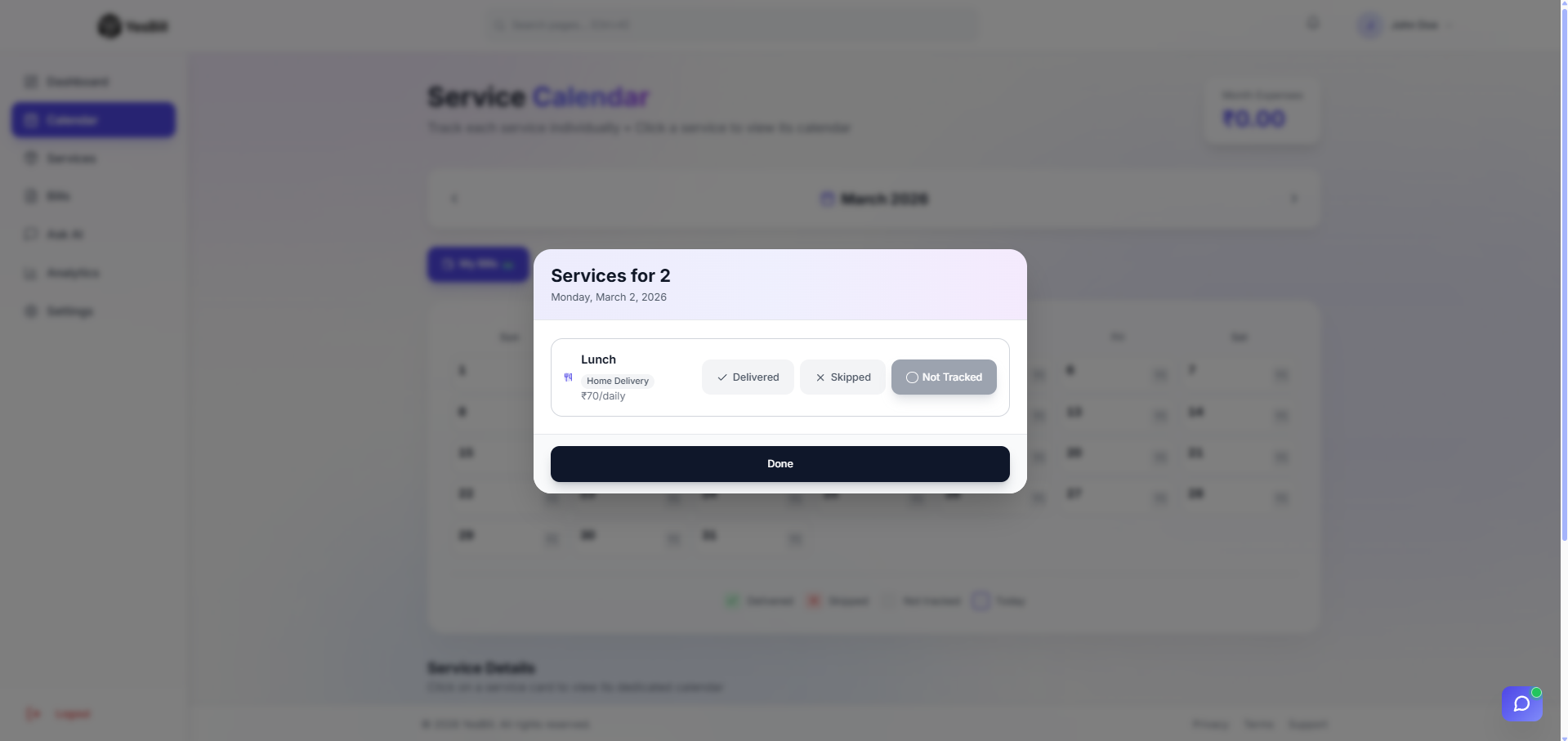
- Navigate to the current month using the Calendar in the sidebar
- Find the row for your service (e.g. "Morning Milk")
- Click the day cell — a date modal opens
- Select Delivered or Skipped (for home delivery) / Visited or Missed (for visit-based)
- Click Save to confirm the status
From the Service Calendar Page
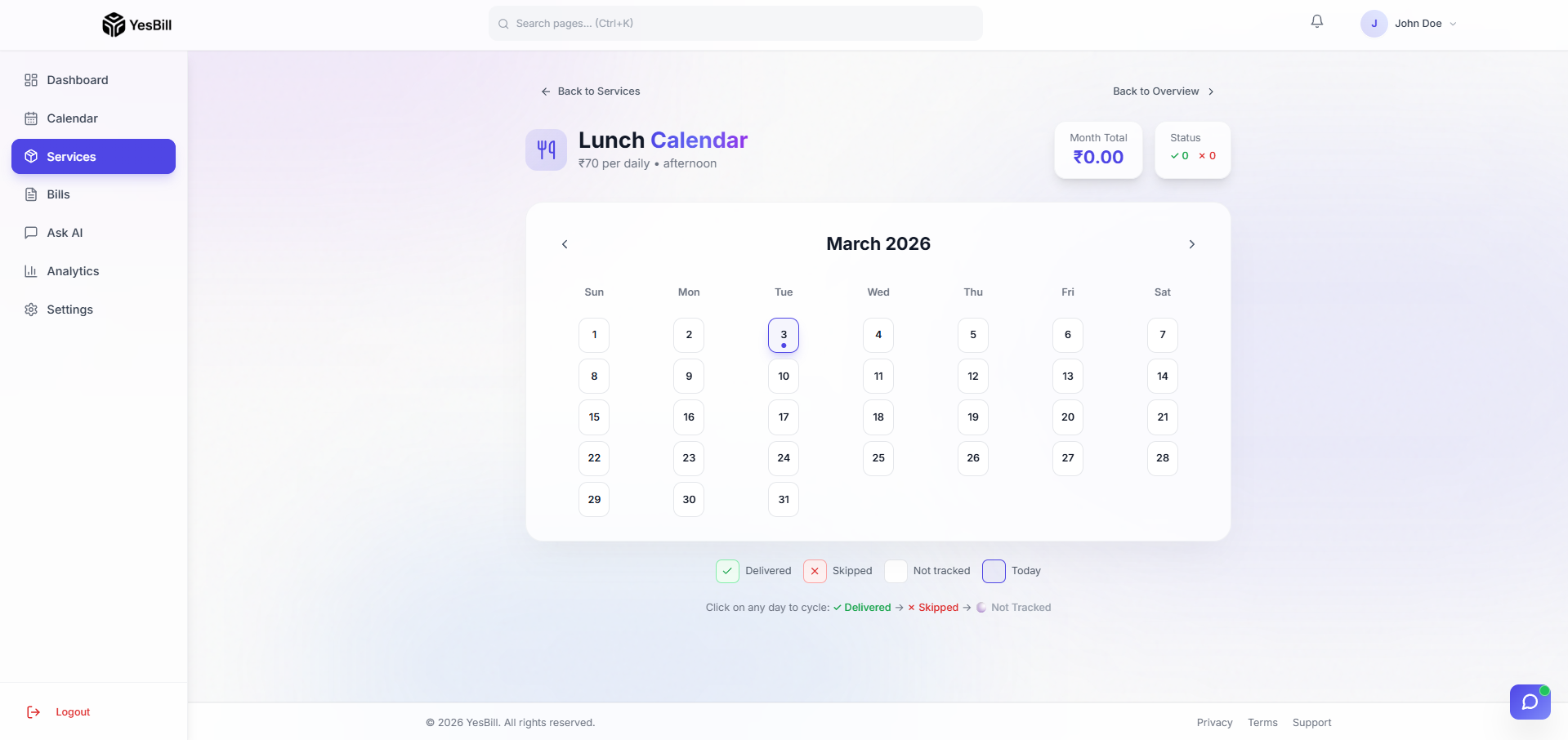
- Click a service name to open its individual calendar
- Click any day in the attendance grid
- The day toggles between states with each click
Tracking History
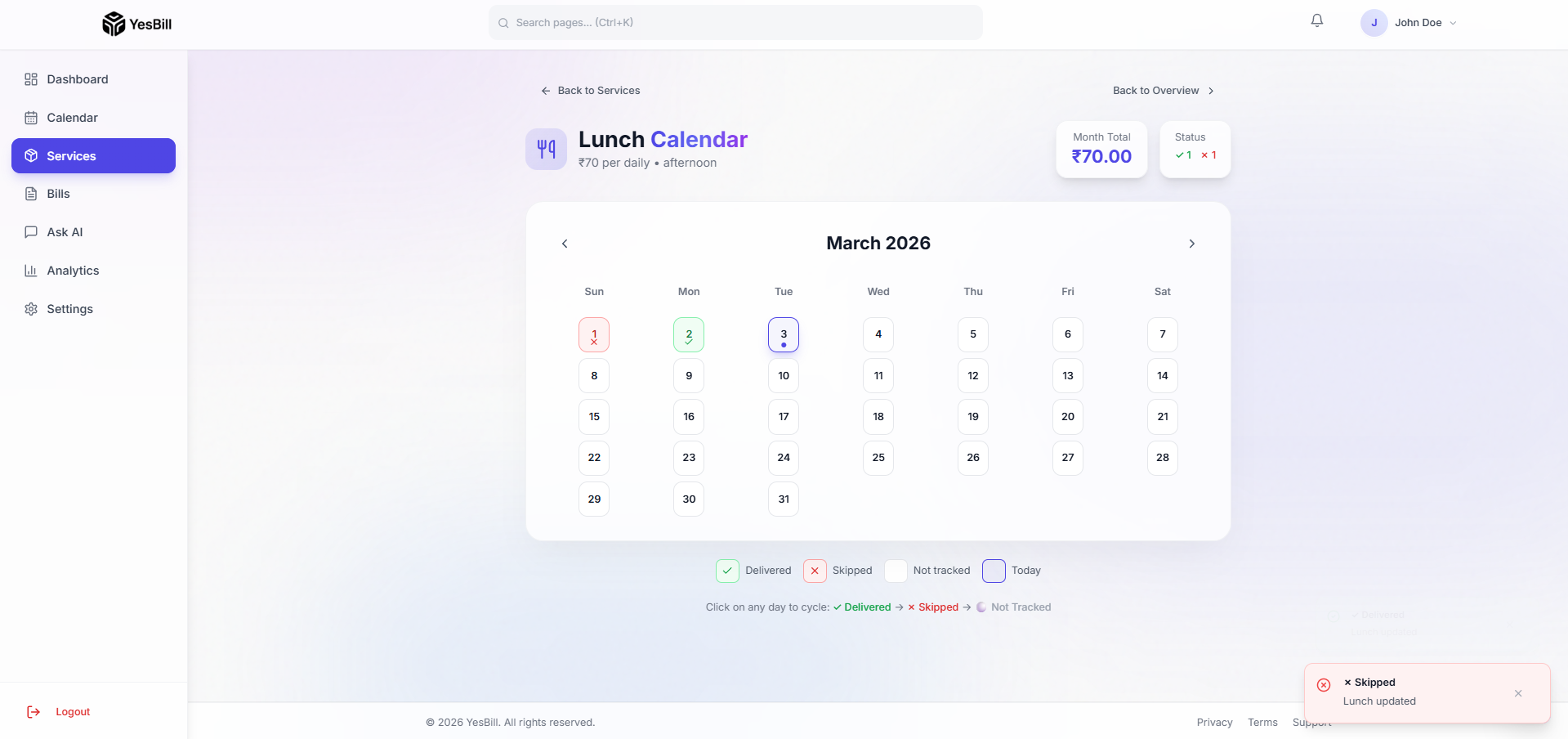
As you mark days throughout the month, the calendar fills in with colour-coded status indicators. Green cells are delivered/visited days, red cells are skipped/missed days, and grey cells are still pending. This filled-in view makes it easy to spot any gaps before the month ends.
Status States
| Status | Colour | Meaning |
|---|---|---|
| Pending | Grey | Not yet marked |
| Delivered / Visited | Green | Service happened |
| Skipped / Missed | Red | Service didn't happen |
note
Pending days are excluded from the bill calculation — only Delivered/Visited days count towards your bill.
Editing Past Days
You can mark or edit any day in the current and previous months. To go back further, navigate to the previous month using the arrow buttons.
Bulk Marking
Coming soon: ability to mark multiple days at once (e.g. mark all Sundays as Skipped).
Best Practices
- Daily habit: Mark yesterday's status when you sit down in the morning
- Monthly habit: Before month end, check for any Pending days and mark them
- Don't worry about errors: You can always click a marked day to change its status